
Uploading files
You can upload files or folders using drag-and-drop functionality or by clicking the “Add files”, “Add folder” or “Upload archive content” buttons.
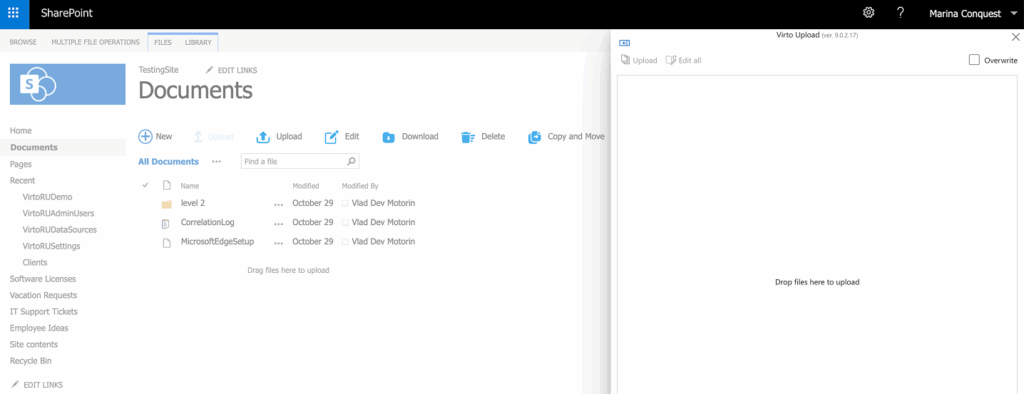
Please note: SharePoint doesn’t allow the upload of 0 KB (empty) files.
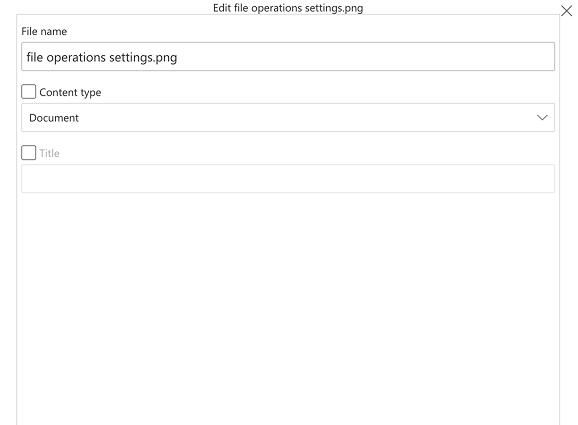
By clicking on the edit icon, you can edit file properties such as file name, content type, title, lookup, and any other default or custom properties. If you want to delete a file without uploading it, simply click on the trash bin icon next to it.
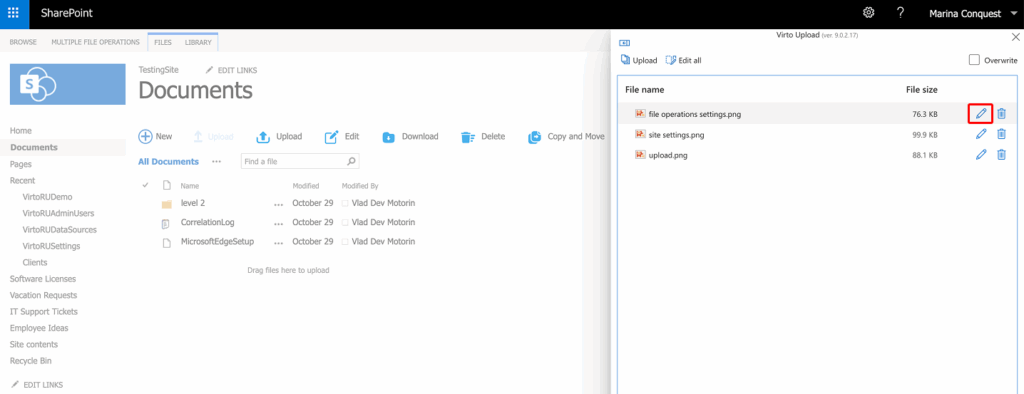
The checkbox symbol appears after you have set properties for a file:
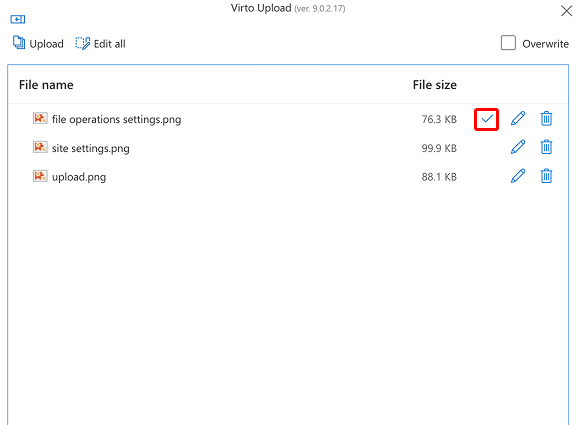
You can also click “Edit All” to set and apply the same properties to all files.

Click “Upload” at the top left to upload files. Once the files are uploaded, click “X” to exit the app.