Contact us
View as Markdown
Ask AI

Open this page in an AI assistant with a ready-made prompt.

Opens a third-party service and shares a pre-filled prompt containing this public page URL, its product documentation URL and /llms.txt. No VirtoSoftware account or tenant data is included. Provider terms and privacy policies apply. Verify answers against the linked documentation.

OpenAI terms · OpenAI privacy policy · Anthropic terms · Anthropic privacy policy

Installing the Virto Calendar SPFx web part and Mini Calendar

To start using the Virto Calendar web part on modern sites/pages of SharePoint 2019, please follow the steps below:

  1. Create a Tenant App Catalog in your SharePoint if necessary.
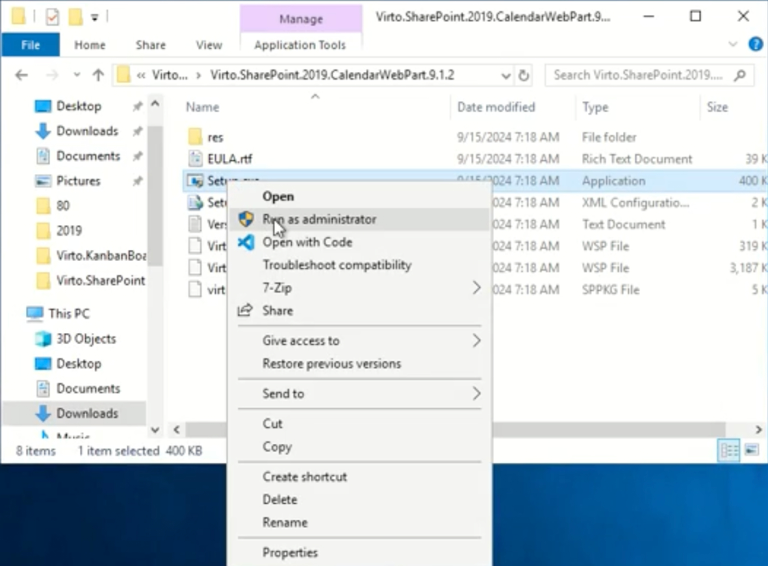
  2. To install the Virto Calendar web part, run the Setup.exe file under the farm administrator account (right-click the Setup file and choose “Run as administrator”).

Running the Virto Calendar SPFx Setup.exe as administrator to upload the sppkg to the Tenant App Catalog

The .sppkg file will be automatically uploaded to your Tenant App Catalog under “Apps for SharePoint.” However, please verify the existence of the .sppkg file in your app catalog. If it is not there, upload it manually from the installation folder — the package shipped inside the installer is the one this product is licensed and supported with.

Now you can add the Virto Calendar to modern pages/sites.

Please do not use the service administrative account to install and activate the SPFx web part on your sites.

The Virto Mini Calendar SPFx web part is also available. The installation process is the same as for the Virto Calendar SPFx web part. Simply choose “Virto Mini Calendar Modern web part” when adding it to a SharePoint site page.

Choosing Virto Mini Calendar Modern web part when adding it to a SharePoint site page

Updated on August 13, 2026