Adding a New Calendar
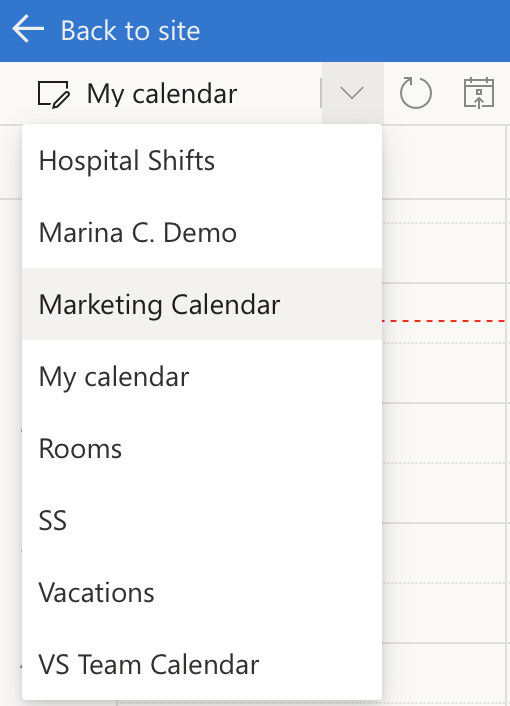
The list of available calendars appears in the “Available calendars” section in the Virto Calendar App settings. To add a new calendar, click “Create New” and choose (or create) a data source as described in the “Adding a New Data Source” section.
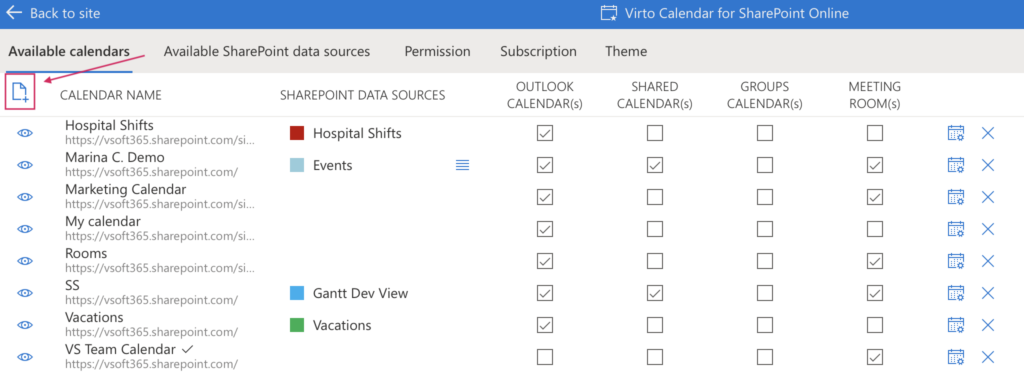
“Create New” icon is located in the upper left corner
In this way, you can create multiple calendars with various combinations of data sources and switch between them without needing to open the settings again.