
SMTP
In the web part’s General Settings, click Create New Communication Settings (or the pencil icon of an existing connection). In Communication Settings, enter a Communication Settings Title and choose SMTP.

To use the farm’s outgoing mail settings, select Use standard SharePoint outgoing settings. Otherwise fill in the following fields:
SMTP Server – enter the SMTP server;
Port – enter the SMTP server port, 25 by default;
Use SSL (TLS) – select it if your SMTP server requires SSL (TLS);
From E-mail – enter the address on behalf of which the SMTP server will send email messages. Most servers check this address, and it is required to create an account on the mail server and send messages on behalf of it;
Use specific user credentials – if it is cleared, email is sent without authentication. If the SMTP server requires authentication, select it and fill in User Name and Password.
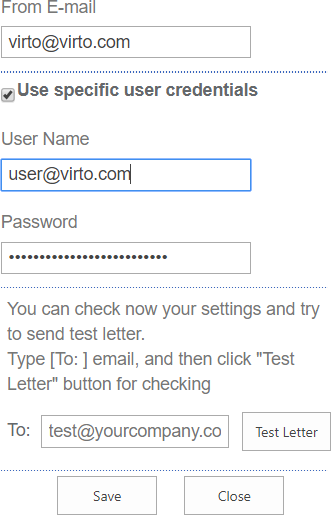
Type an address in To and click Test Letter to check the settings: the message about correct or incorrect settings will appear. Then click Save.