Administration tools
You can set common settings for the Virto Kanban Board at both the board level and the farm level. In this section, we focus on the farm level.
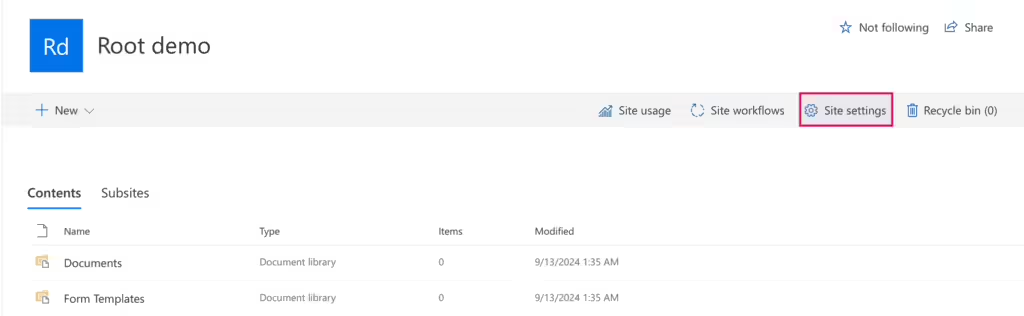
- Find “Site settings” in the top right corner.
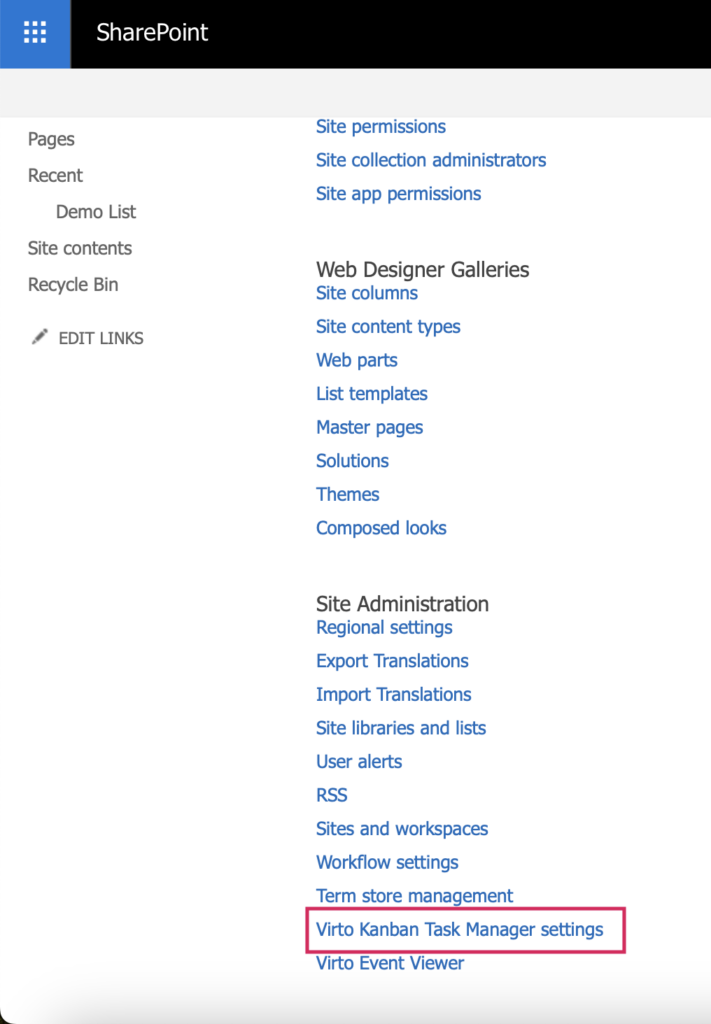
- Scroll down to “Virto Kanban Task Manager settings” in the “Site Administration” section.
A block of administration tools with three tabs will appear.

Settings
Virto Kanban settings
An administrator can select the checkbox “Always follow parent settings” to apply common settings for all Kanban boards on the site. Uncheck this option if you want to adjust each board individually.
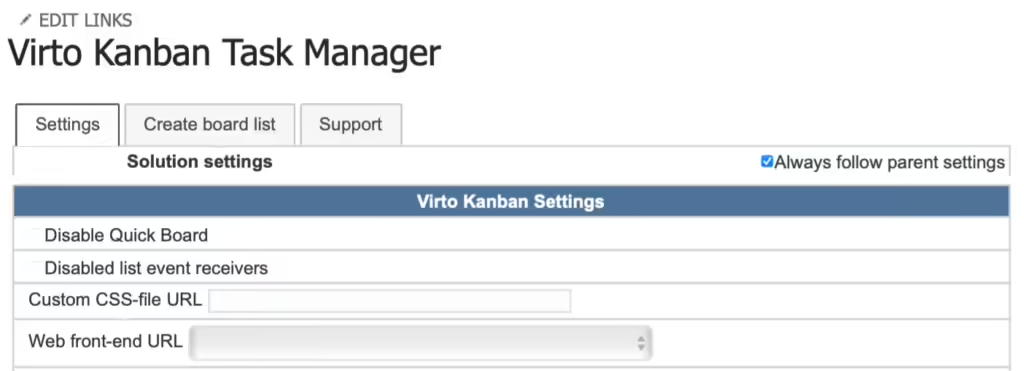
The “Solution Settings” block includes the following options:
- Disable Quick Board—select this checkbox if you plan to only create boards from existing lists.
- Disabled list event receivers—use this option to disable notifications when a task is moved to the “Completed” column.
- Custom CSS-file URL—enter the URL of a required CSS file to apply custom styles to your boards.
- Web front-end URL—choose the address (zone) of the web application used in links, for example Default or Extranet.
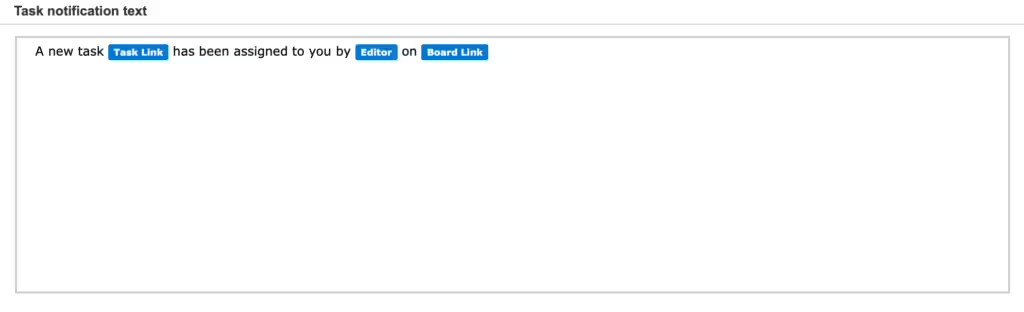
You can also adjust the task notification text. Modify the default message that will be sent to recipients. By default, users will receive an alert that includes who assigned the task, along with links to the task and the board. These settings are applied to the current site collection.
Swimlanes
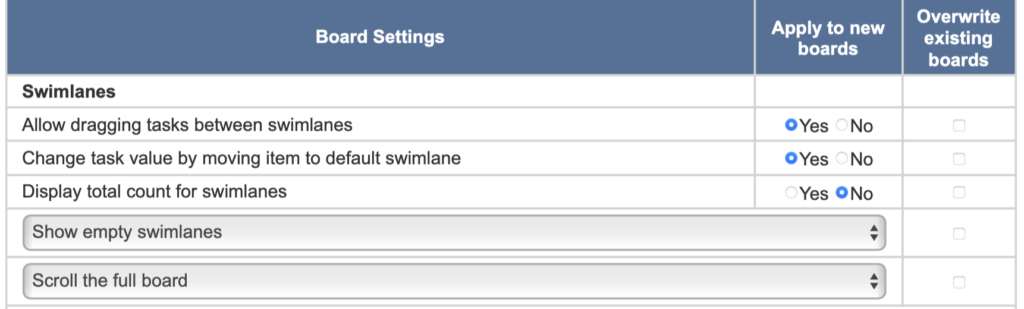
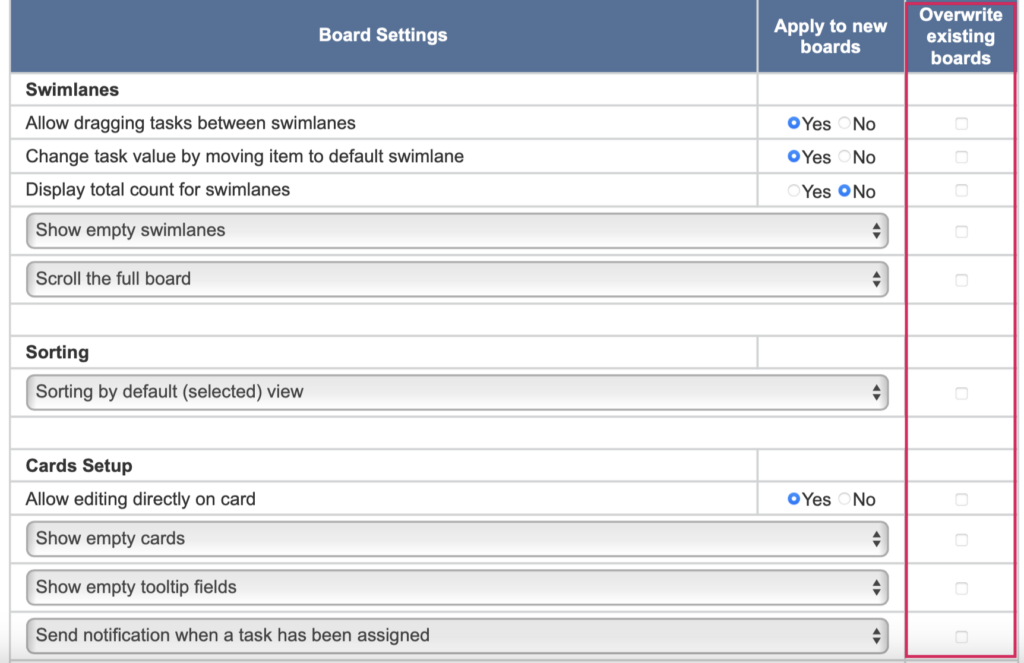
The “Swimlanes” block allows you to adjust the swimlanes on your board. You can:
- Allow dragging tasks between swimlanes.
- Enable task value changes when moving an item to the default swimlane.
- Hide empty swimlanes.
- Enable separate scrolling for columns.
- Display the total task count for swimlanes.
Sorting
You can choose between default sorting or allow manual sorting of tasks.

Cards setup
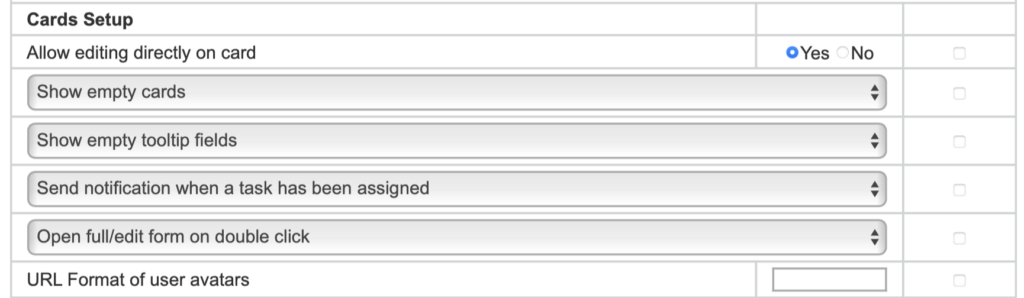
The “Cards Setup” block includes settings such as:
- Hiding empty cards or tooltip fields.
- Specifying a URL format for user avatars.
- Allowing direct editing on a card.
- Sending notifications when a task is assigned.
Select “Send notification when a task has been assigned” to send alerts to users when they are assigned a task.
If you choose “Open full/edit form on double-click,” the edit form will appear when double-clicking a task. You can also enable the use of the classic SharePoint form if preferred.
Advanced Setup
The “Advanced Setup” block includes default settings for new boards. Here you can:
- Set the first day of the week.
- Allow the creation of new tasks or task creation directly from a column.
- Enable horizontal scrolling.
- Enable dragging and dropping of tasks.
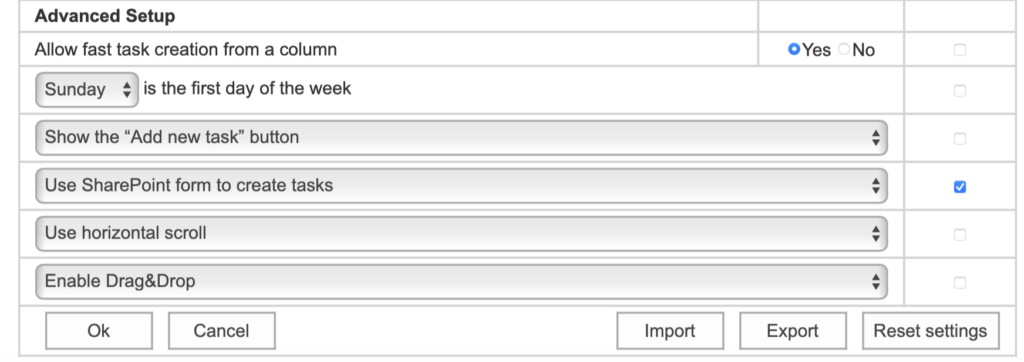
An administrator can select the checkbox “Overwrite existing boards” to prevent other users from modifying these settings based on their permission level. You can define default values for new boards or override existing board settings. Any option activated under “Overwrite existing boards” will disable (gray out) the corresponding feature in the board settings.
Buttons at the bottom of the tab
At the bottom of the Settings tab:
- Ok saves the settings.
- Cancel discards the changes.
- Import and Export load the settings from a file or save them to a file.
- Reset settings restores the default settings.
Create a board list
In the “Create board list” tab, you can generate a list of all boards on the SharePoint site. Click the board name to open it.
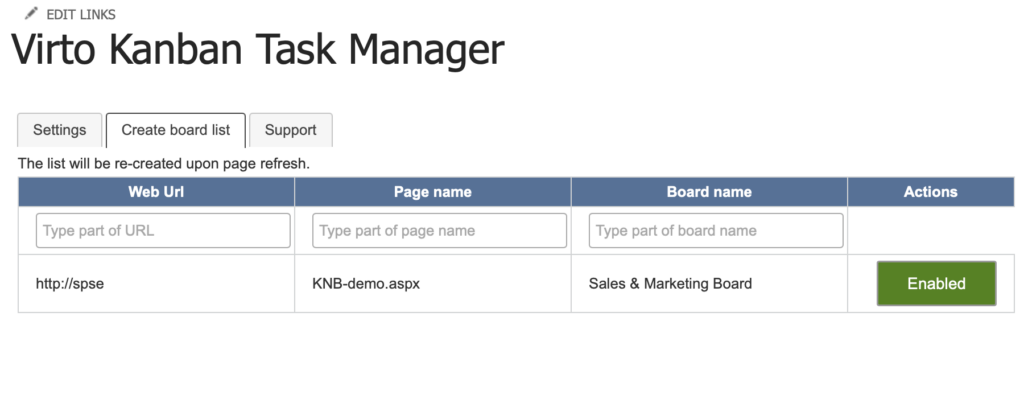
An administrator can enable or disable actions for the Kanban Board web part.
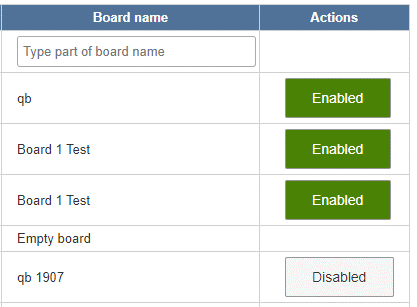
Use the search feature to find a specific board or filter the list of boards.
Support
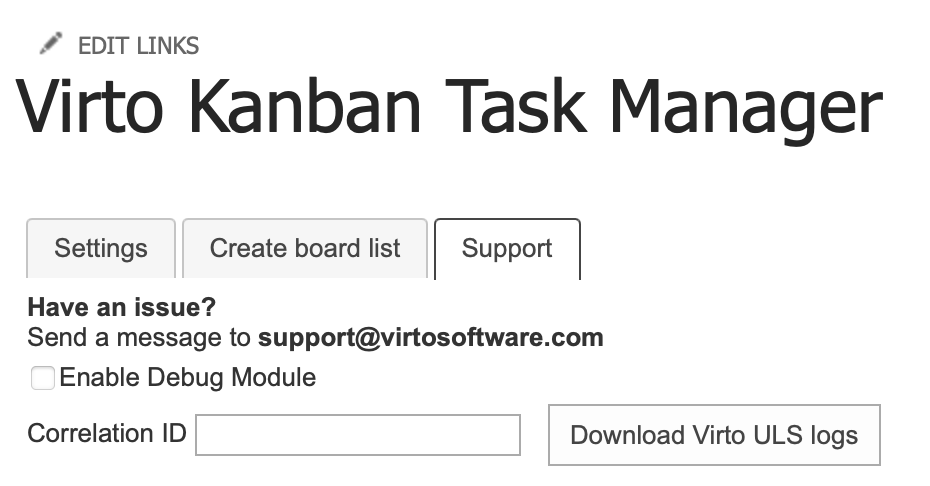
On the Support tab, you can send a message to support@virtosoftware.com if you have an issue.
The “Correlation ID” field is used for technical support. If you need additional admin information, check the “Enable Debug Module” checkbox to load debug information. The tab also has the “Download Virto ULS logs” button.