
Creating a quick board
Use the quick board feature when creating a new board quickly. The SharePoint list with all the necessary fields and preferences will be created automatically.
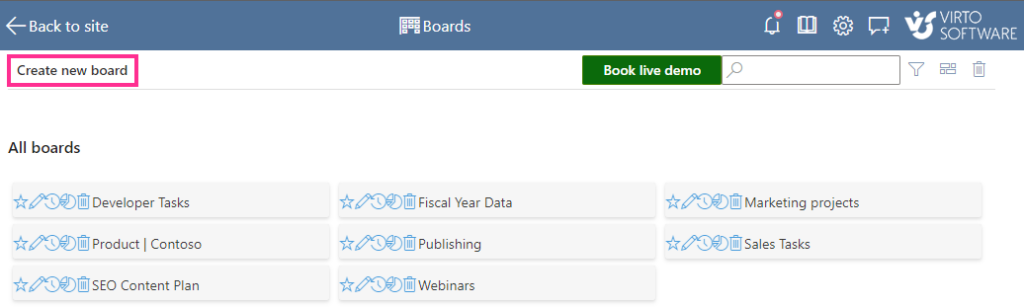
To create a quick board, open the “Boards” list at the top of any kanban board and click “Create new board.”
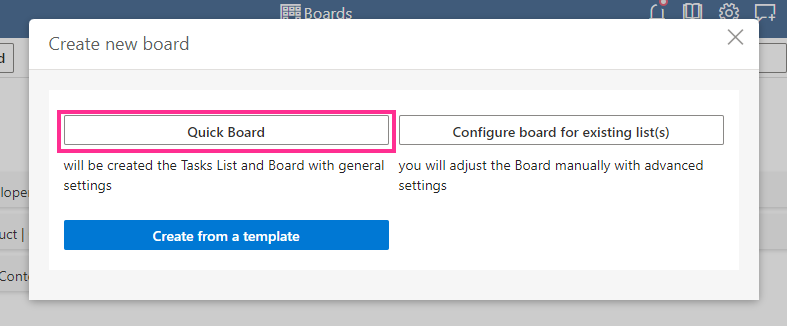
Select the “Quick Board” option.
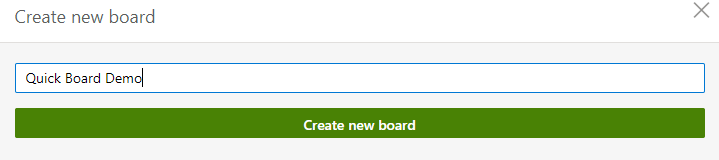
Specify the name for the new board, and click “Create new board.”
A list with the same name as the new board will also be created. You can see the demo task and default set of columns on the newly created board.
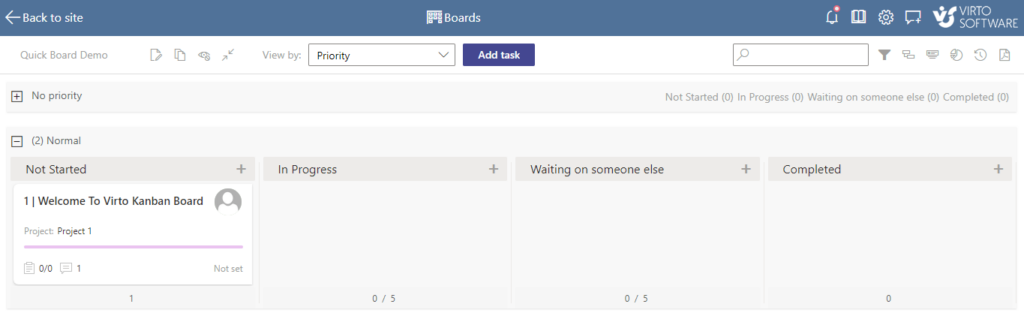
To change and adjust the board settings as needed, click the edit board icon next to the board name.
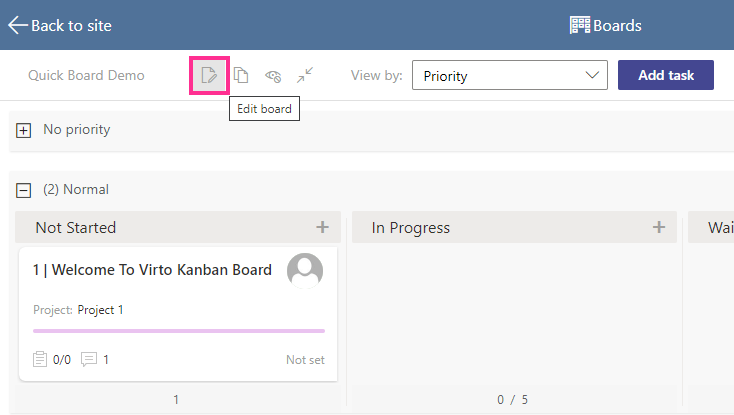
See “List setup,” “Board setup,” “Card setup,” and “Advanced setup” sections to find detailed information about Kanban board settings.
Quick boards have swimlanes organized by a project by default. You can change it by choosing the desired view from the “View by” drop-down menu. Read more about how to work with swimlanes when creating a quick board in the Swimlanes section.