Kanban Board in Microsoft Teams
The Virto Kanban Board App can be added as a separate tab to Microsoft Teams to avoid switching between applications to manage your team tasks.
You can create and manage tasks as usual in Teams and adjust the board settings in SharePoint. Although Kanban board customization is only available in the SharePoint environment, you can display and manage the board’s tasks in Teams without access to settings.
The Kanban boards in Teams inherit the user permissions from SharePoint and are invisible to external Teams users. To add a board to Teams, open the channel and click “+.”
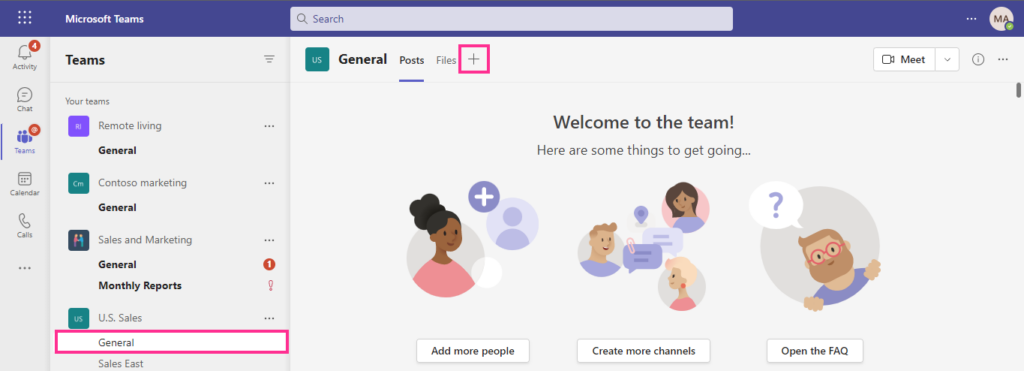
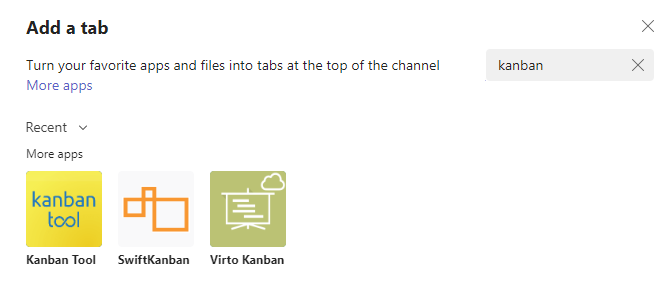
Find the Virto Kanban Board App and click on it.
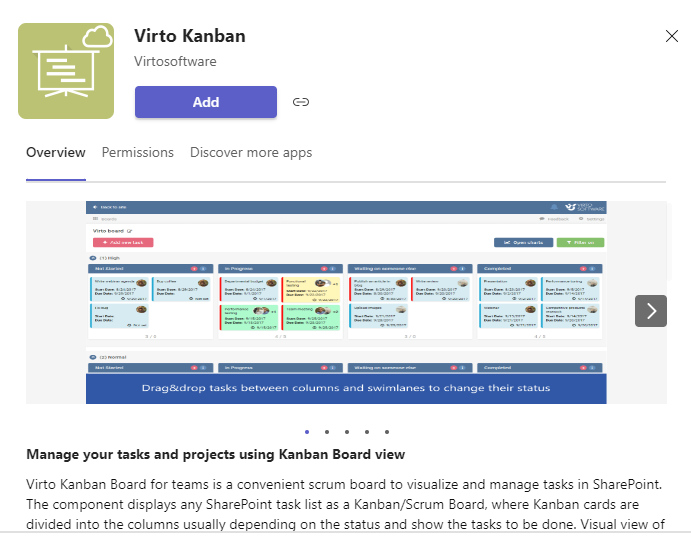
Now click “Add.”
Choose a board you wish to add and save the settings.
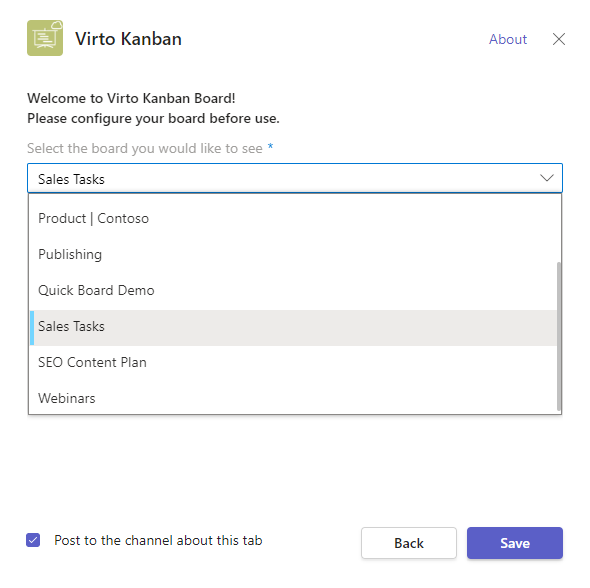
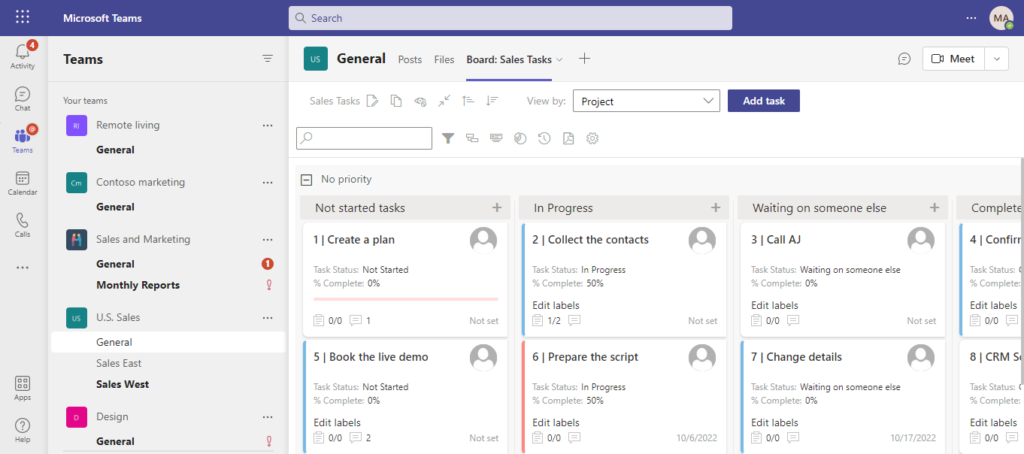
Now, you have a full-featured Kanban board in a separate tab of the Teams channel.
Dark theme
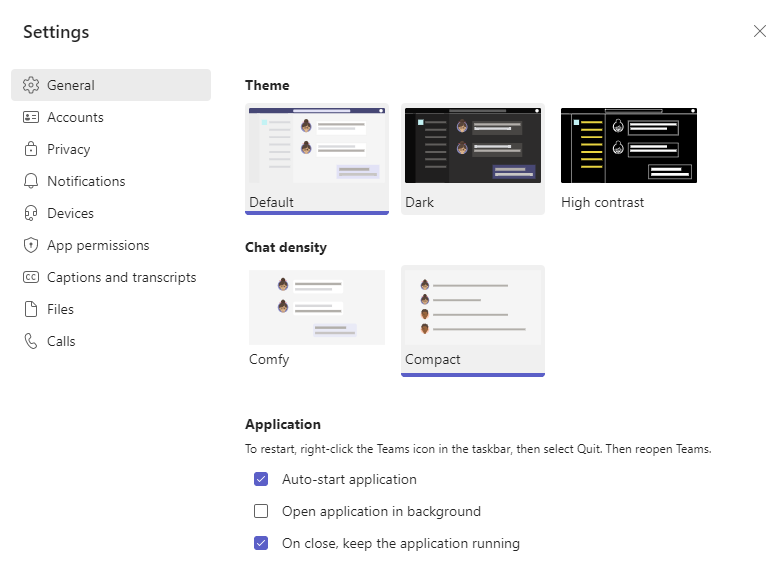
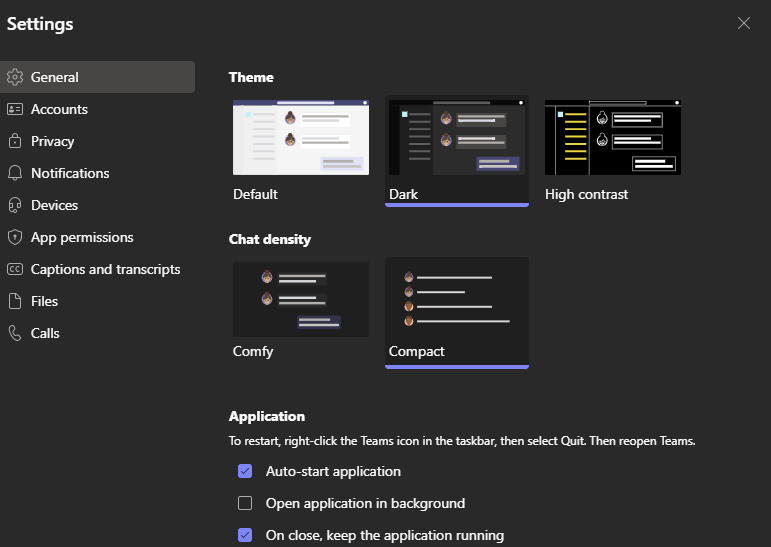
You can apply the dark theme for Kanban boards in Teams. Right-click the Teams icon in the tray to open the Teams settings and choose the dark theme.
The screen will switch to dark mode.
Now, open the Teams channel to which you have added the Virto Kanban Board App as a separate tab (also see “How to Install Virto Kanban Board for Microsoft Teams” for more).
The Kanban board will now be displayed in dark mode.
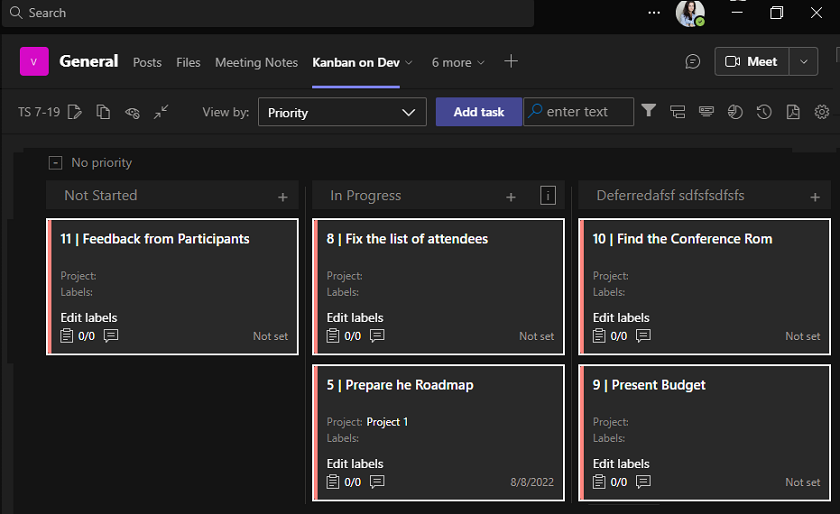
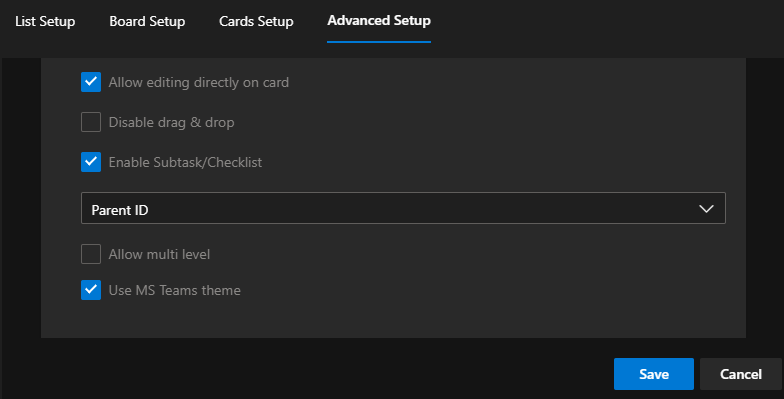
If the board is somehow not synchronized to the Teams theme, open the board settings ("Advanced Setup") and ensure you have the checkbox “Use Microsoft Teams theme” ticked.