
Working with Download
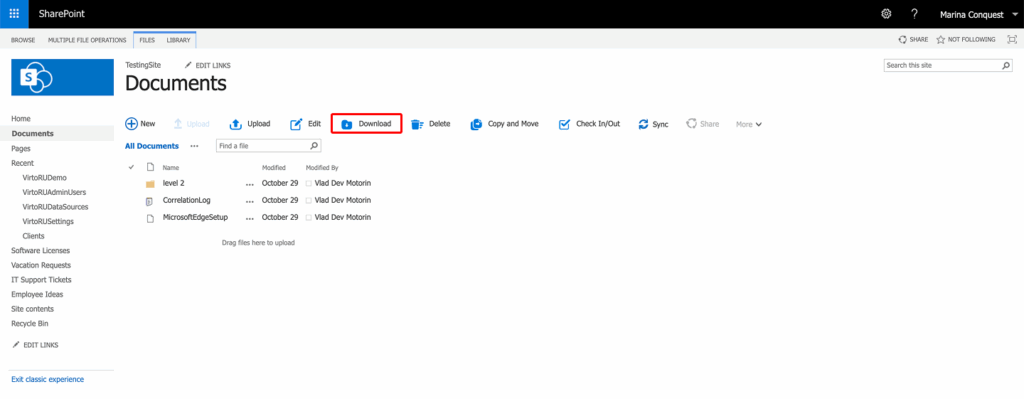
Quick Download
Select files and folders in the library and click Download. In the Virto Download panel, check or uncheck items in the tree; Approximate selected files size at the bottom shows the size of the selection. Click Download.

Download settings
Library settings → Virto Multiple File Download Settings: view settings, panel appearance and these options:
- Keep folder structure — keep the folder structure when downloading documents.
- Checkout files — check out files, if required, while downloading them.
- Maximum file size — upper limit in MB for the total size of the selected files (
0— no limit).
On the farm level you can also set a temporary folder for downloads; leave it empty to use the Windows Temp folder. For panel appearance and the settings levels, see Settings levels and panel appearance.

In modern libraries
In modern libraries, CheckIn, Download, Copy and Move and Upload are on the command bar. When files are selected, the Virto commands Download, Copy and Move, Upload, Edit and Delete are in the … menu (marked with the blue Virto icon). The panels work the same as in classic libraries.
