
General Settings
In this section of the guide, you can find details about the “General” tab.
In the “General” tab, you can change the calendar name and add a data source (from an existing data source or by creating a new one).
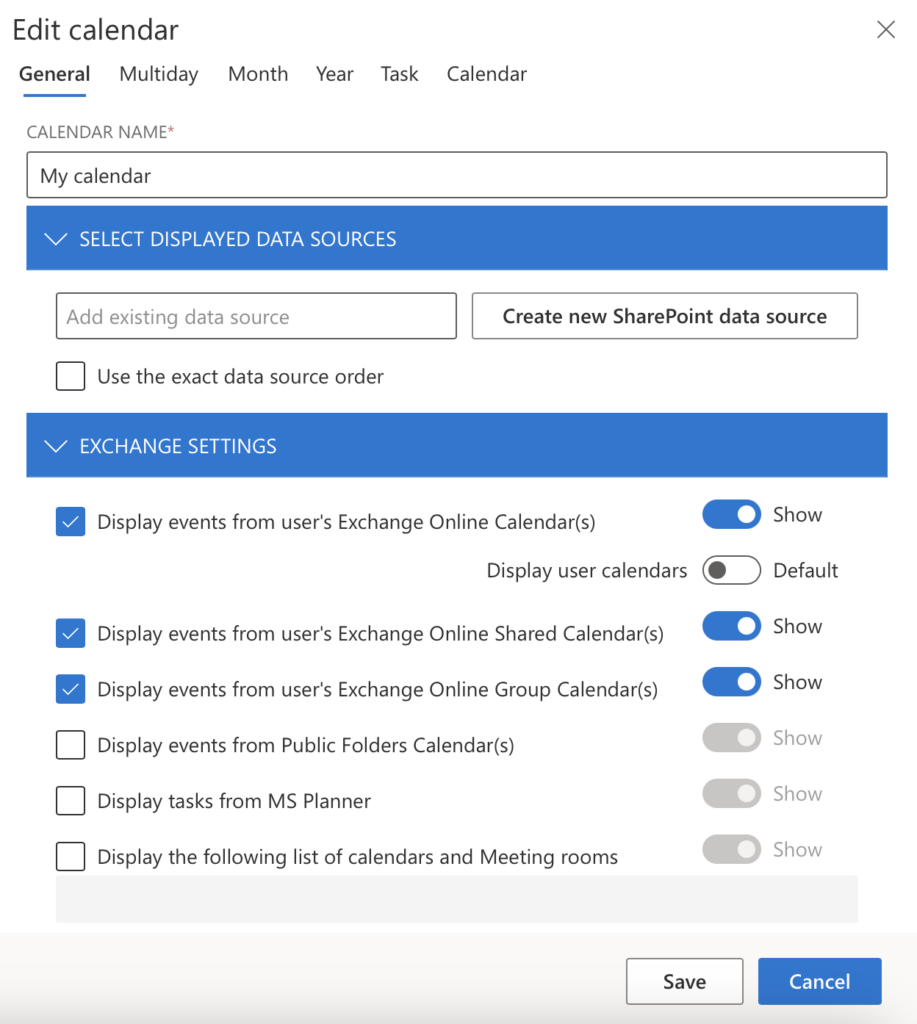
Data sources and basic options
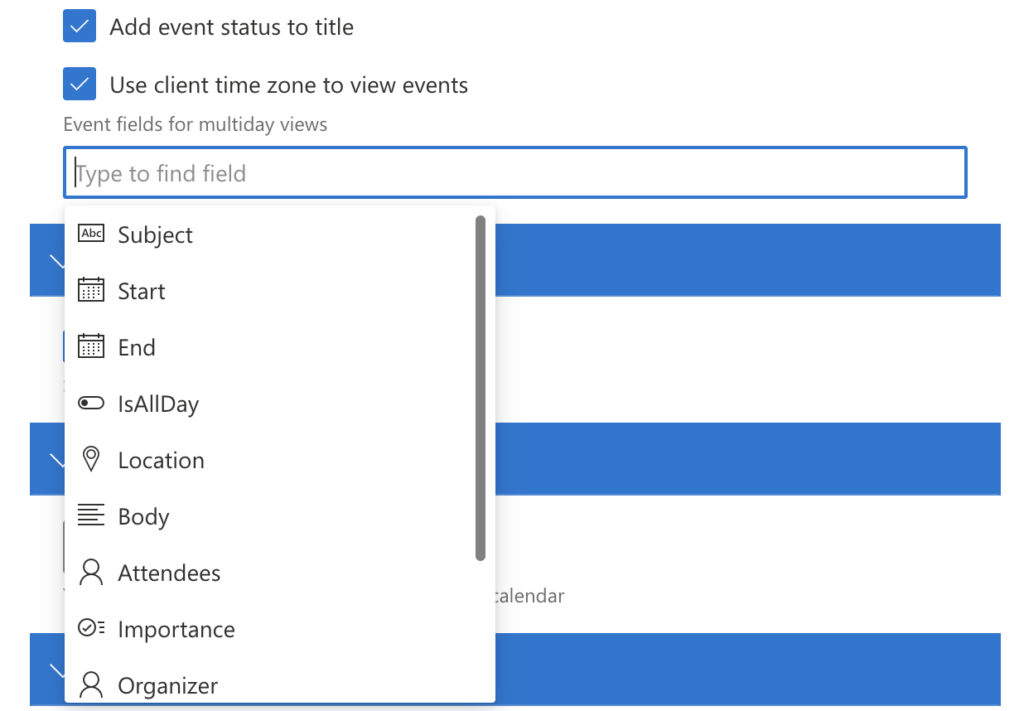
You can enable the “Add event status to title” option, “Use the client’s time zone to view events,” and select the fields displayed for various views (week, month, etc.).
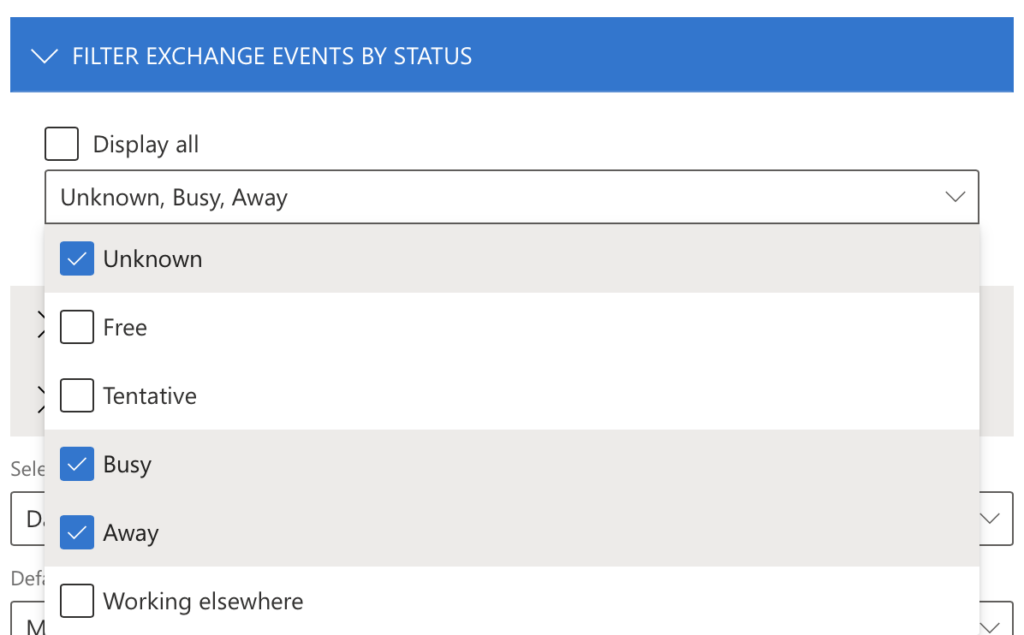
Filter Exchange events
You can filter Exchange events by status or display all of them.
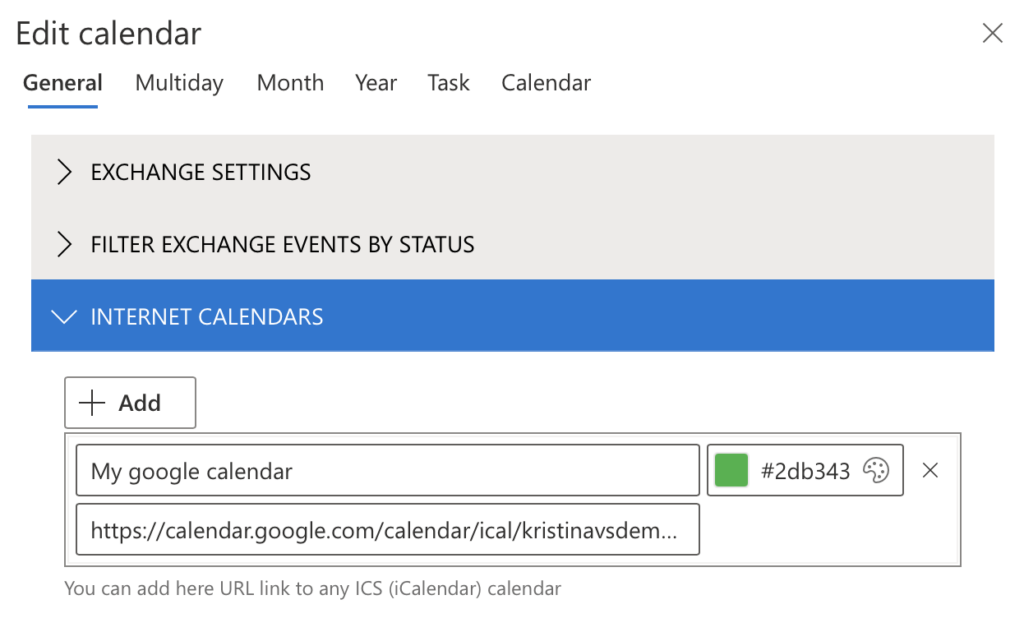
Internet calendars
In the “General” tab, you can add an ICS calendar from the Internet by pasting in its iCal URL.
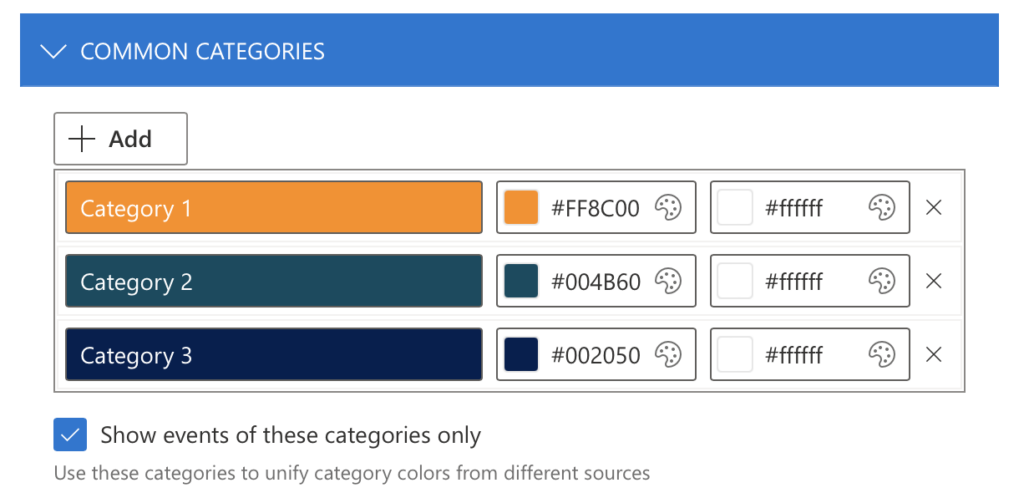
Common categories
If you have too many color-coded categories, you can unify them for better visualization. For more details, see the description in the “Unify Categories” section. If you only want to display events in a particular category, check the box “Show events of these categories only.”
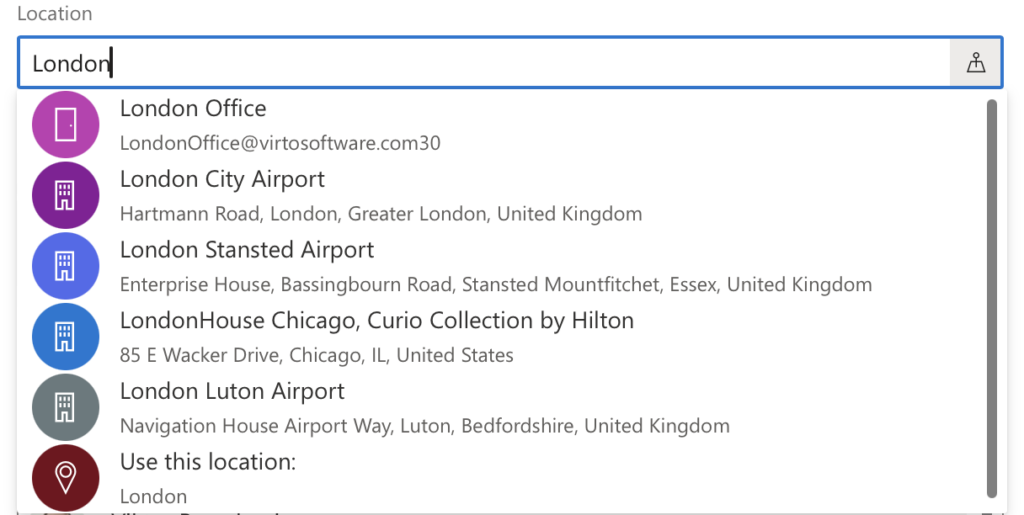
Location field
Virto Calendar App supports adding locations from an available list. To choose a location for your calendar entry, select it from the list in the event settings. This option also saves the location field for Outlook entries.
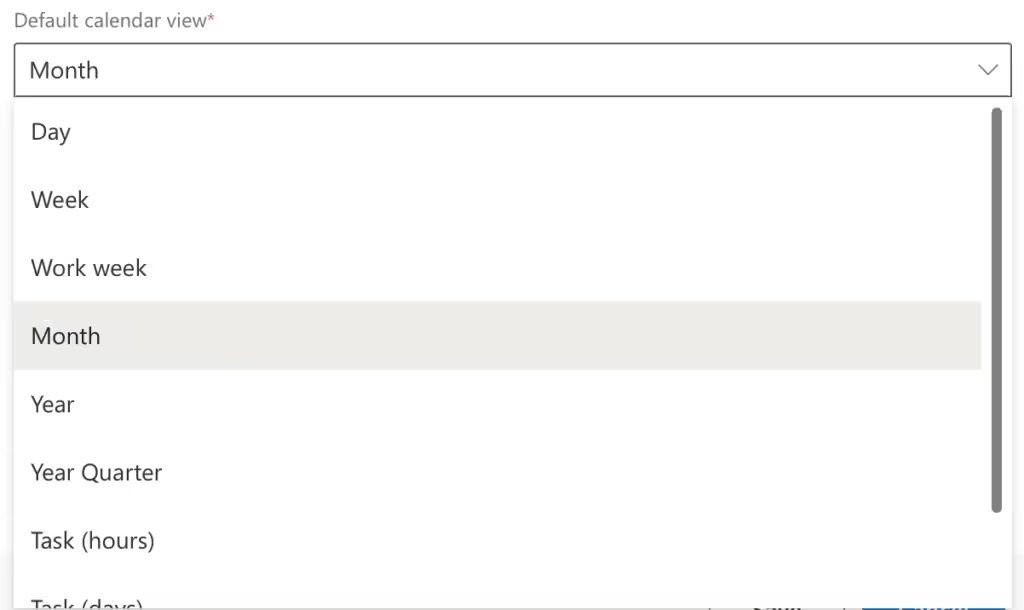
Default calendar view
Define the default calendar view, displayed when you navigate to the SharePoint site page where the calendar is added.
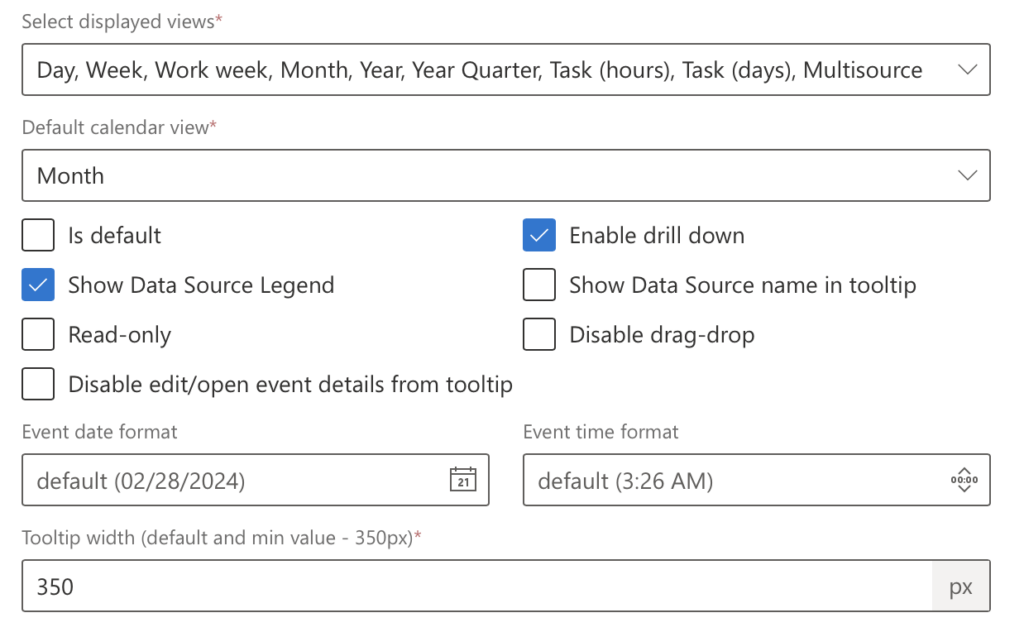
Other options
You can use the general settings to decide whether to display the data source legend, set the tooltip width, choose the views to display, and more.
Remember to save the changed settings by clicking “Save” before closing the settings.