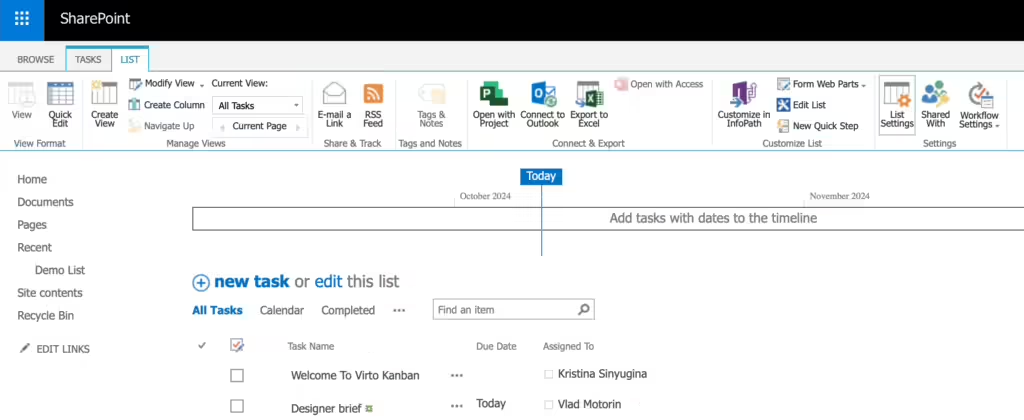
Creating and editing a new task
Use the “Add new task” button to add an item to the board.
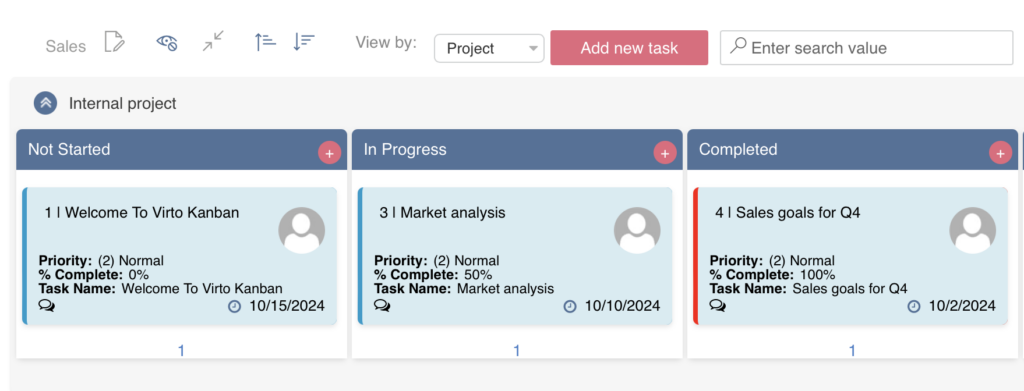
Fill in the required fields in the task creation form. You can define which fields will appear in this form in the “Cards Setup –> Form” section of the Kanban Board settings.
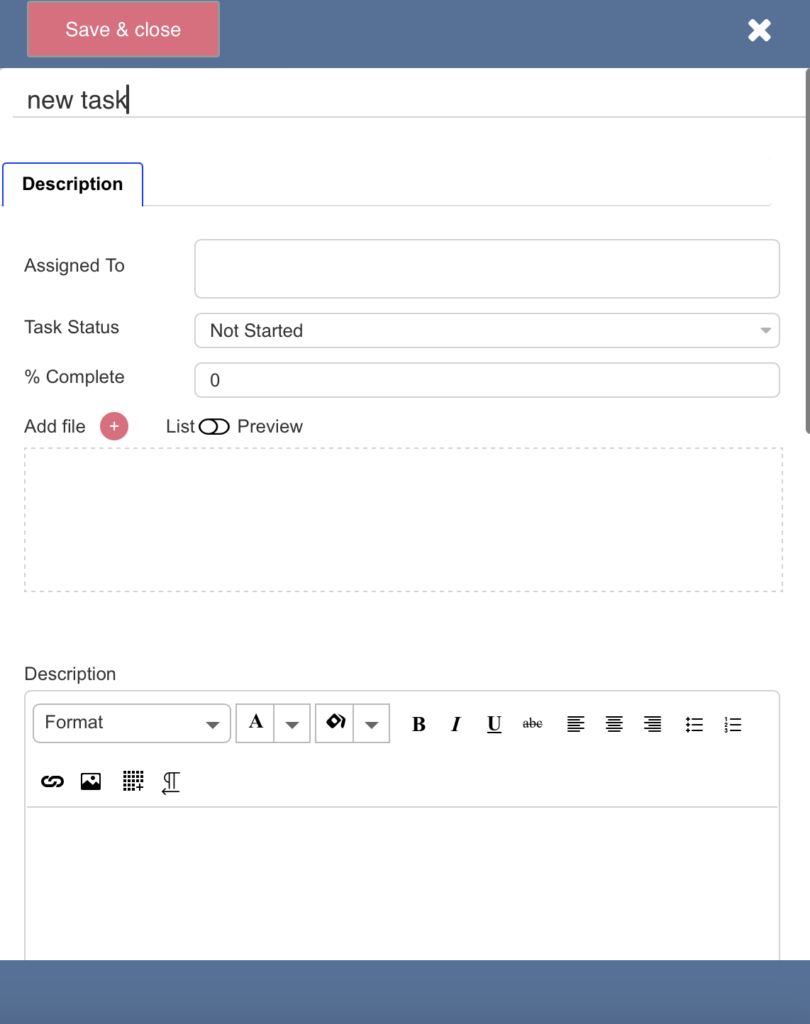
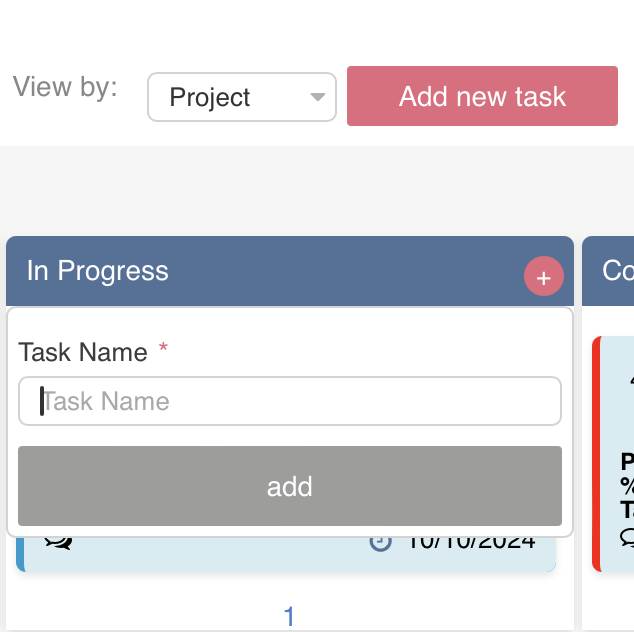
You can also use the "+" in a bucket to quickly add a task with the corresponding status. You can then edit task fields using the standard task edit form.
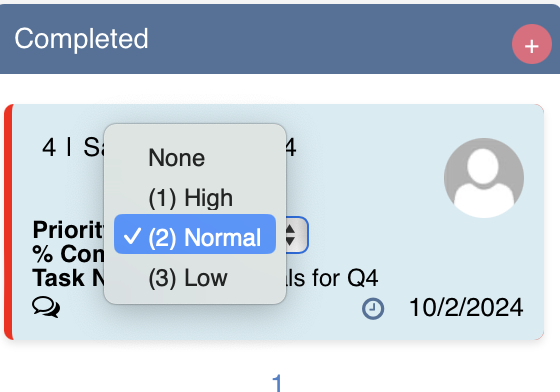
You can edit task values either in the edit form or directly on the Kanban card.
There is also an option to add choices for the “allow to fill in choices” fields. Typically, when you need to add new values to choice-type fields, you have to leave the Virto Kanban interface and go to a SharePoint list to make changes. With Virto Kanban Board, you can add these values directly on your Kanban board.
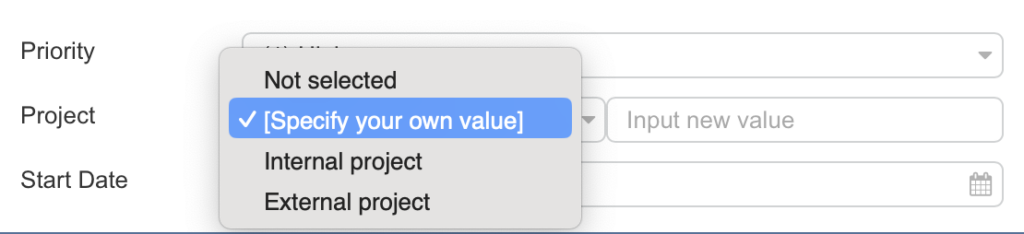
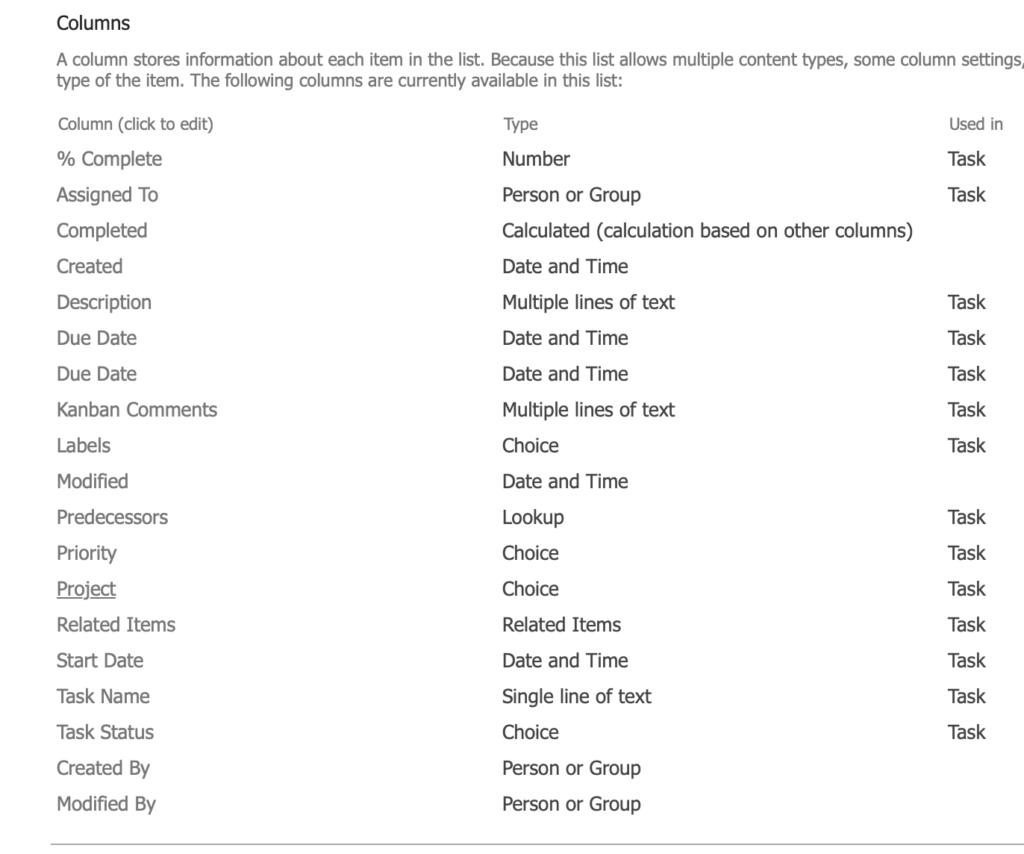
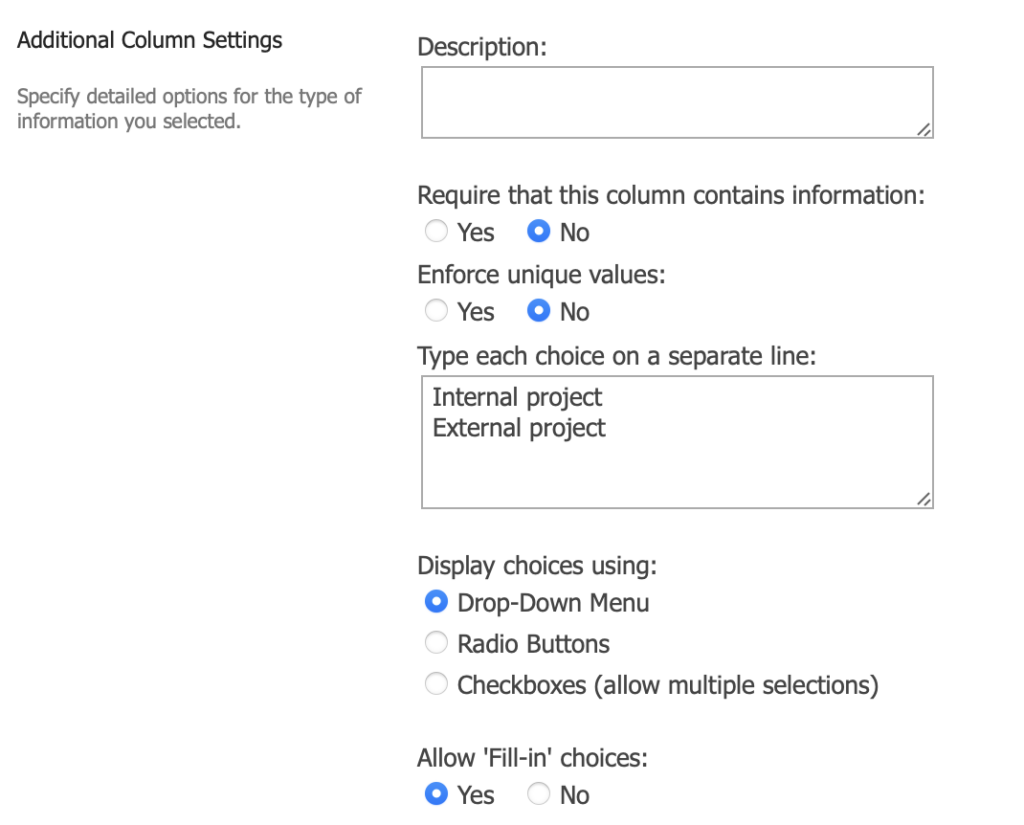
The custom choices you enter are available in the task edit form. The “Fill in” choices option must be enabled for the column in the list settings: