
Board fields
If you’re creating a board from a custom list (not a quick board), you can add missing fields in the board settings. When you have selected a list and moved to the “Cards Setup” step, review the fields. Some will already be selected, while others will not.
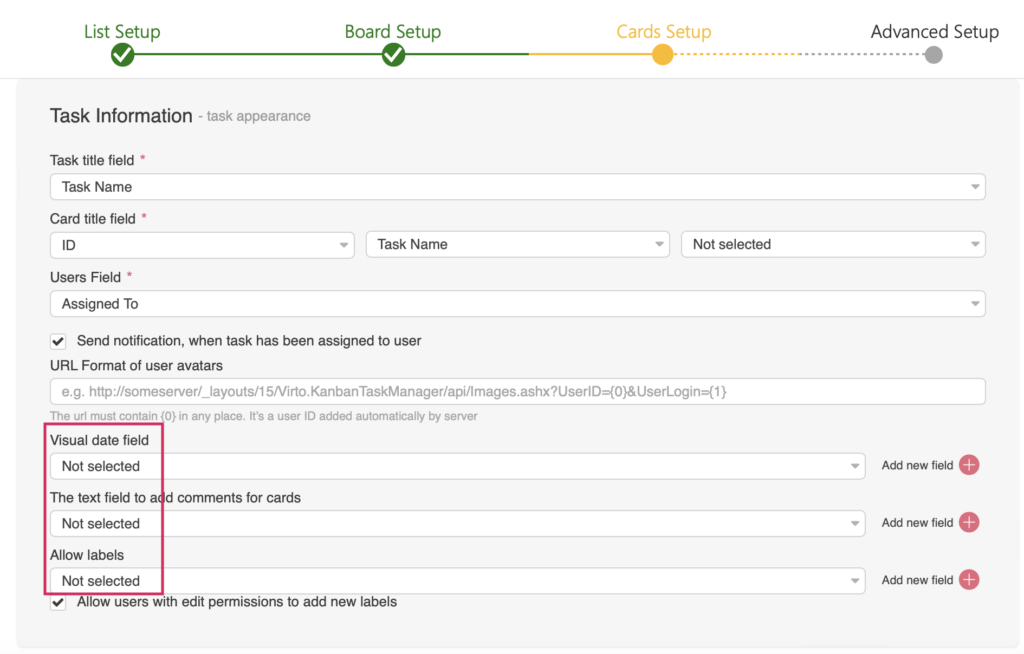
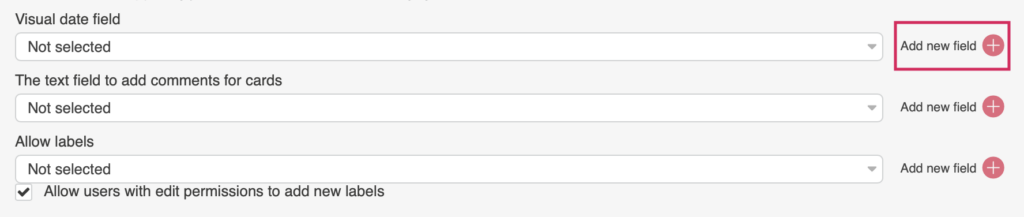
You should select the following fields: the visual date field, the text field for adding comments, and the allow labels field. If the list does not contain an appropriate option, click “Add new field” next to it—there’s no need to navigate to the list settings to add fields.
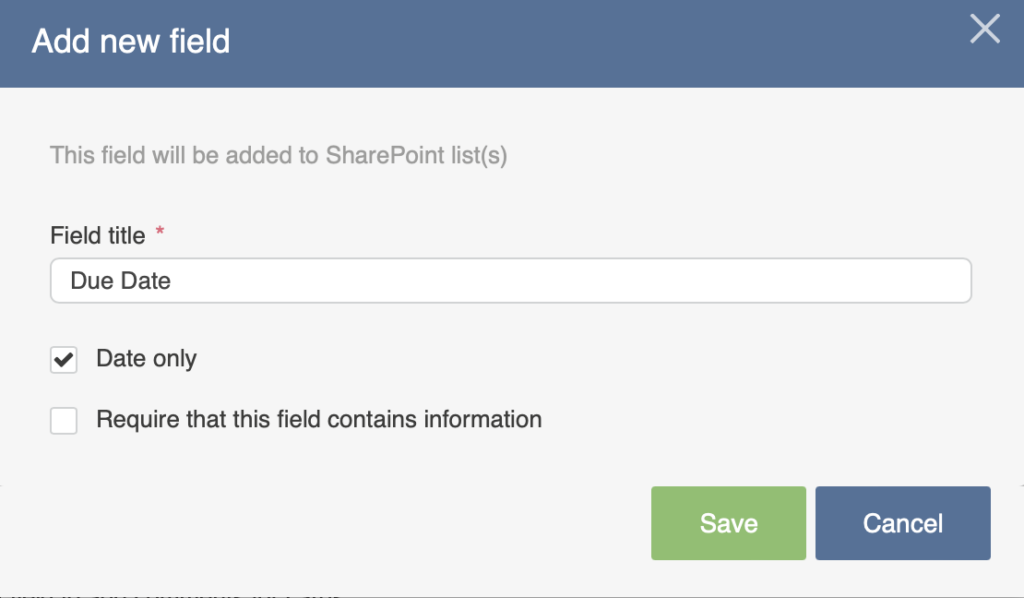
Specify the name of the required field and save it. Tick the checkbox “Require that this field contains information” if needed.
The added field will appear. Complete the same actions for other fields if necessary. For example, in the same way, you can create multichoice fields for comments and labels.

The ability to add fields is available for all users with the right to create fields.
Ensure you have enabled the version history for your chosen list. Otherwise, tick the checkbox to enable it. Version history is required for the comment field.