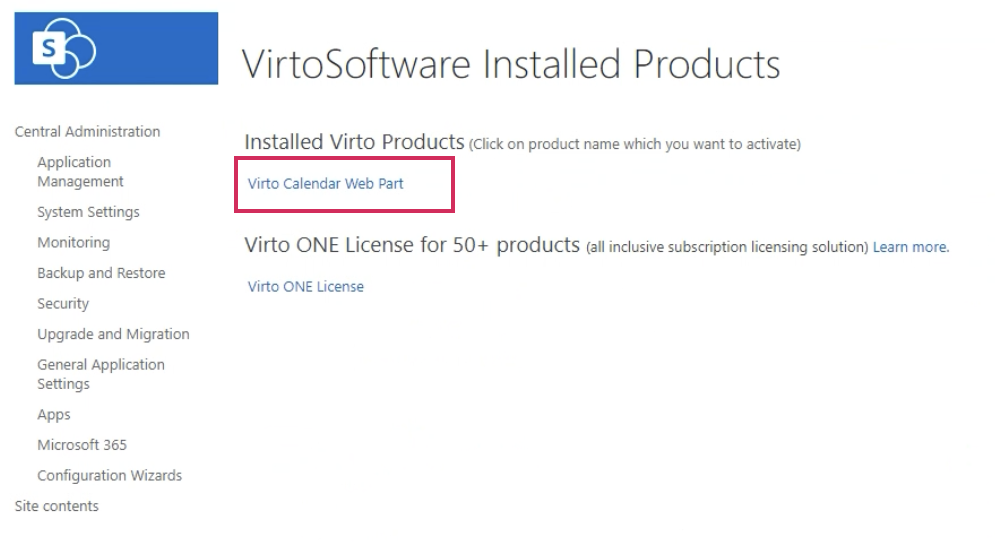
Product Activation
There are two methods of license activation: manual activation (offline) and online activation. You can choose either option depending on the availability of an internet connection at the time of activation.
The actions described in this instructions apply to the SharePoint 2013, 2016, 2019 and SE.
The License Manager is included in the .zip archive prepared for your component’s installation. Please unzip and install your component to begin the activation process.
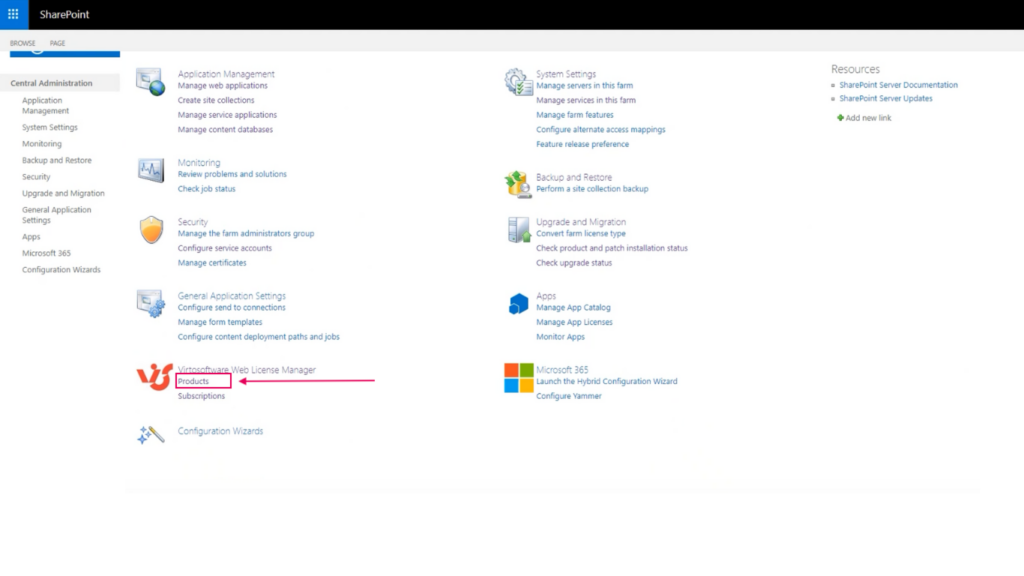
To activate the license, navigate to Central Administration and find Virtosoftware Web License Manager. Click on “Products”.
Here, you will see all the installed products. In this example, only the Virto Calendar is installed.
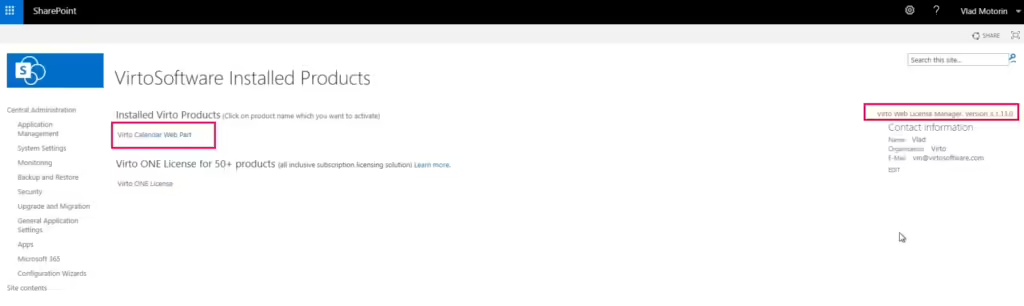
On the right side of the screen, you can view the current License Manager version and the details of the person in charge. If your server is connected to the internet, this person will be notified of any installed Virto product updates.
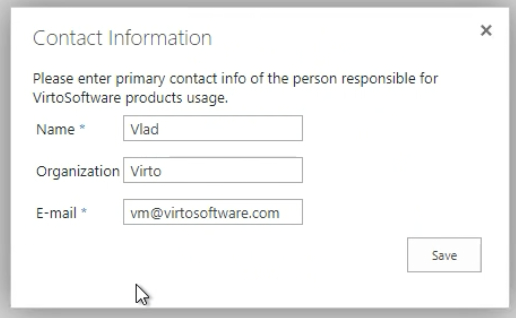
The first time you log in, the Contact information fields will be blank, and a window will pop up asking you to enter your details. Enter them and click “Save”.
Click on the product name to open the license activation page.