
Public Folders
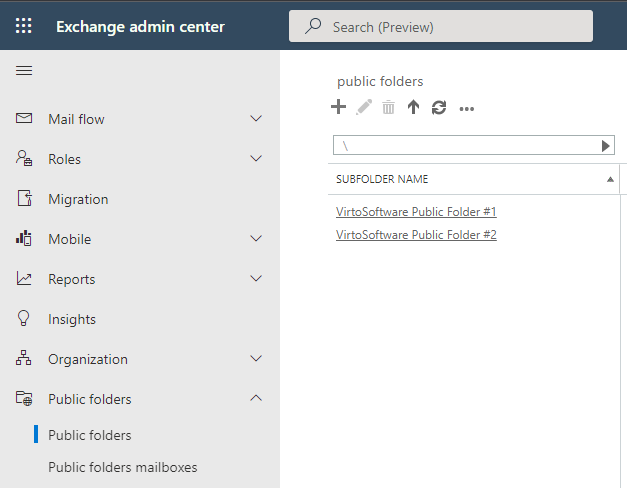
Public folders can also be added to Virto Calendar App as a data source. If you’re using public folders (created in the Exchange admin center), you can overlay them with your Virto calendar.
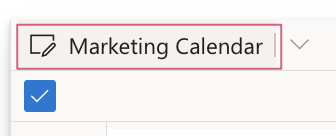
First, click the calendar name.
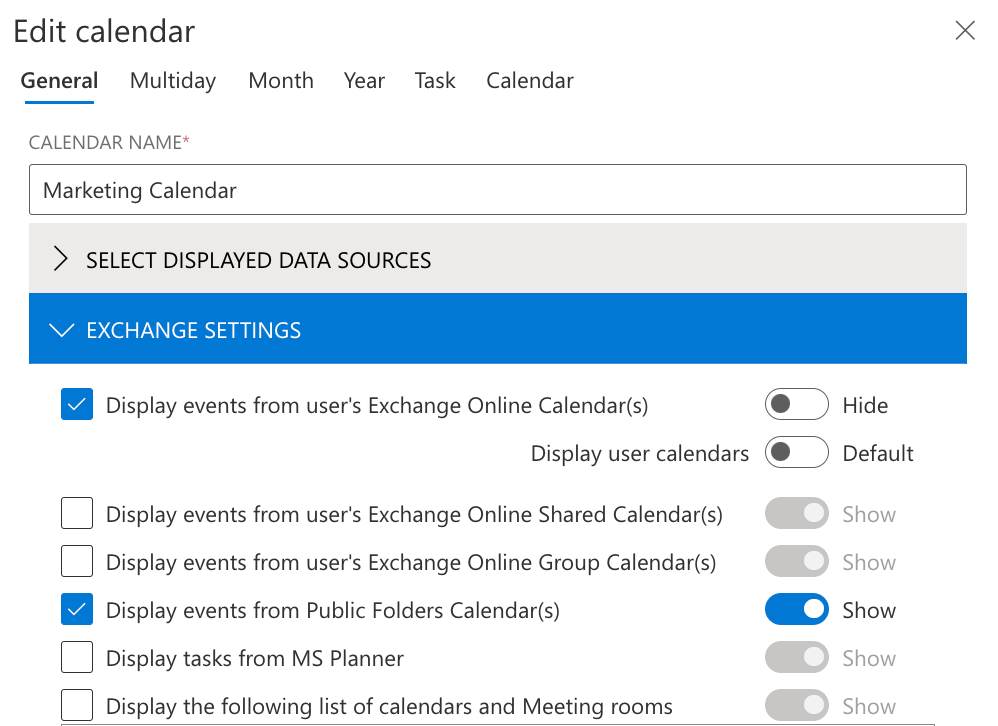
In Edit calendar, scroll down to “Exchange settings” and check the box “Display events from Public Folders Calendar(s).”
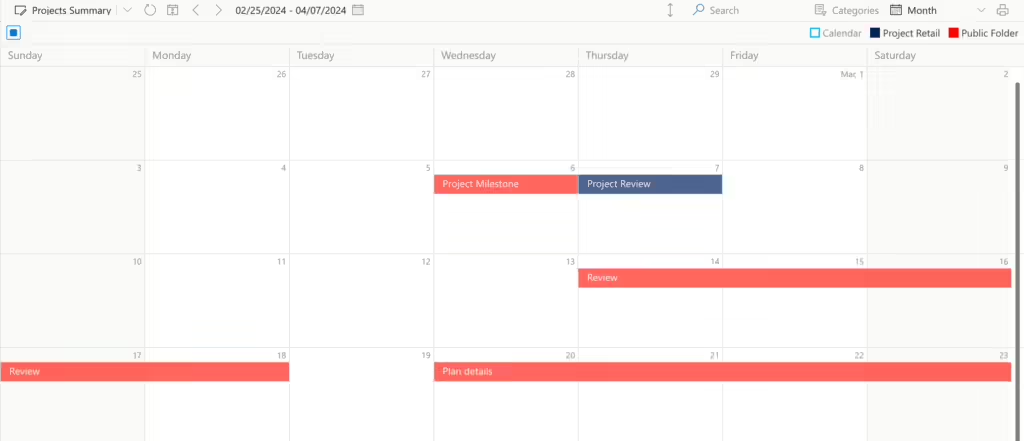
Next, save and open the calendar, and the added public folders will appear.
Create, edit and delete public folder events
Whether you can change the events of a public folder calendar in Virto Calendar App depends on your permissions on the public folder itself, not on the calendar settings above. Public folder permissions are assigned by your Exchange administrator in the Exchange admin center; the permission levels are described in Public folder permissions on Microsoft Learn.
- With edit rights on the public folder (for example, the Editor, Publishing Editor or Owner permission level), you can create, edit and delete its events right in the Virto calendar.
- Without edit rights (for example, the Reviewer level), the public folder calendar is display only: its events appear in the overlay, but you cannot add, change or delete them.
To create an event, select a time period or click a day and choose the public folder calendar as the calendar for the event. To change or delete an existing event, click it and use Edit or Delete in the tooltip. The event is stored in the public folder itself, so everyone who uses that folder in Outlook sees the change as well.
If the calendar is display only for you but you need to edit its events, ask your Exchange administrator to raise your permission level on the public folder.