Hover Slide Effect Engine
The case below describes how to adjust and use Hover Slide Effect Engine and organize Slideshow as follows:

First of all you need to create a picture library (Image Slider 4 Demoin our case). Then add number column (ZoneID).
Add pictures of the size you need to this picture library (the exact sizes will be mentioned below). Then fill out ZoneID field with values (you need to define a zone where every picture will be added to).
Then go to web part page. Add Virto SharePoint Image Slider to it. Open settings block. Select Picture library for picture slideshow.
Select Hover Slide Effect Style in the list of Engine types.
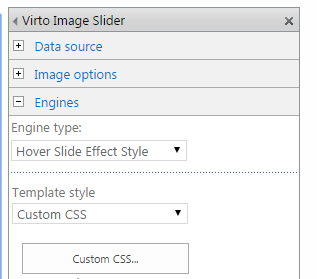
Select Custom CSS template style.
Click “Custom Css…” button. The sample of slider images’ layout will be displayed in the window. The sample below described 5 zones (sizes of zones where picture will be placed must be defined for every picture).
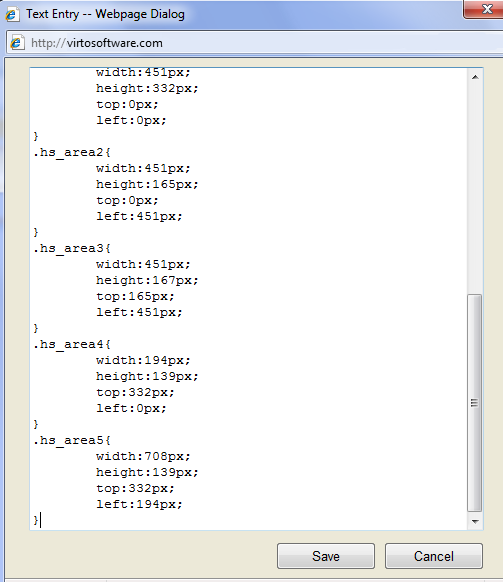
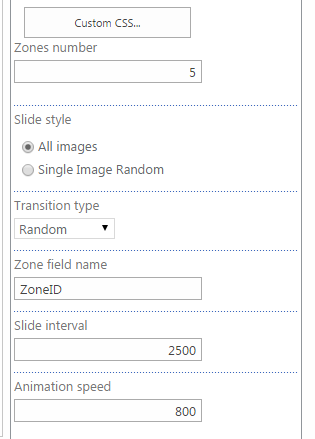
Click “Save”. Enter “5” in the “Zone number” field. % is the amount of zones in our layout.
Select “All images” slide style. Define “Random” transition type. Then enter “ZoneID” in the zone field name – name of a picture library column which defines a zone for image.
Click “OK” to save the settings. Now you can see the result below.