
Overlay Exchange Calendars (Outlook Calendars)
Virto Calendar App supports the overlaying of Exchange personal and shared calendars (Outlook calendars). To overlay Exchange calendars, open the calendar settings by clicking the calendar name.

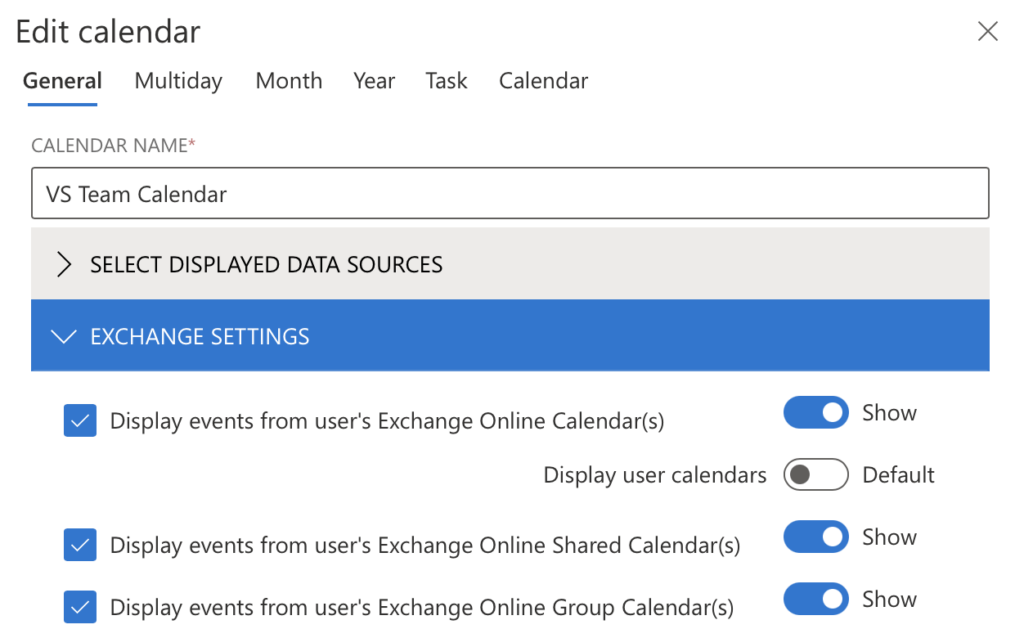
Scroll down to “Exchange settings” and pick the Exchange calendar you wish to show in your Virto calendar.
Chosen calendars will appear in a single calendar view.
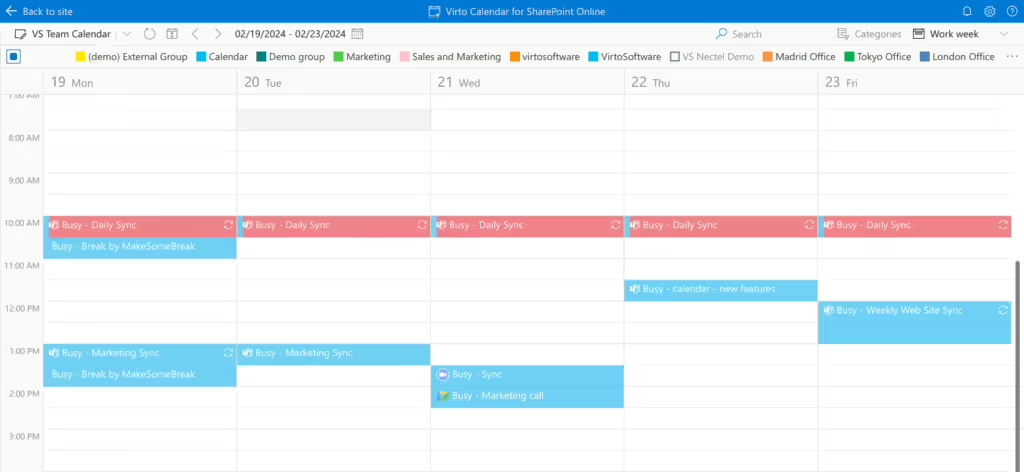
Keep in mind that this approach creates overlays for all users’ calendars, which might not be practical in large companies. If you work in an enterprise, the method for adding meeting rooms in the Outlook Group Calendar is a better option. It allows you to focus on specific events, like marketing group meetings, and customize your view by overlaying or hiding events as needed.