
Adding fields to a custom list
The Virto Kanban Board App allows adding fields to a custom list when creating a board from an existing list.
When you choose a list and reach the “Task information” step (in the “Cards Setup” tab), look at the fields—some are already selected, and others are not.
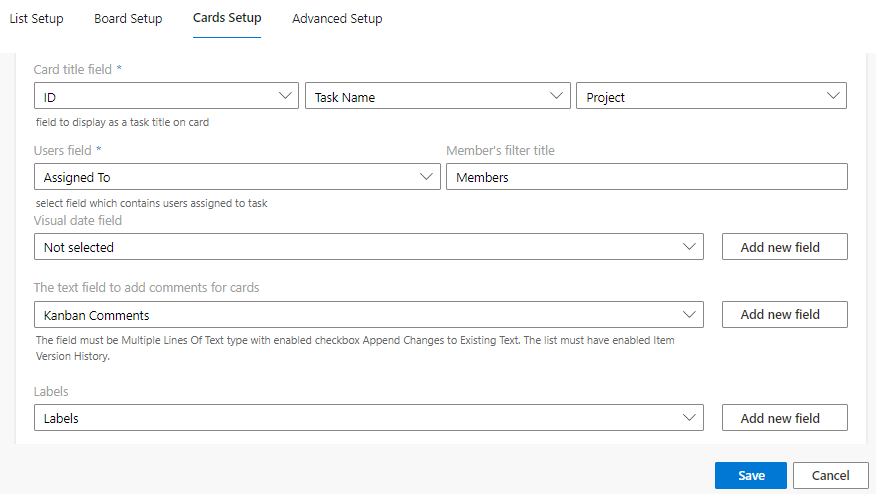
Select the relevant fields for the visual date, the comments to be added to the cards, and the labels. If the list does not contain an appropriate field, click “Add new field” next to it—no need to navigate to the list settings and add fields. You can create a board and add the required fields right away.
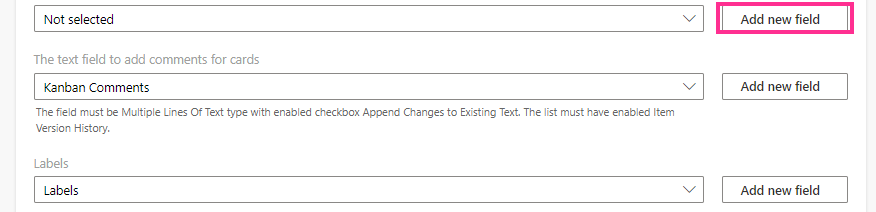
Next, specify the name of your field and save it. Tick the checkbox “Require that this field contains information” if necessary.
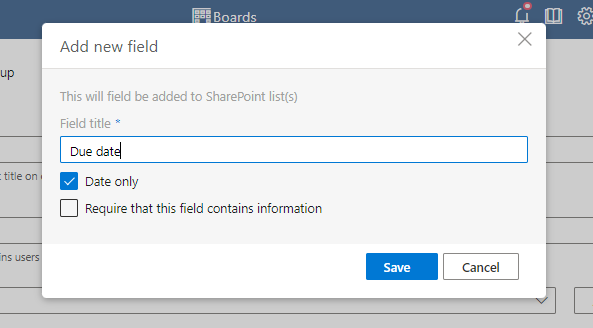
The added field will appear. If required, complete the same steps for the other fields. For comments and labels, you can, for example, create fields of type “multichoice.”

The option to add fields is available for all users with the relevant permission level.
Ensure you have enabled the version history for your chosen list by ticking the checkbox. The version history is required for the comment field.