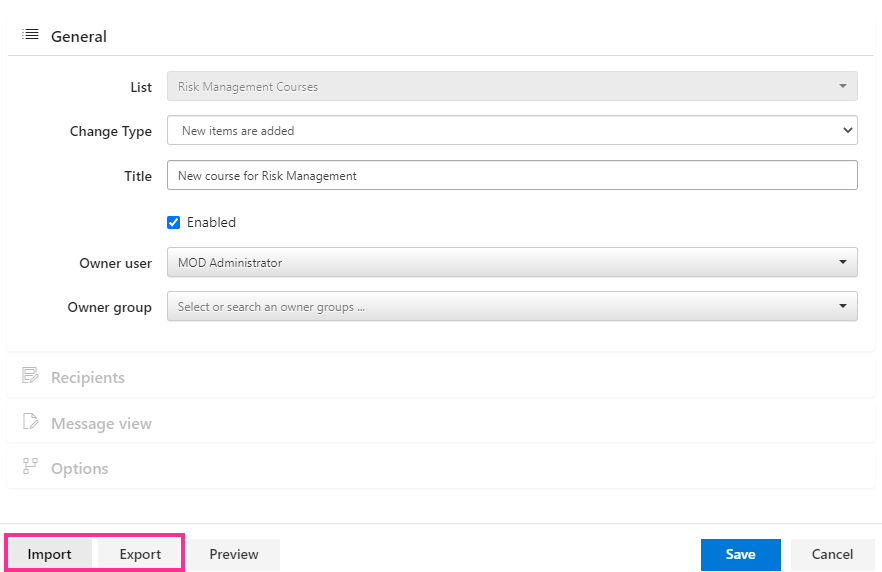
General
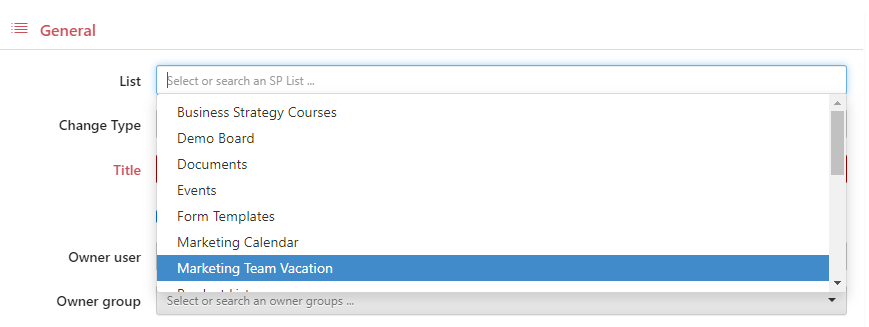
In the “General” section, choose the SharePoint list you want to create an alert for. You may also choose a folder with documents.
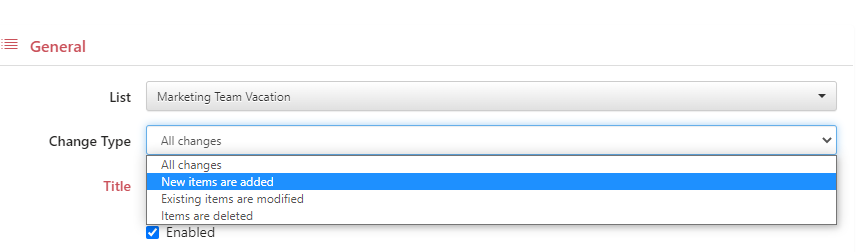
Select a change type (i.e., trigger) for the alert.
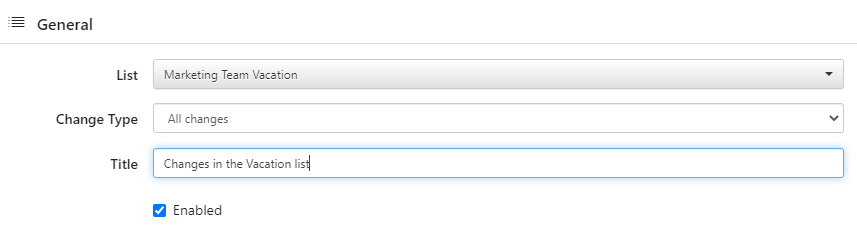
Specify the title of the new alert. This will appear in your list of alerts.
By default, “Enabled” is ticked for a new alert, but you can disable and activate it later.
Usually, only the administrator and the alert creator (or owner) can edit an alert. If an alert owner is no longer in your organization, only the administrator can access these alerts. You can change the alert owner to give any other user or group permission to edit alerts.

You can import and export an existing alert. If you click “Import,” you can pick an alert template saved to your disk. The “Export” option will save the current alert as a template to your disk in JSON format.