Working with Virto Mini Calendar
available for SharePoint 2013 & 2016
Calendar and event list
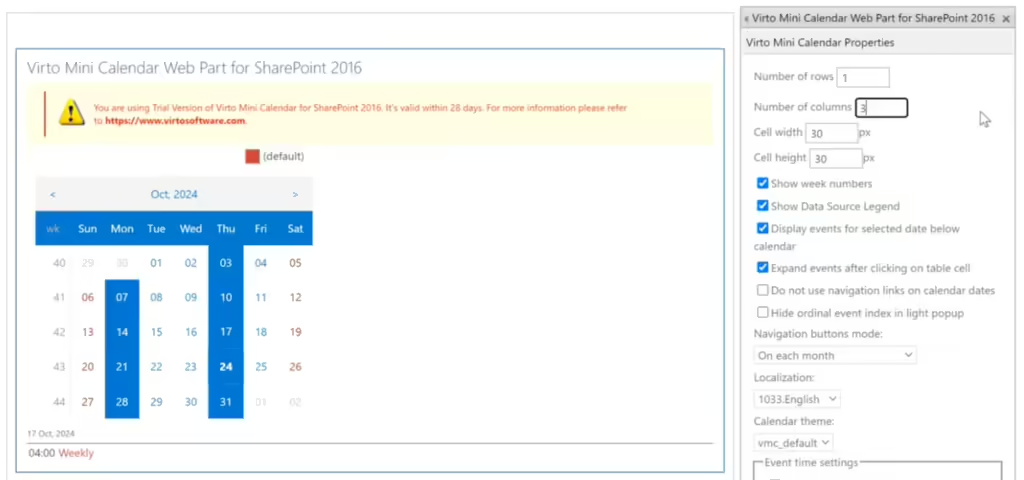
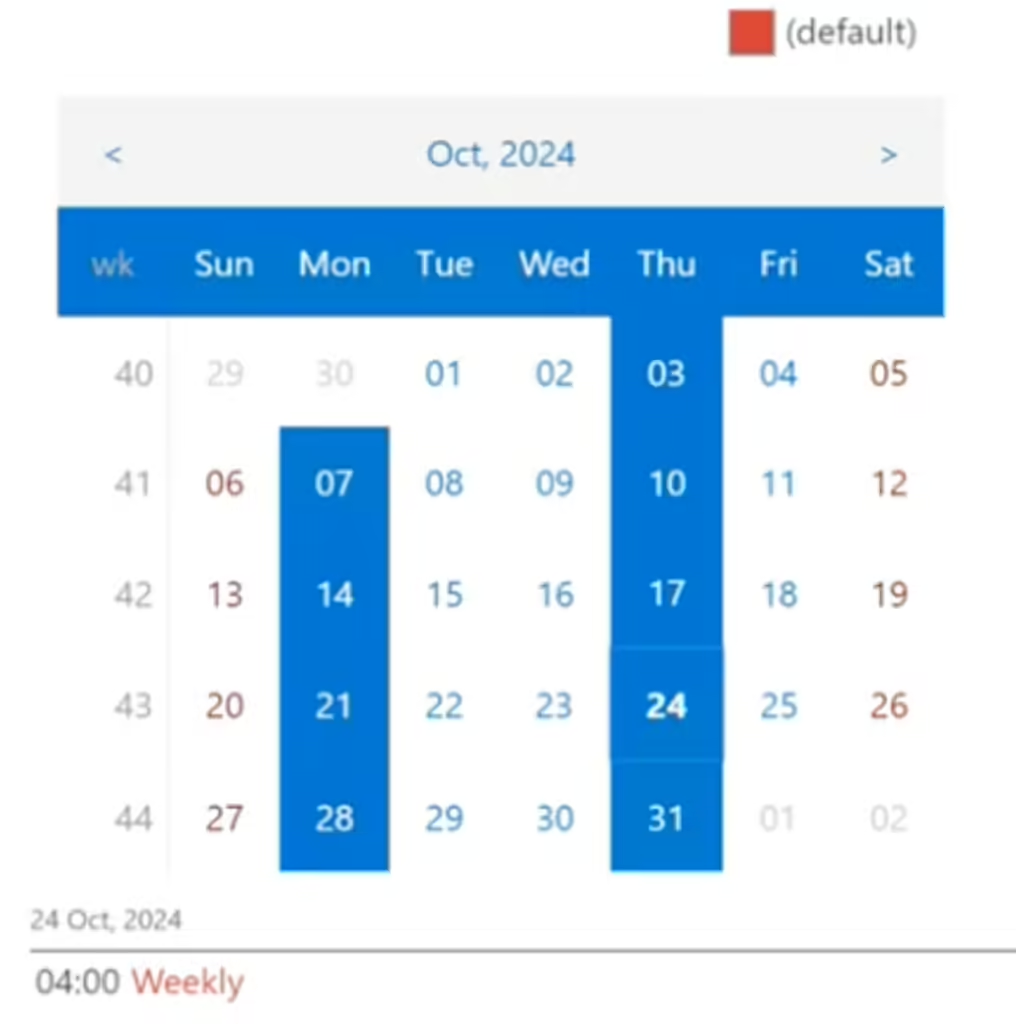
The Virto Mini Calendar showcases items in both calendar view and list format. Days featuring scheduled events are highlighted in blue on the calendar, while non-working days are red.
Clicking on a date in the list displays information about the event, such as the time and the title.
Navigating between dates
Using the Virto Mini Calendar is straightforward, and navigating between dates is simple. Just click the date you wish to view.
Settings
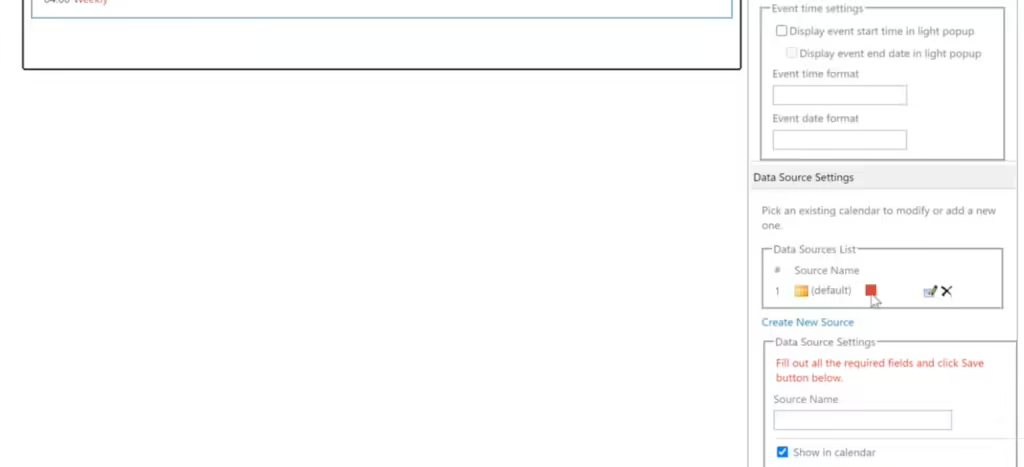
The data source settings of the Mini Calendar are almost the same as those in the full calendar version: you can add data sources and define filters. The tooltip settings are absent because there is no tooltip (event card) in the Mini Calendar.