Creating a task
Virto SharePoint Resource Manager allows users to create tasks right in the app. The same changes will be applied in the source SharePoint list.
Click “Add new task” button to create a new task.
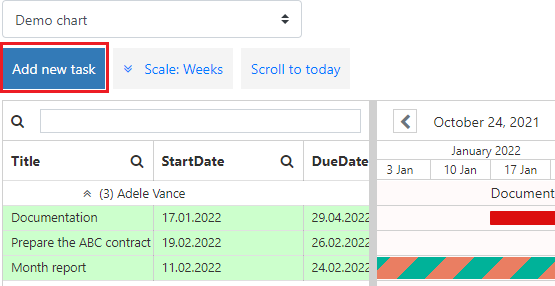
Note*: If you apply “ReadOnly” permission to a chart, the “Add new task” button is hidden.*
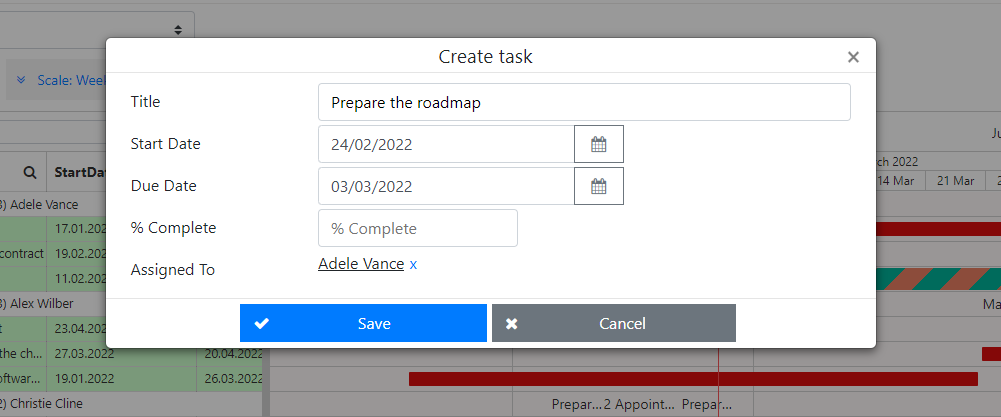
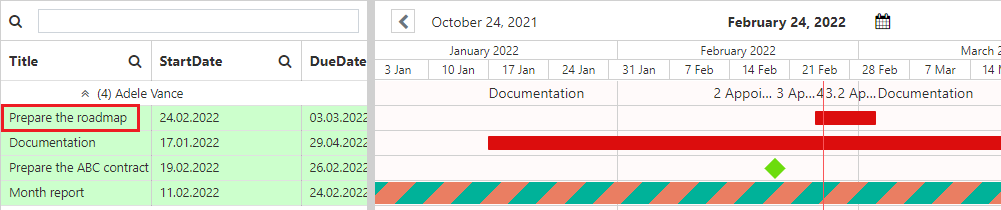
Specify the task name and fill in the fields of the edit form (you can select these fields in the Resource settings). New task will appear in the chart.
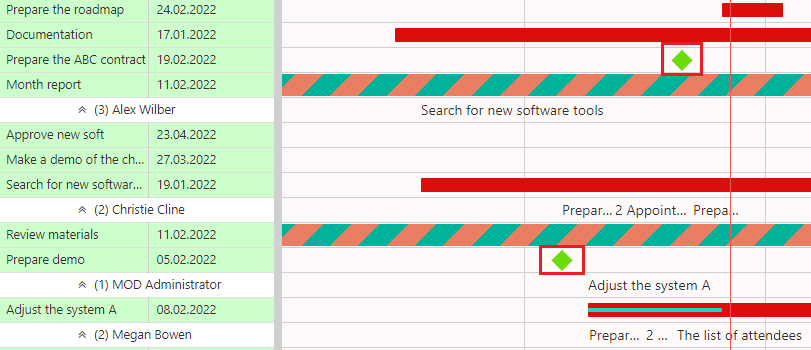
Virto SharePoint Resource Manager for Office 365 allows users to create milestones- tasks with zero duration or with the same start and end dates. Just create new task as described in previous section and define equal start and end date and time.