
Adding a subtask
Virto Kanban Board on-premises supports subtasks. Use subtasks to split your Kanban tasks and manage them step by step.
Click “Add subtask” on the card of the task you want to make a parent task.
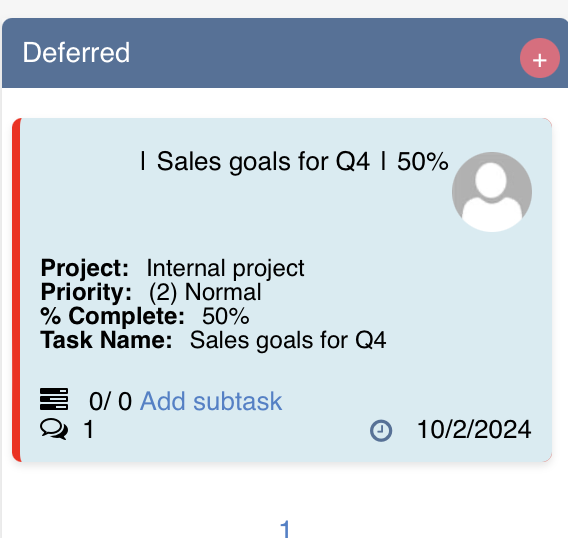
When the parent task view appears, decide whether you’re going to make a subtask from an existing task or create a new one. Both options are available.
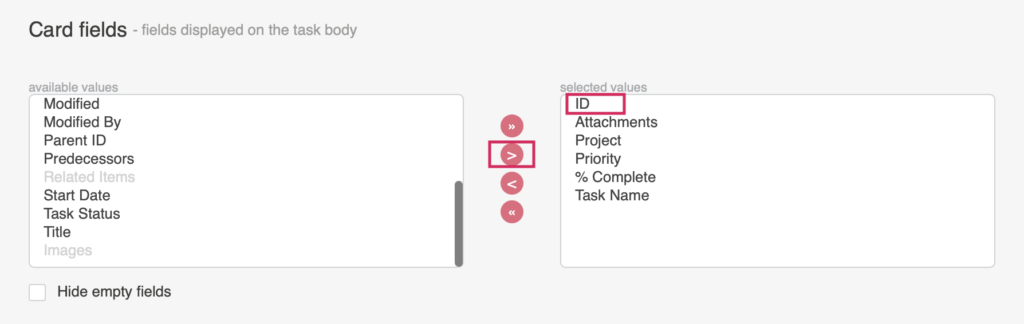
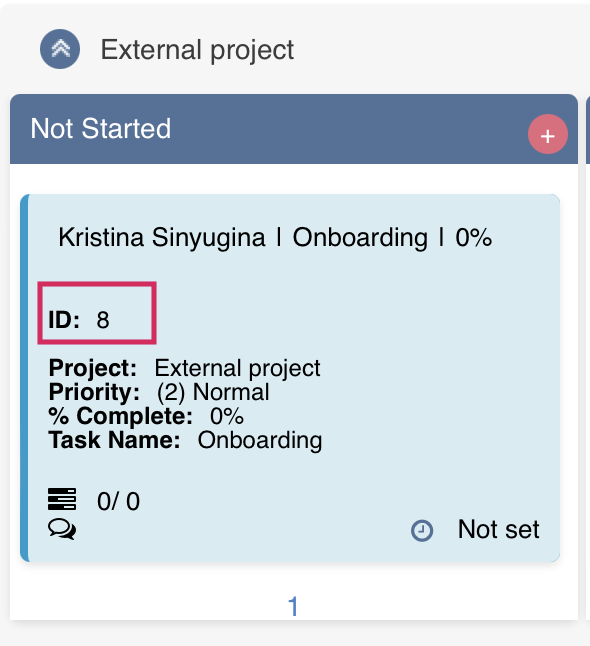
If you’re adding an existing task as a subtask, enter its ID. To view a card ID on kanban cards, choose “ID” in Cards fields (Cards settings tab).
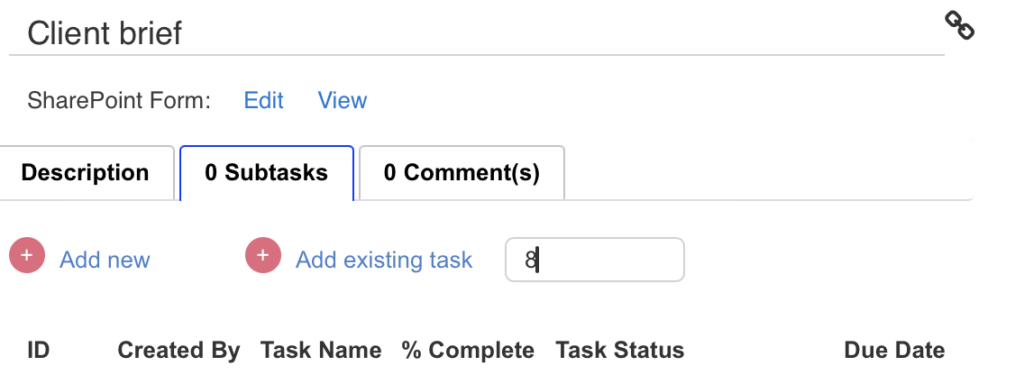
By default, subtasks will appear in the “Subtasks” tab of the parent task. Click the subtask to view its detailed information.
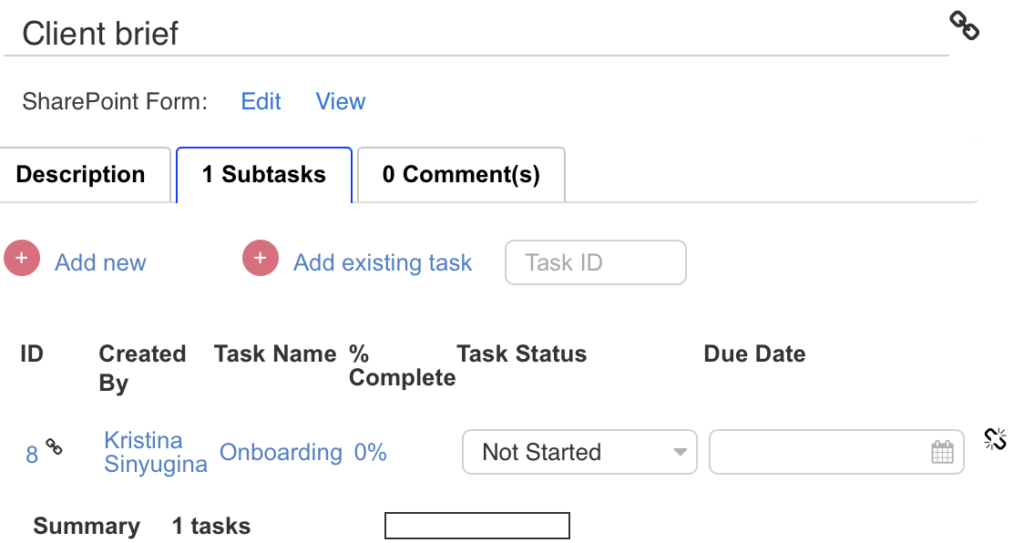
Only parent tasks have the “Subtasks” tab, except when the multilevel option is enabled for subtasks.
"Allow multi level" setting is located in Advanced setup, “Additional” section; it enables subtasks beyond the second level, namely subtasks for subtasks.
If you are adjusting a custom board (not a quick board created automatically), ensure that tasks and subtasks are taken from a single task list; otherwise, the subtasks will not function properly.
If you are using a board with multiple lists, the subtask option will be unavailable.