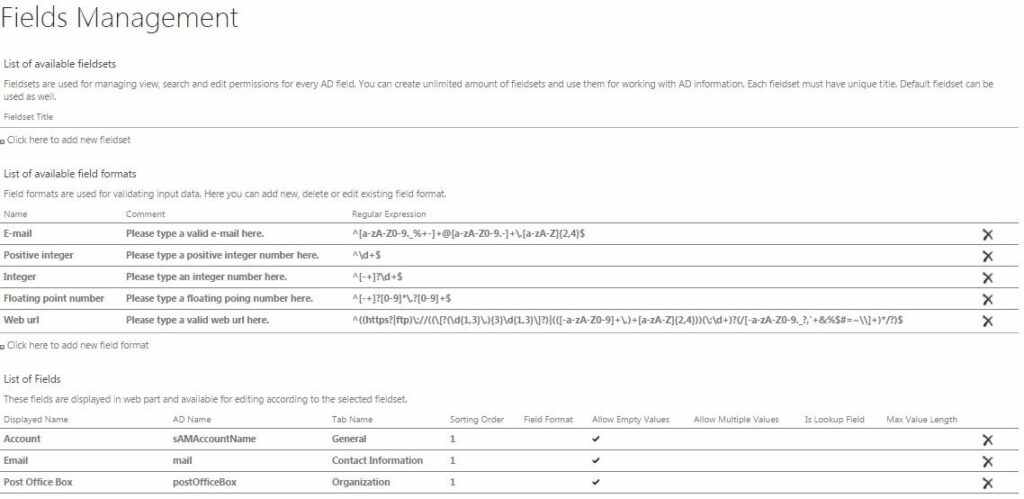
Fields Management
First of all administrator has to add all the required fields which will be used in fieldsets. Go to “Settings – Site Settings”.
Note: if you already adjusted fields and fieldsets as described in Active Directory User Service Adjustment section, you don’t need to manage fields and fieldsets one more time. These settings are the same for both web parts. Just move to SharePoint Active Directory Self Service Web Part Settings.
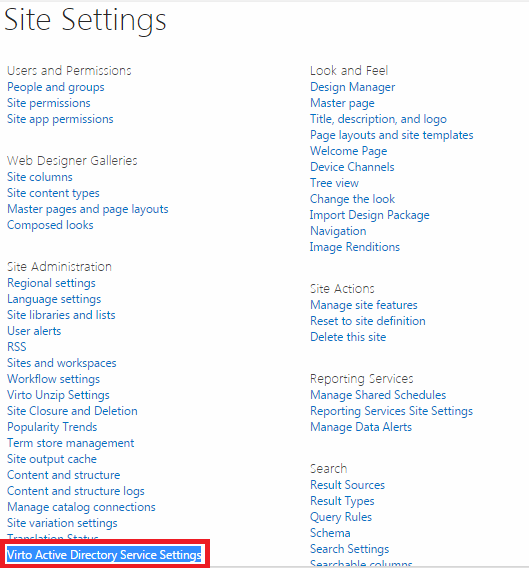
Then find the link “Virto SharePoint Active Directory Service Settings” and follow it.
You will go to “Active Directory User Service Settings” page.
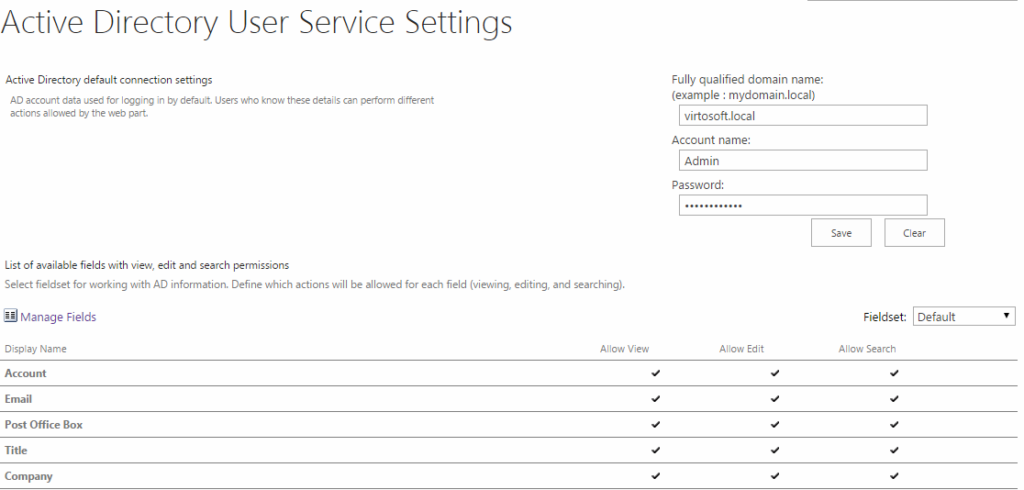
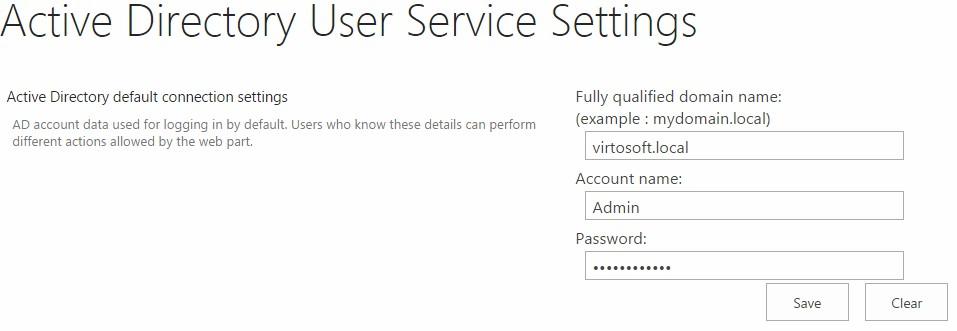
If you decided to use default connection (see Virto SharePoint Active Directory self Service Web Part Settings section), fill out domain name, account name and password fields and click “Save”. These data will be used for connection to AD information.
Then you can see used fieldset. All fieldsets have the one list of fields but different settings.
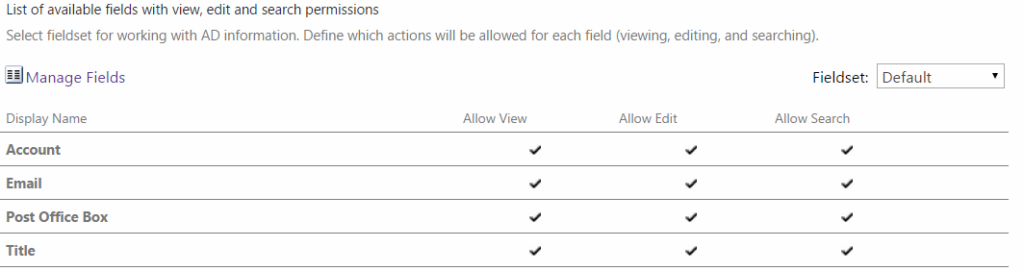
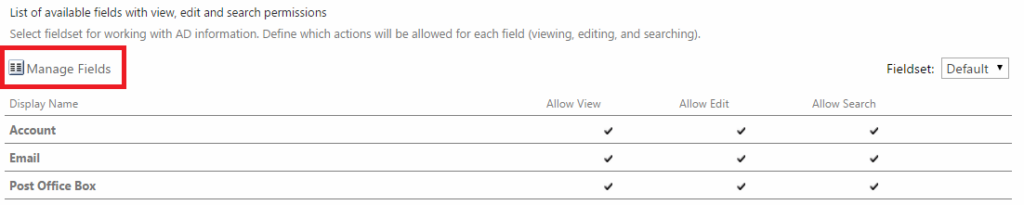
First of all it is required to manage fields in the fieldset. Click “Manage Fields”.
You will go to “Fields Management” page. Three blocks will be displayed: “Available Fieldsets” (see “Fieldsets Adjustment” section to learn more), “List of Available Field Formats” and “List of Fields”.