
Installing Virto SharePoint Create & Clone AD User Web
Before you begin, you need to make sure you have access to the server and your account must have the appropriate administrative privileges to install applications.
To access the Virto Create & Clone AD User Web Part Setup program download Virto.SharePoint.20XX.ADUserCreateClone.zipfile and unzip it. Open unzipped folder and run extracted Setup.exe file.
The setup wizard window will appear.
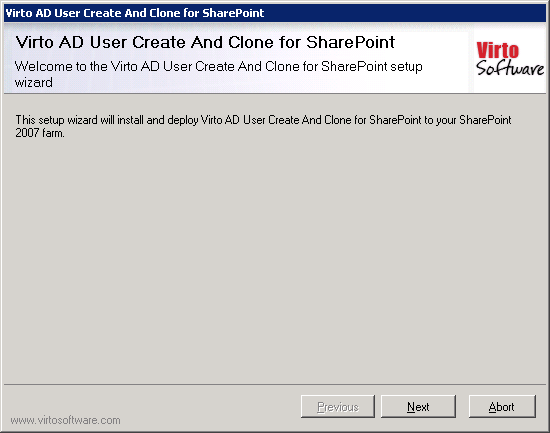
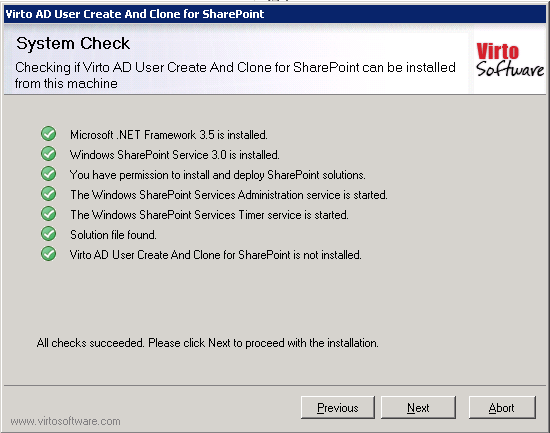
Virto SharePoint Create & Clone AD User Web Part setup wizard performs a system check prior to the installation. All the system checks must be completed successfully in order to proceed with the installation. After the checks have completed, click “Next”.
Check “I accept the terms in the License Agreement” and click “Next”.
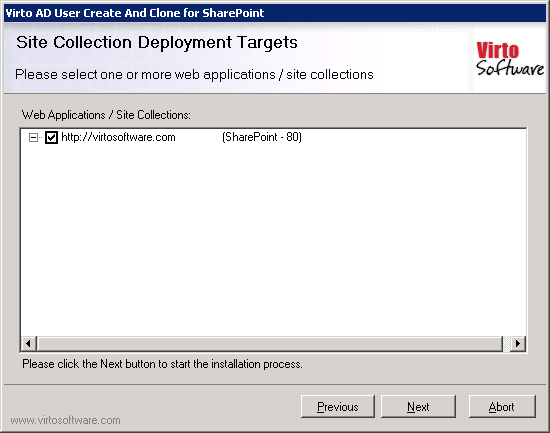
Select the web application(s) where you want to install the product.
Warning: You must be logged in to the SharePoint server with a Site Collection Administrator account to automatically activate this feature.
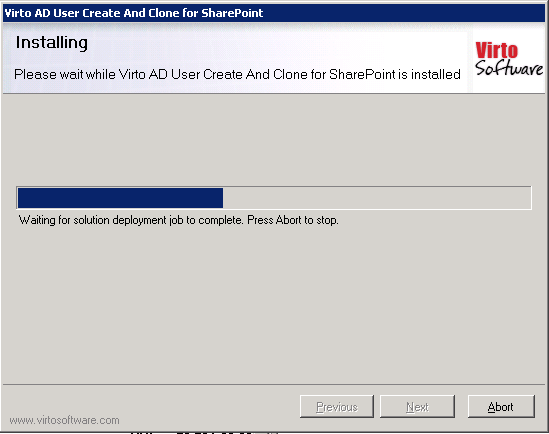
Then click “Next”.
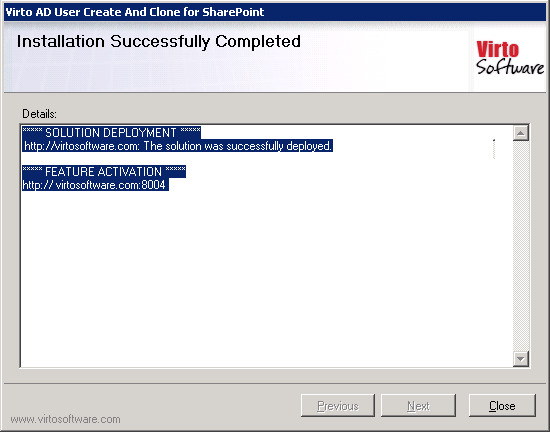
Click “Close” to complete the installation.
Note*: installation procedure is similar for SharePoint 2007, 2010 and 2013 versions.*