
Getting started with Virto Kanban App
Have you just installed Virto Kanban Board App to your SharePoint site but aren’t sure what the next step is? We are here to help you get started.
Go to the SharePoint site page where you would like to add the Virto Kanban Board App and switch to edit mode.
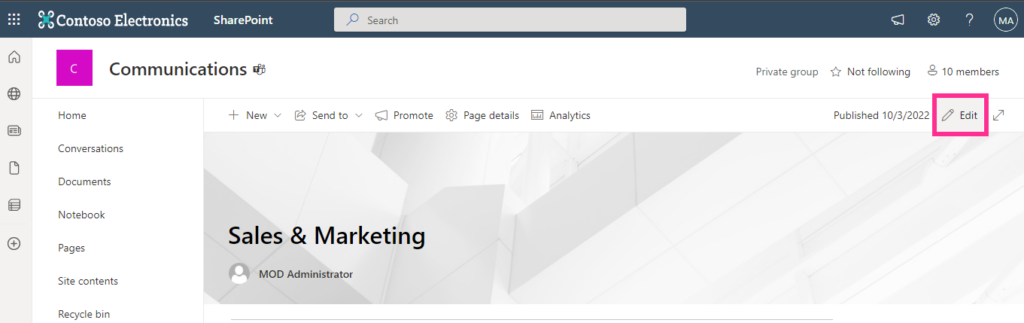
Click the plus icon to add a new web part in column one.
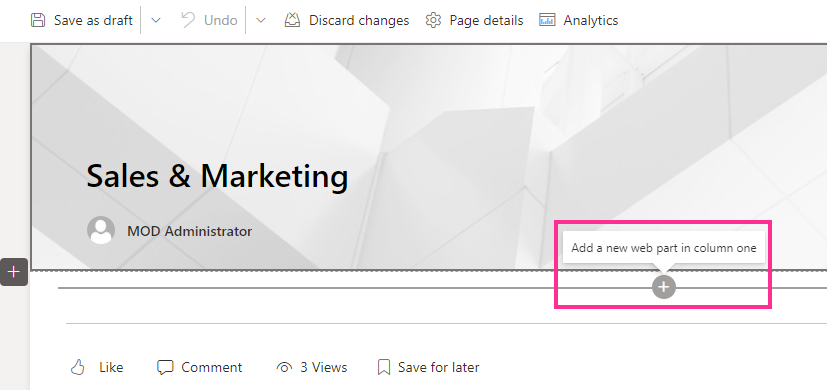
Add “Kanban Board” and remember to republish the page.
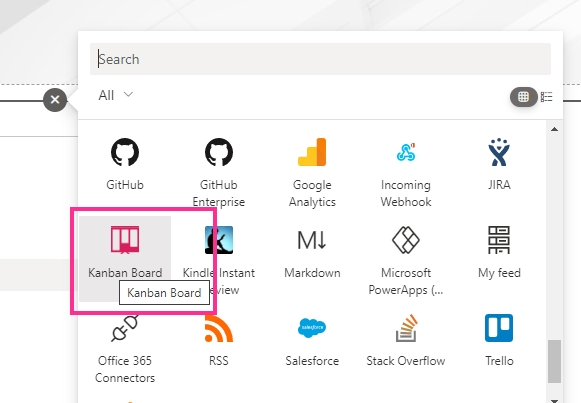
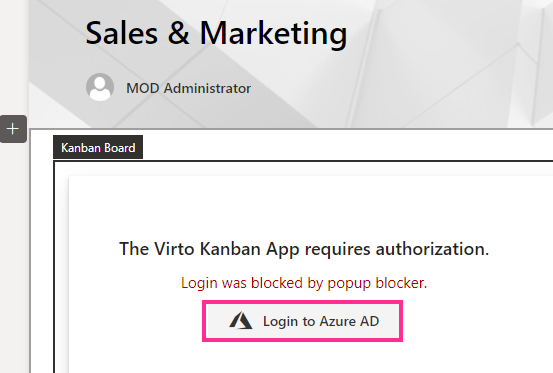
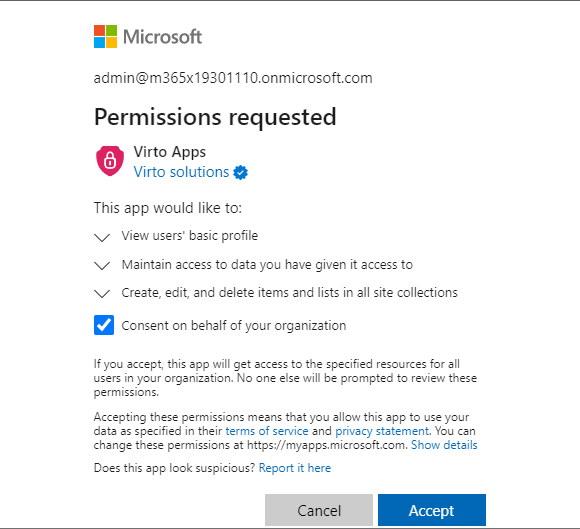
If you see the permissions request, click “Login to Azure AD.”
Click the checkbox for “Consent on behalf of your organization” and then click “Accept.” If you do not have administrator rights, ask your tenant administrator to complete this step.
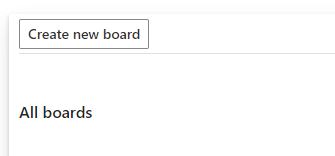
Now, you can create your first kanban board. To do so, click “Create new board.”
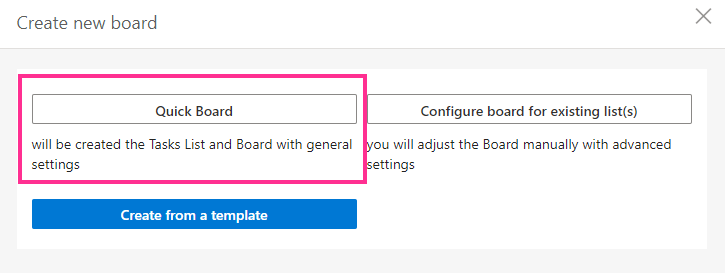
You have three options: create a quick board, use an existing SharePoint list, or use a template. Let us create a quick board.
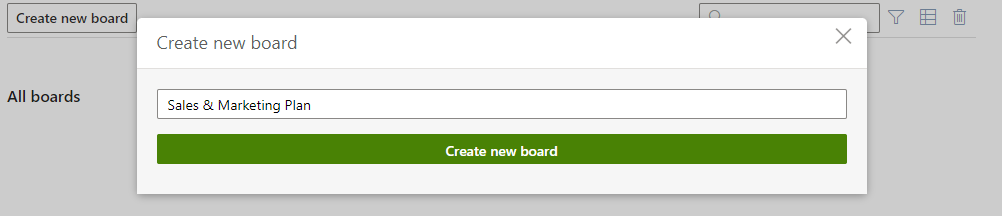
Specify a name for the first board and click “Create new board.”
Now you will see a board containing four columns and one task.
Every board uses a SharePoint list (or multiple lists) as a data source. When you create a quick board, the list with all the necessary fields and preferences is created automatically.
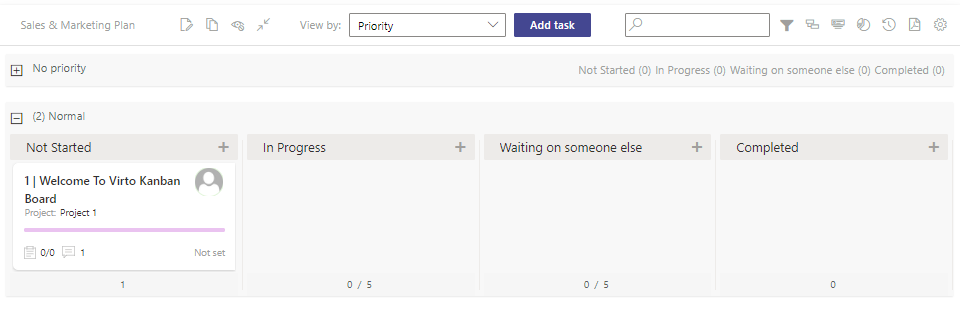
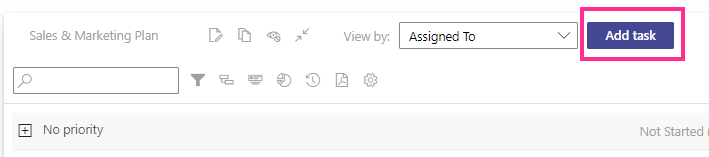
Now, let us create a new task.
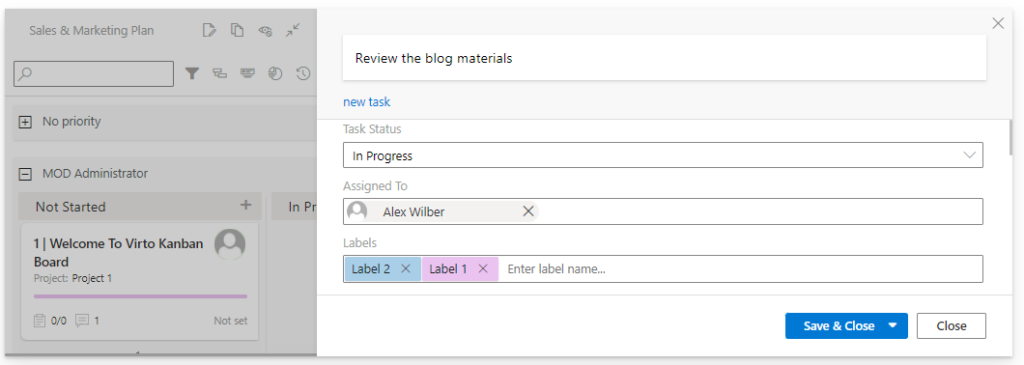
Fill in the task form and save the task (by clicking “Save & Close”).
The new task will appear on your board. You can drag and drop it to change its status.
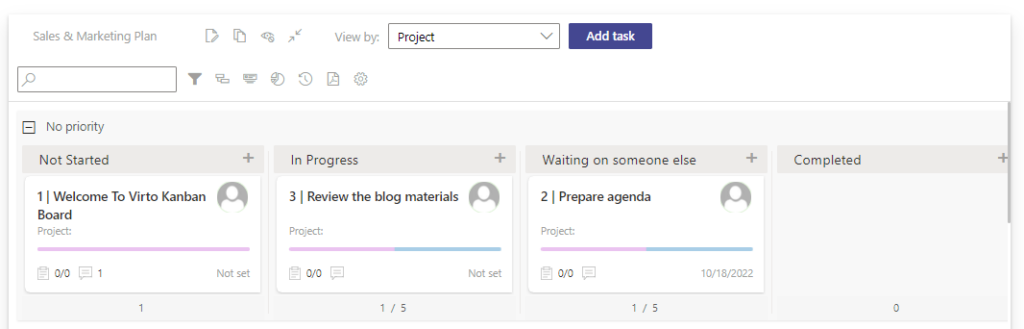
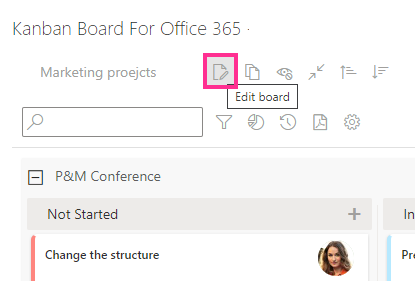
Here is your first kanban board! Later on, you can tune it as you wish using the edit board button.
Book a free 15-minute meeting with our technical team if you have any setup, features, or pricing questions.