Styles
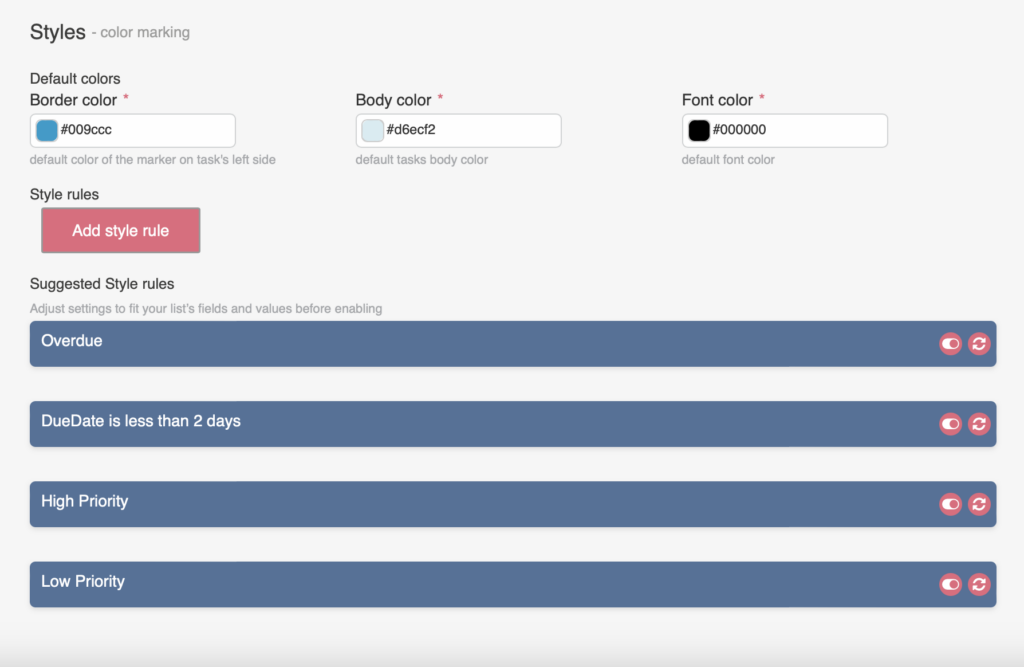
You can specify colors for the body (i.e., background), border, and font on task cards.
Styles
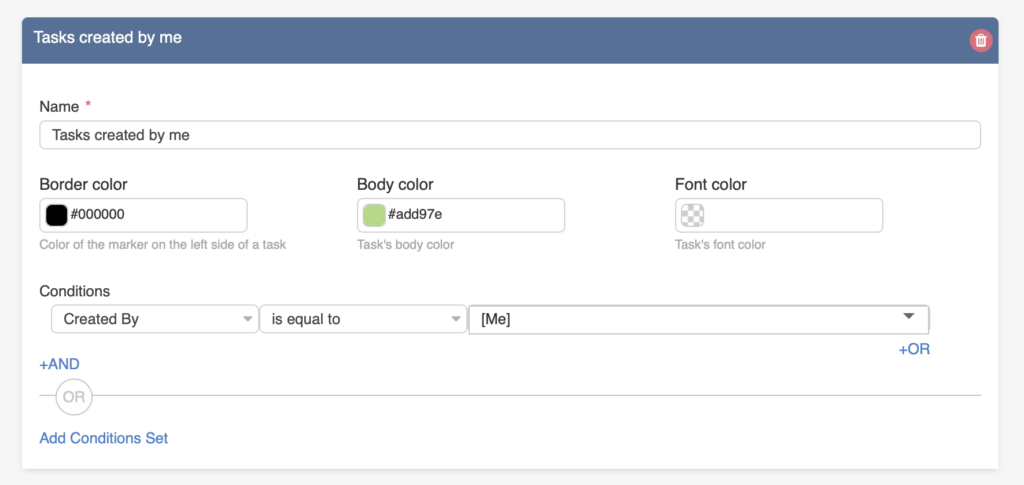
You can define custom conditions for color-coding tasks. To create a condition, click “Add style rule.” For example, the first condition applies a black border and green background to all tasks created by me.
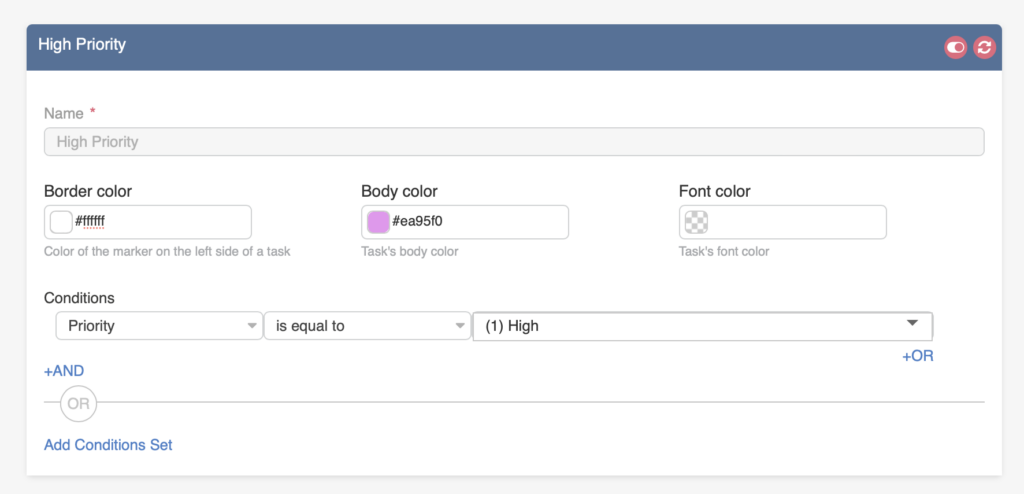
In the second example, high-priority tasks are assigned a pink background.
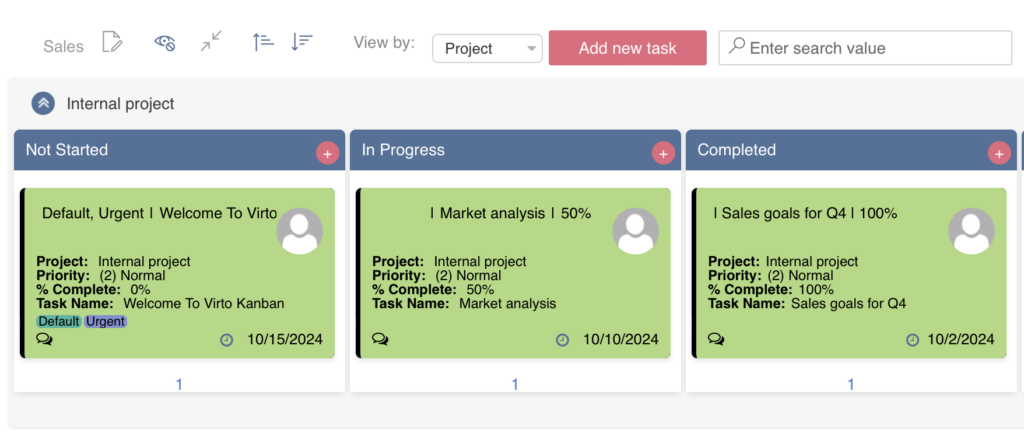
If the condition is true for a task, it will appear as shown in the screenshot below.
You can create another condition by clicking “And” or delete the condition by clicking the bin icon. If you select multiple lists to be displayed on a board, you can apply a list filter and create a specific condition for a particular list.
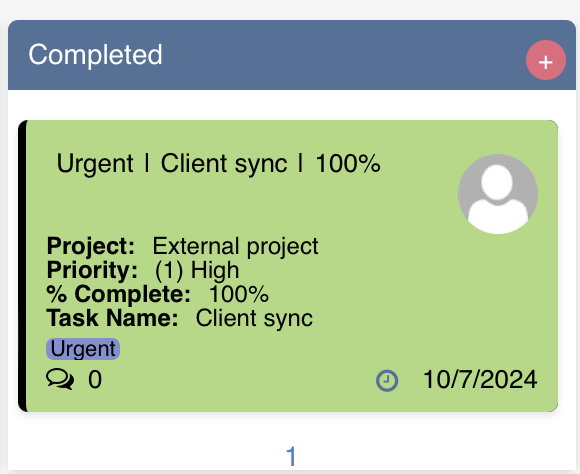
If you create more than one style rule and a task matches multiple rules, only the first rule will be applied, as shown in this example:
You can use the drag-and-drop feature to move one rule above the others and prioritize it.
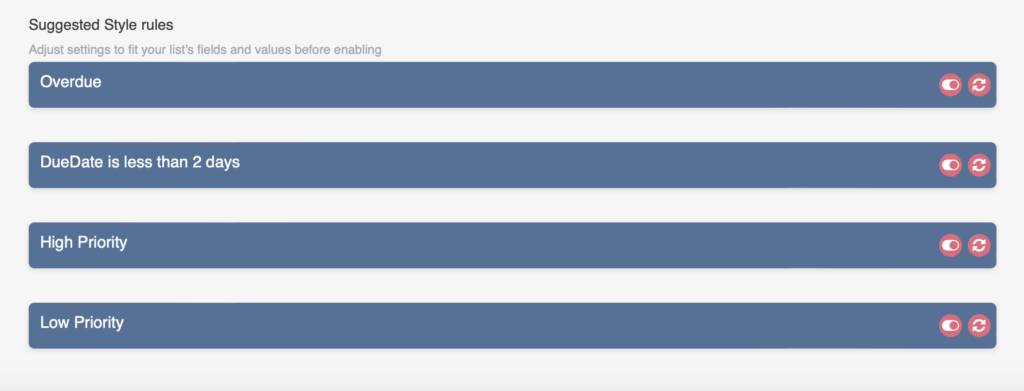
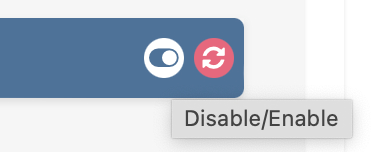
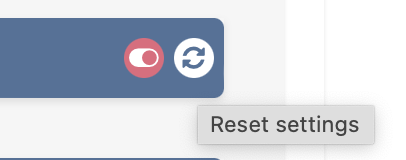
There are four default styles in the current version of Virto Kanban Board. You can deactivate or enhance them with additional information (use the red reset button to apply the new rule).