
Running SharePoint Designer
Open Microsoft SharePoint Designer and connect to your site.
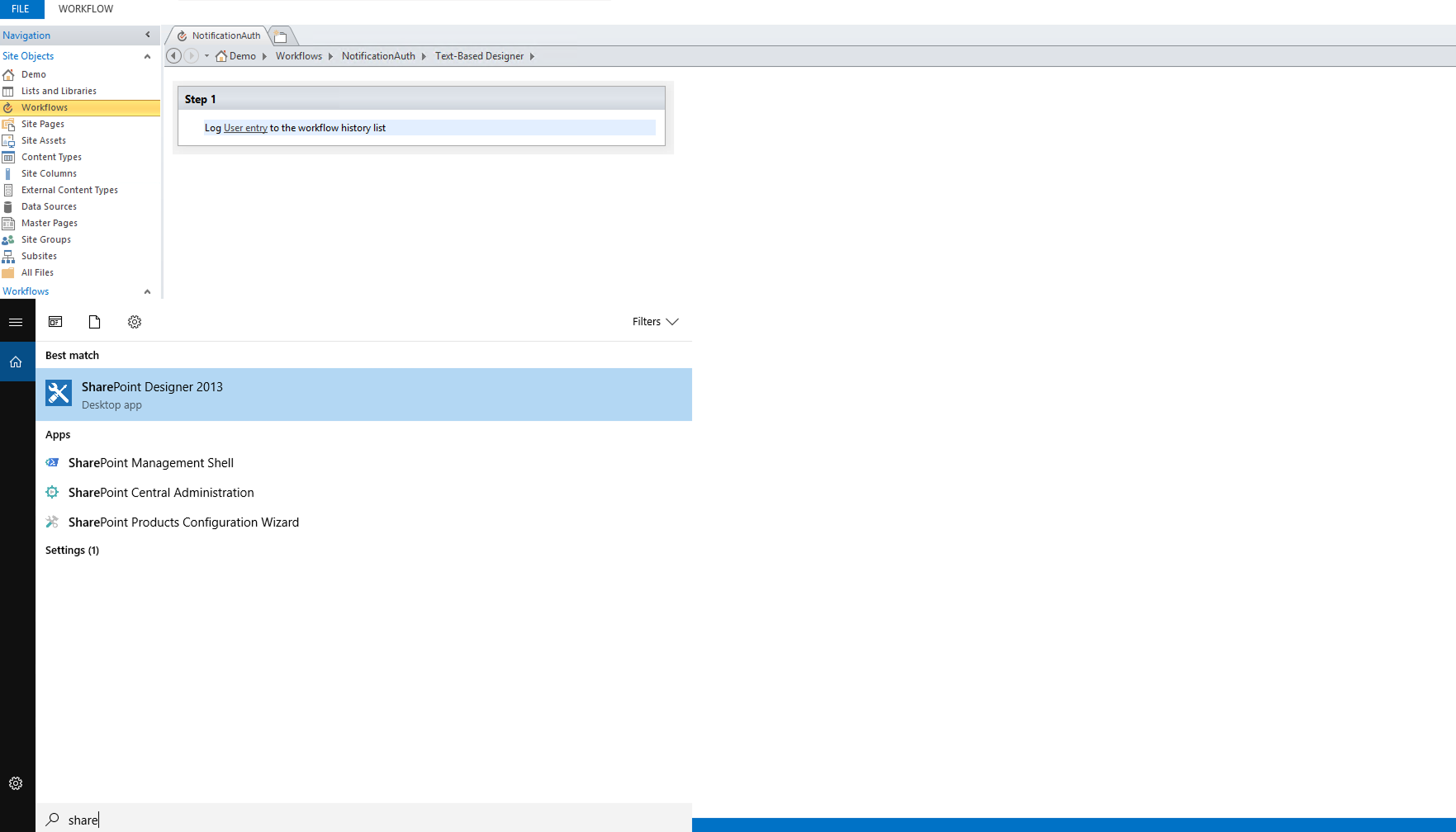
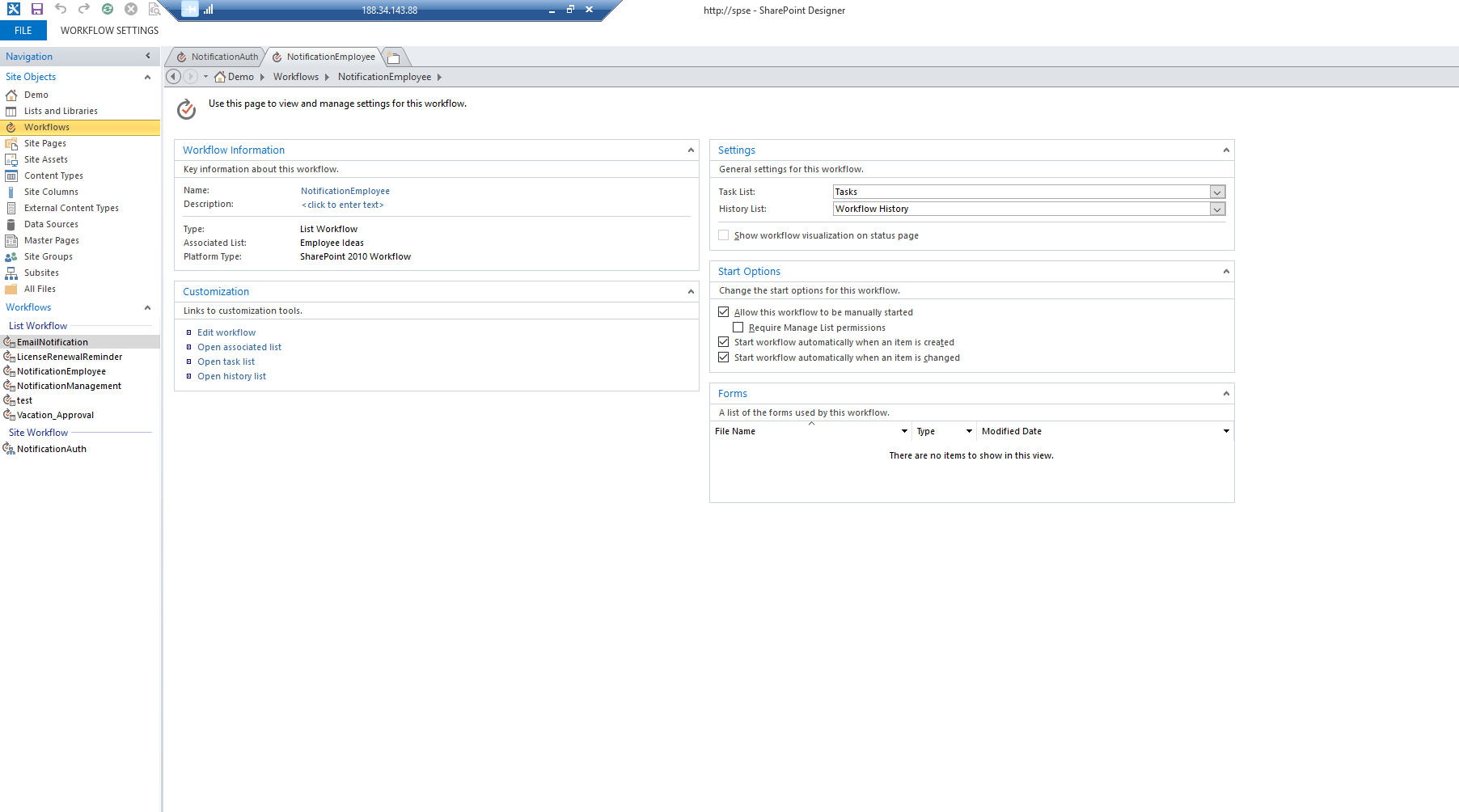
Open your site → select Workflows in the left pane → on the ribbon, click List Workflow → choose the target list → name the workflow.
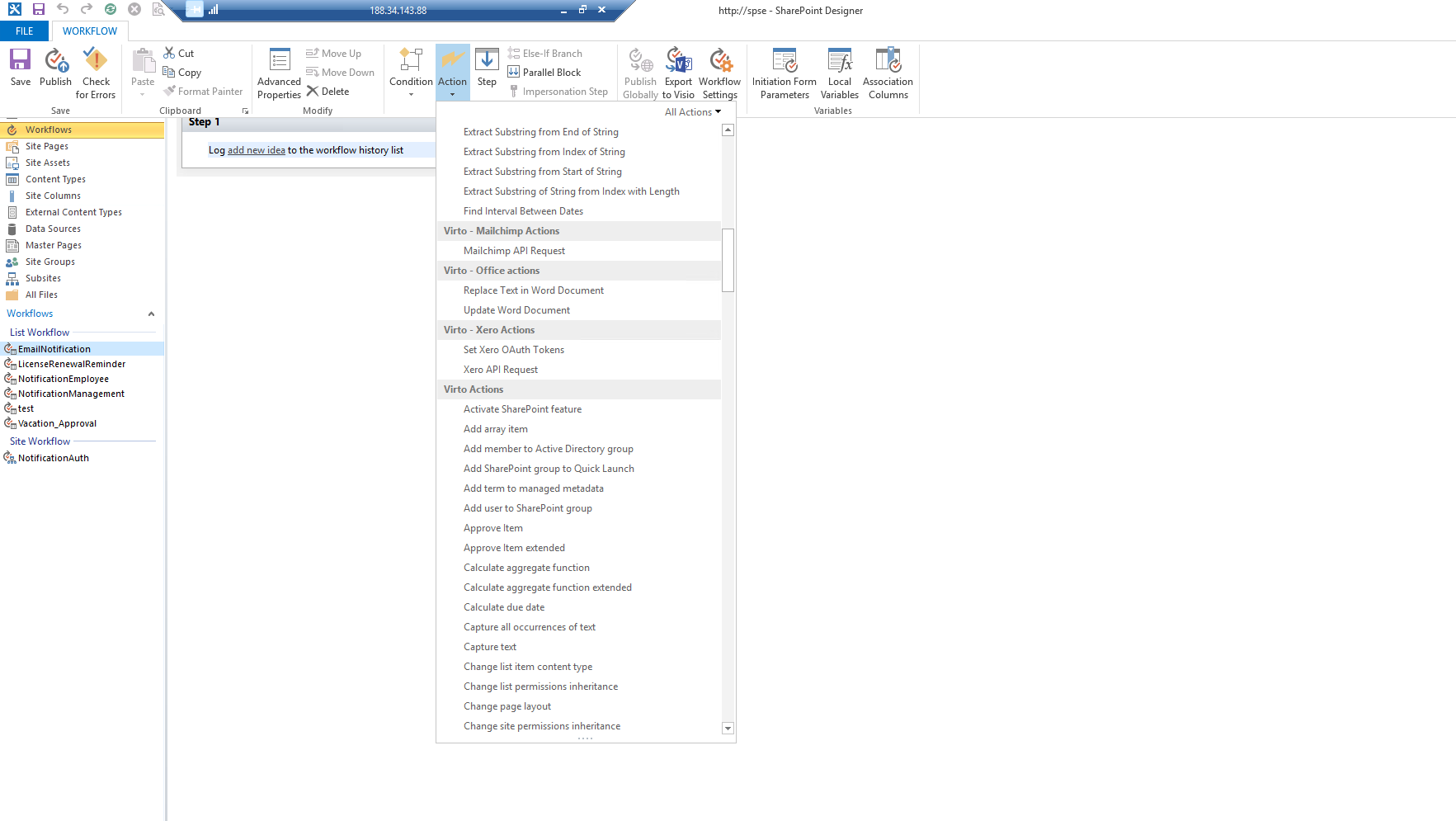
In the workflow editor, on the ribbon choose Action → More Actions…. In Categories, select Virto Actions, choose the required action, and click Add.
If you don’t see Virto Actions, make sure the Virto features are activated on the site and site collection.
Note: If you have a non-English installation of SharePoint, you need to copy VirtoWorkflow.ACTIONS from [SP HiVE]\TEMPLATE\1033\Workflow to [SP HiVE]\TEMPLATE"YOUR LCID"\Workflow