
Adding SharePoint Events to Outlook
To add SharePoint events to your Outlook calendar, create an iCalendar (.ics) file to add the event to Outlook.
To do it, select the event and click the “Add” icon on the bottom left of the event card.
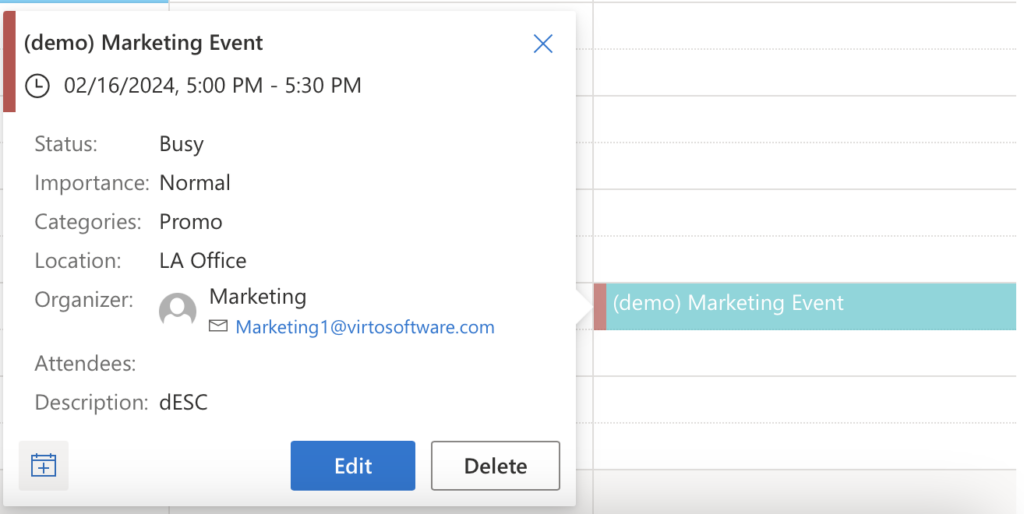
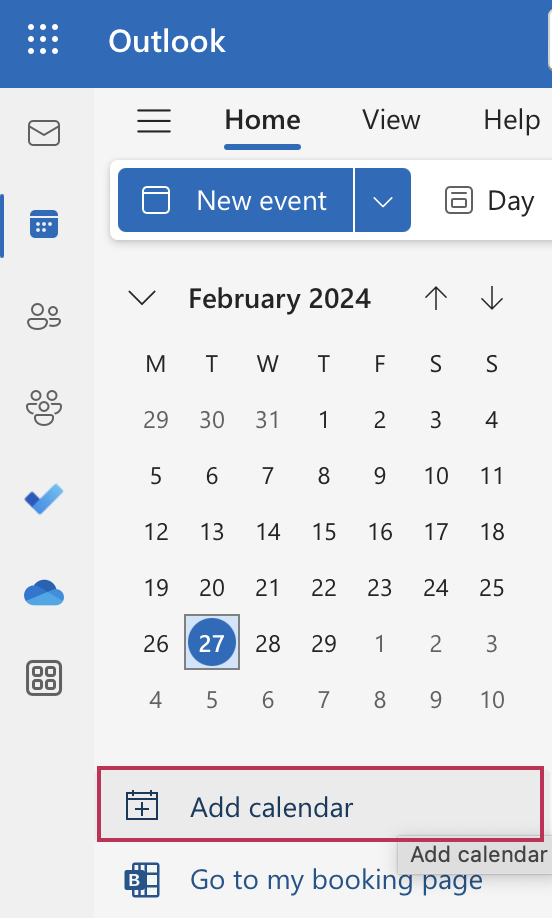
Save the automatically generated .ics file. Next, open Outlook and click the “Add calendar” button.
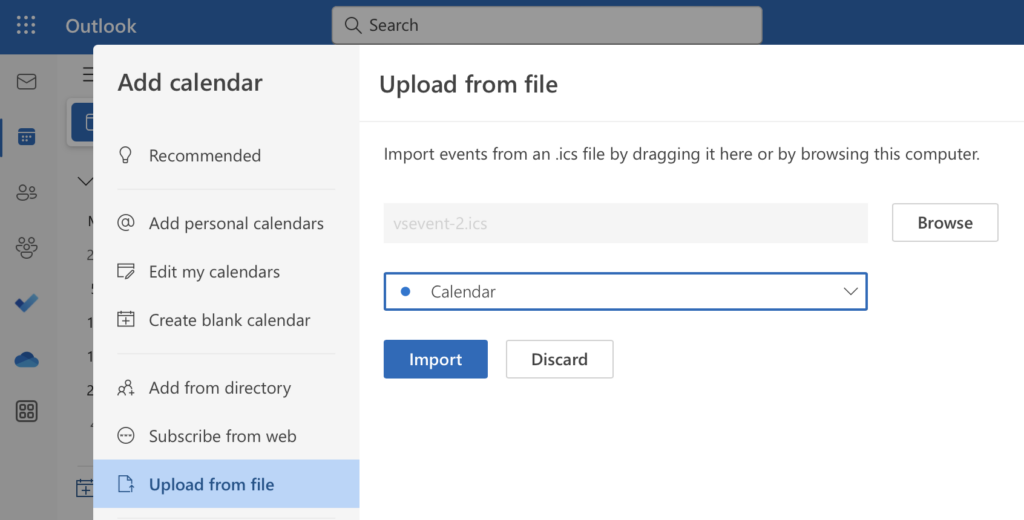
Then, select the “Upload from file” option and drag and drop your event file into the designated area. From the dropdown menu, choose the calendar to which you want to add your event and click “Import.”
The chosen event will appear in your Outlook calendar with the same data as in the Virto calendar. In this way, the team members can add any events they wish to see to their Outlook calendar.
See also: Opening Virto Calendar Pro in Microsoft Teams, Outlook, and the Microsoft 365 app.