
Adjustment
When the Gantt Chart Web Part is installed, go to the required SharePoint site page and add the web part through the site settings. Click “Edit” on Page, then press “Insert” on the ribbon and choose “Web Part”.
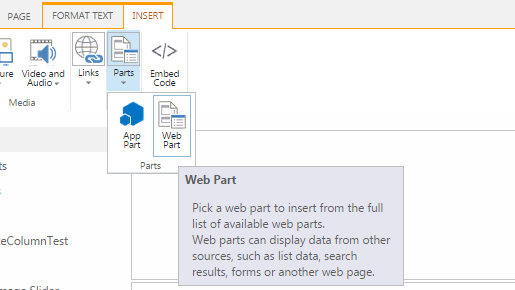
Select “Virto Solutions” in Categories and then select “Virto HTML5 Gantt” from the list of available web parts.
Now add Gantt Chart Web Part to the SharePoint site page and save the changes on page. Click on link to configure the Web Part.
***Note:***an administrator can add the Gantt Chart Web Part to the SharePoint site and adjust it. Then the web part can be saved as a template. Later on, this template can be used, and there is no need to adjust the web part every time.