
Task filters
The filter options include search, sorting, and custom condition filters.

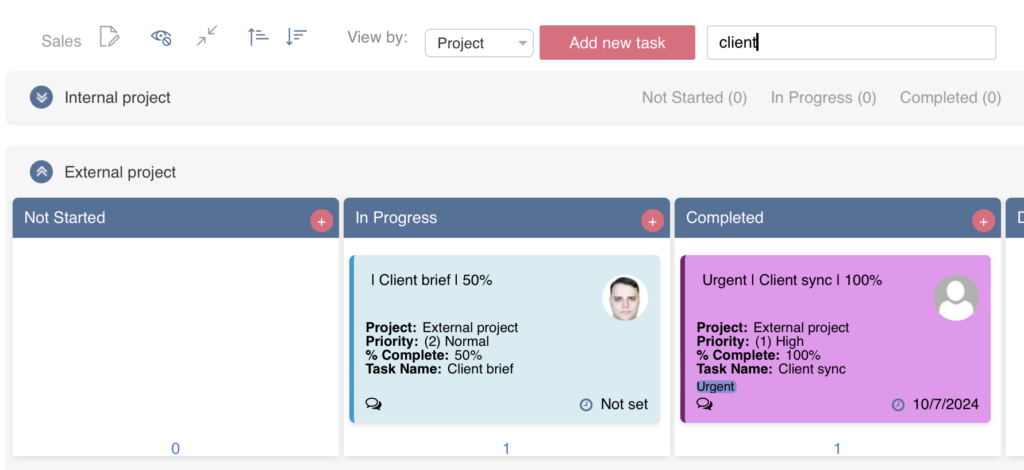
The search bar allows you to display only the tasks that match the entered task values (text, numbers, and symbols) based on the information shown on the cards.
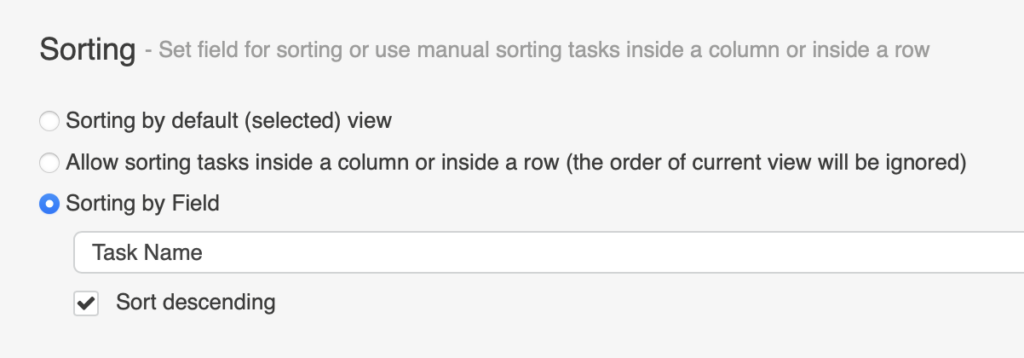
If you enable task sorting by a specific field, you can apply this filter in the Kanban board header.
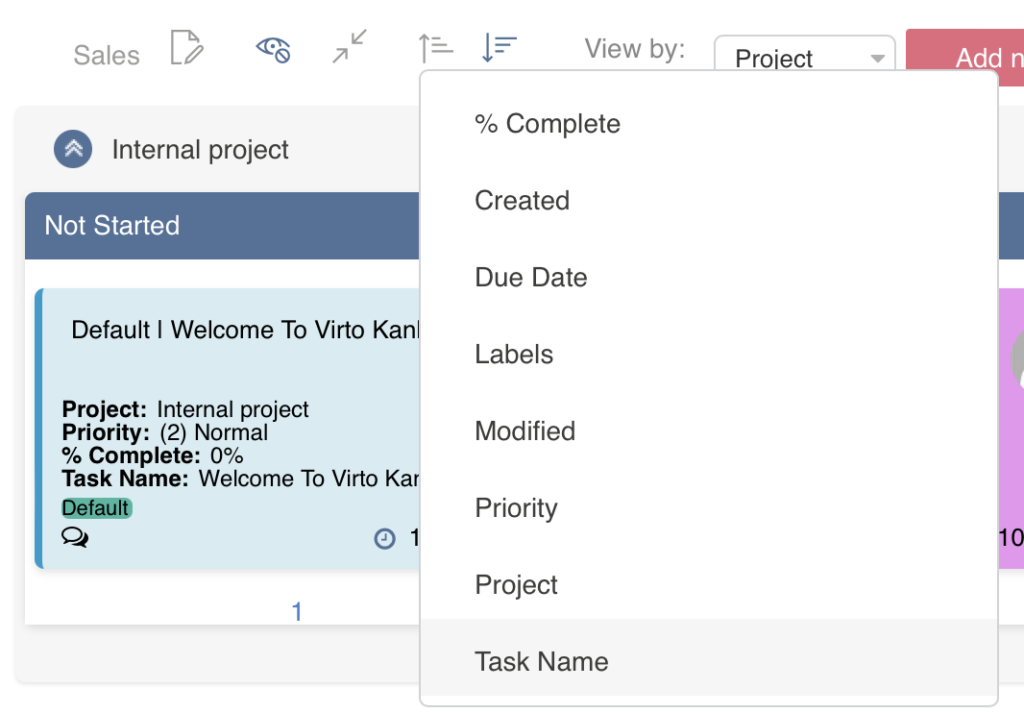
You can also sort tasks in ascending or descending order by name, due date, and more. Simply choose the sorting field.
Click the filter icon in the top-right corner to open the filter options.

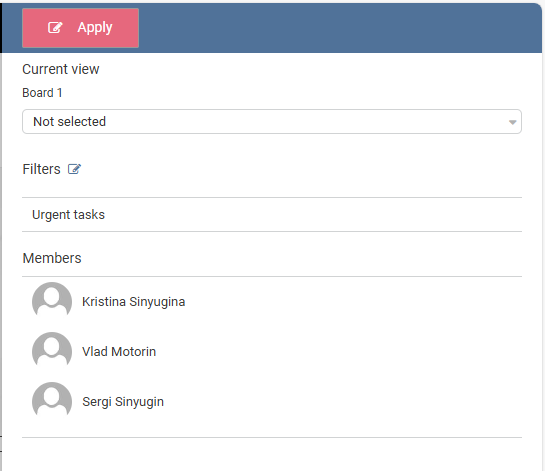
To filter tasks on the board, select the required list view from the drop-down menu. This option is only available if the view filter has been adjusted in the settings.
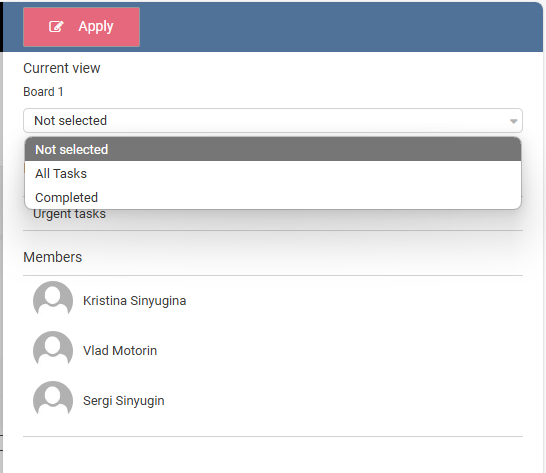
You can add custom filters in the web part settings (under the “Advanced Setup” block) or create a new filter directly from the board view by clicking the edit button next to the filters.
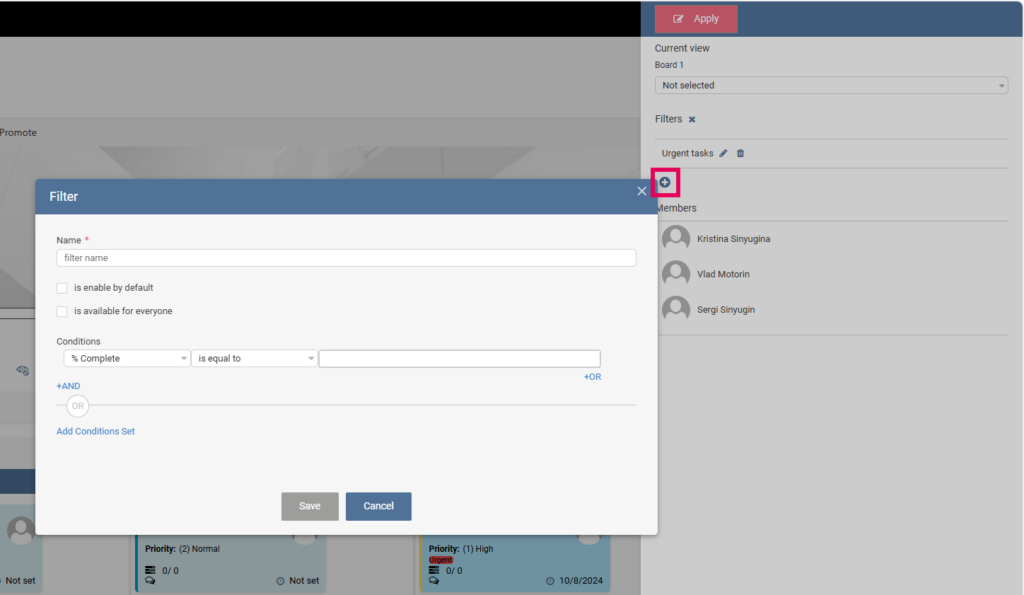
It is possible to set a new filter as the default. If you check the “is available for everyone” box, the filter will be visible to all users. If you don’t check this box, the filter will be saved as a personal filter and will only be available to the user who created it.
The user filter shows all users assigned to tasks on this board. You can click on a user to apply this filter and display all of their tasks.
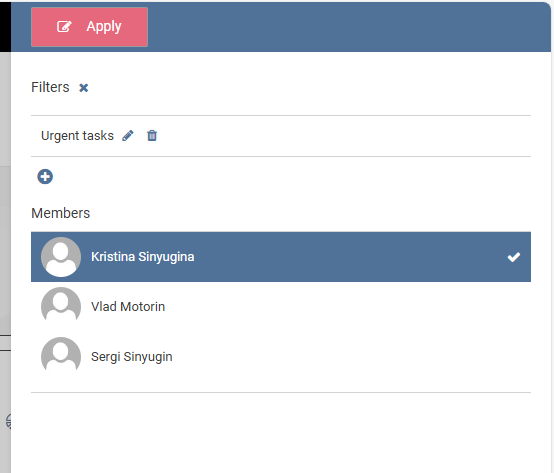
Click “Apply” to activate the chosen filter, view, or selection.