
Adding App to a SharePoint site
You can use Resource Manager app on a separate page (just click the link in the Site contents then), or add it as a web part to a SharePoint site page.
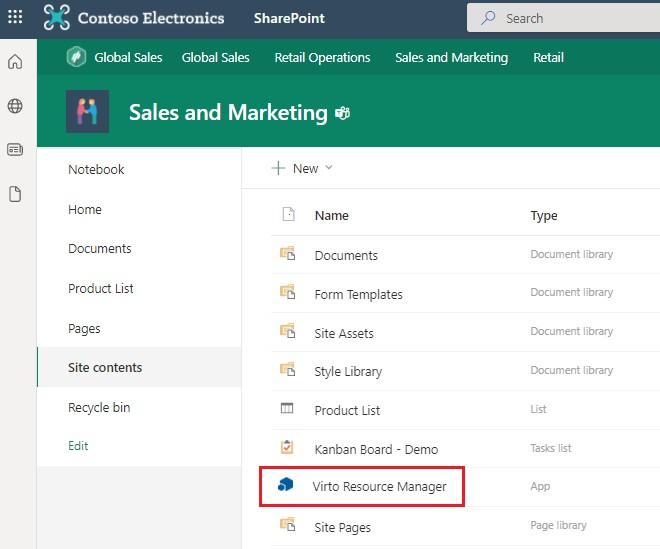
Navigate to the SharePoint site where you need to add the Resource Manager app and switch to the edit page mode.

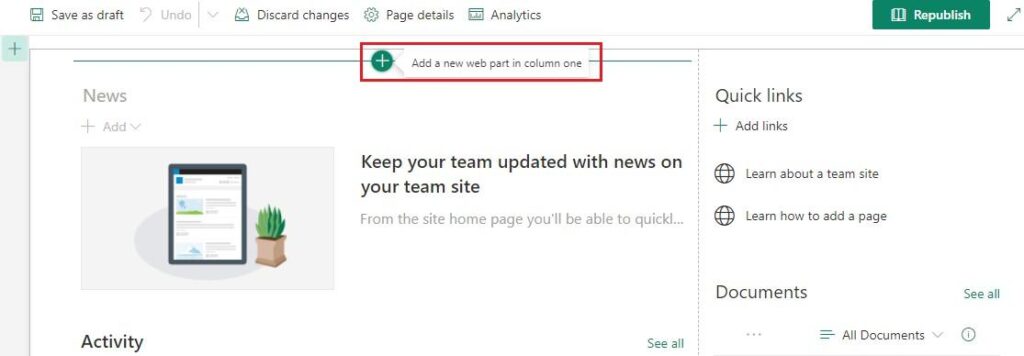
Click the plus in the part of the page where you’re going to add the app and then “Add a new web part”.
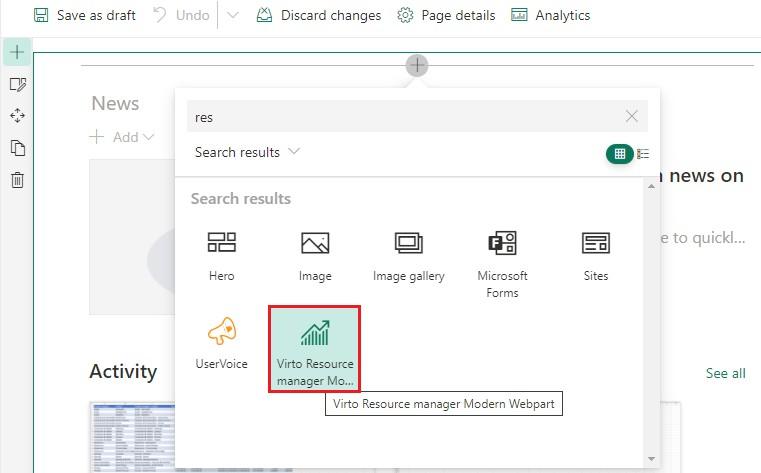
Search for Virto Resource Manager Modern web partand choose it for adding to the page.
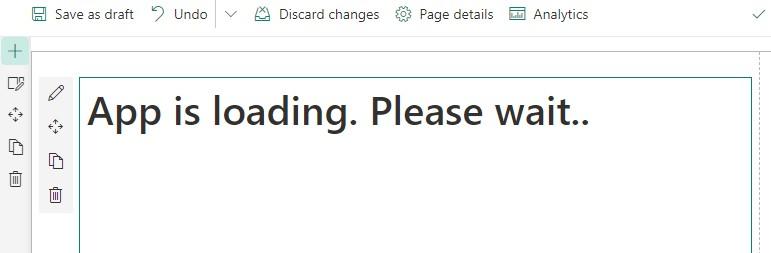
Then wait until the app is loaded and start using.
If you already have at least one Resource Manager chart existing on your site collection, you can apply it to be displayed on this page. Otherwise, please return to the “First Start” instruction to create a new chart.
Note*: a chart may contain one or more resources.*