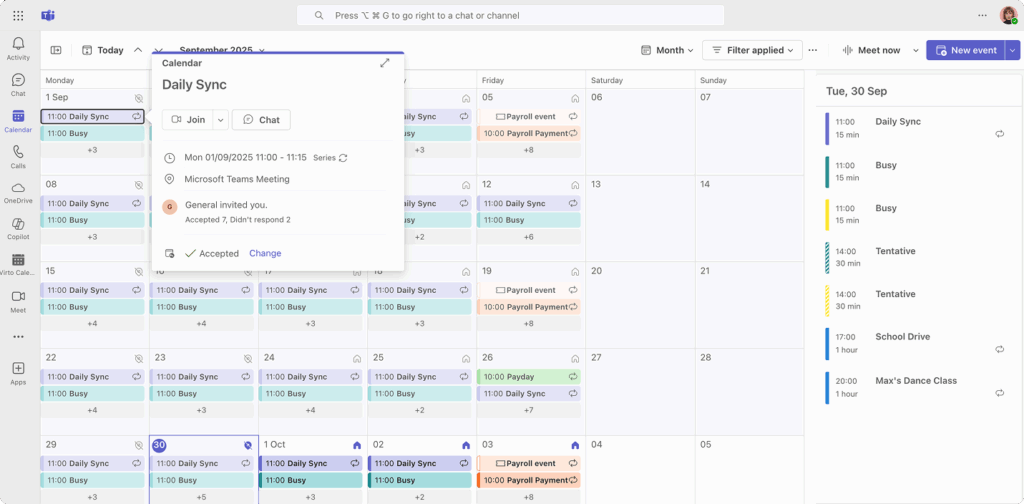
Creating Microsoft Teams Meeting From a Calendar Event
You can create Microsoft Teams meetings directly from Virto Calendar App events. There’s no need to add Virto Calendar App as a separate tab in Microsoft Teams. Simply edit events in your Virto calendar and incorporate them into your Microsoft Teams calendar as meetings.
This feature is available for the Outlook calendar data source. Make sure your Outlook calendar supports this option.
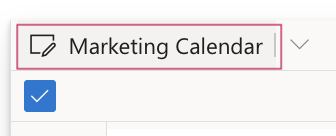
Ensure you have Outlook (Exchange Online) selected as a data source in your Virto calendar. To do this, open the current calendar settings by clicking the calendar name.
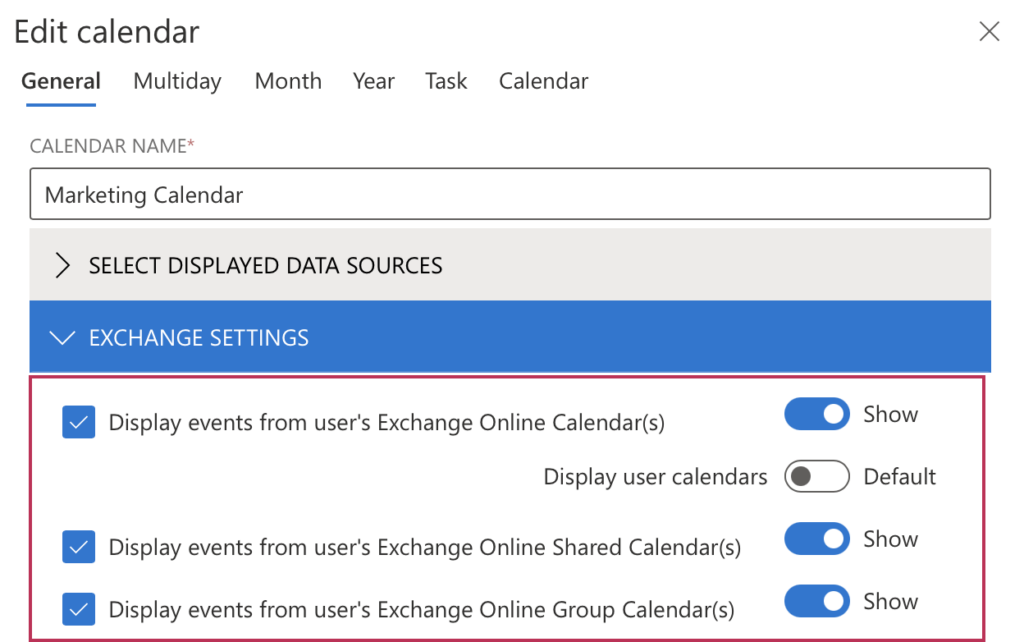
Scroll down to “Exchange settings” and ensure you have selected at least one of the three Outlook exchange options.
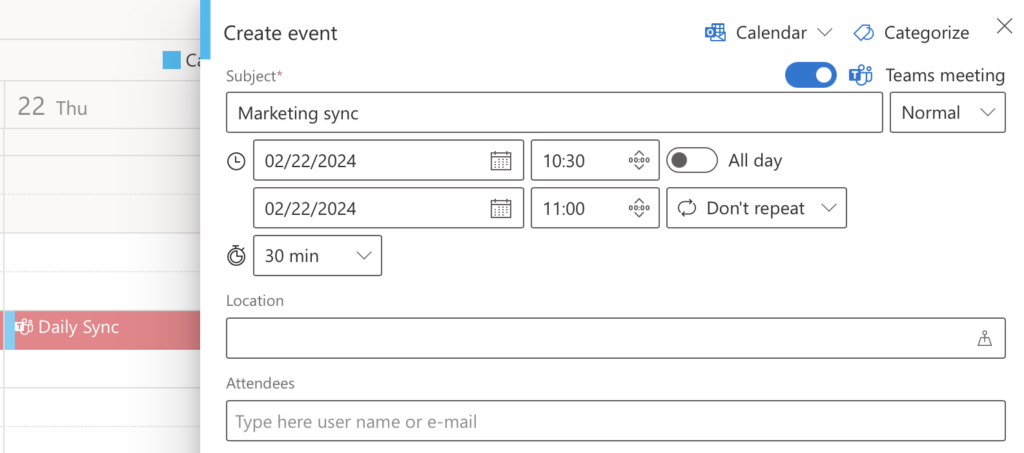
Return to the calendar and select the event you wish to add to Teams. Check the “Teams meeting” box in the top right corner and save the event.
Open your Microsoft Teams calendar to view the newly added Outlook event.