Actions with Calendar Items
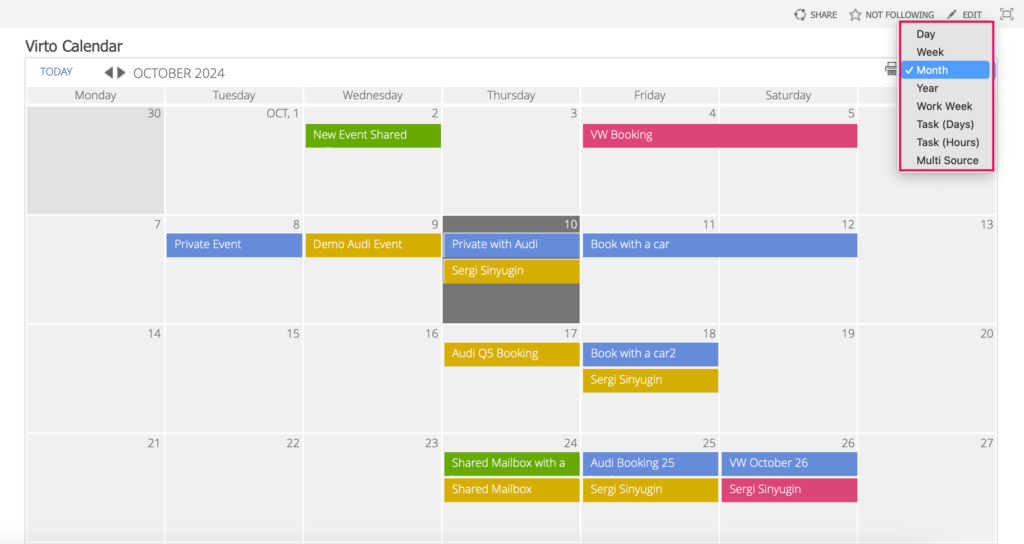
The Virto Calendar Web Part offers various views, including Day, Week, Month, Year, Work Week, Task (Days), Task (Hours), and Multi-Source View.
You can select a view from the dropdown menu or drill down to the next view by clicking on a month in the Year view or a day in the Month view. The drill-down feature can be enabled or disabled in the calendar settings.
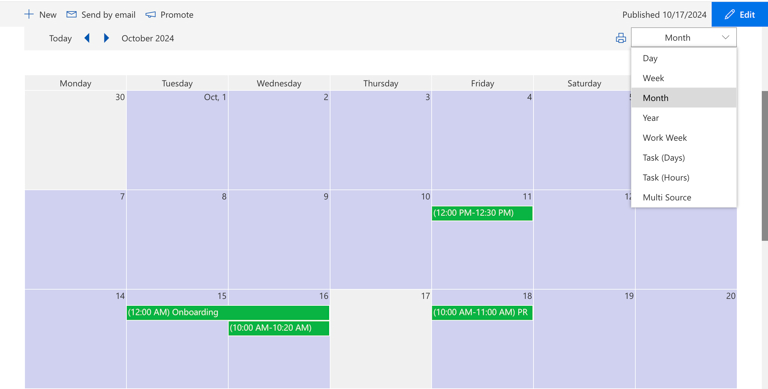
The same views are available for SharePoint modern page calendar:
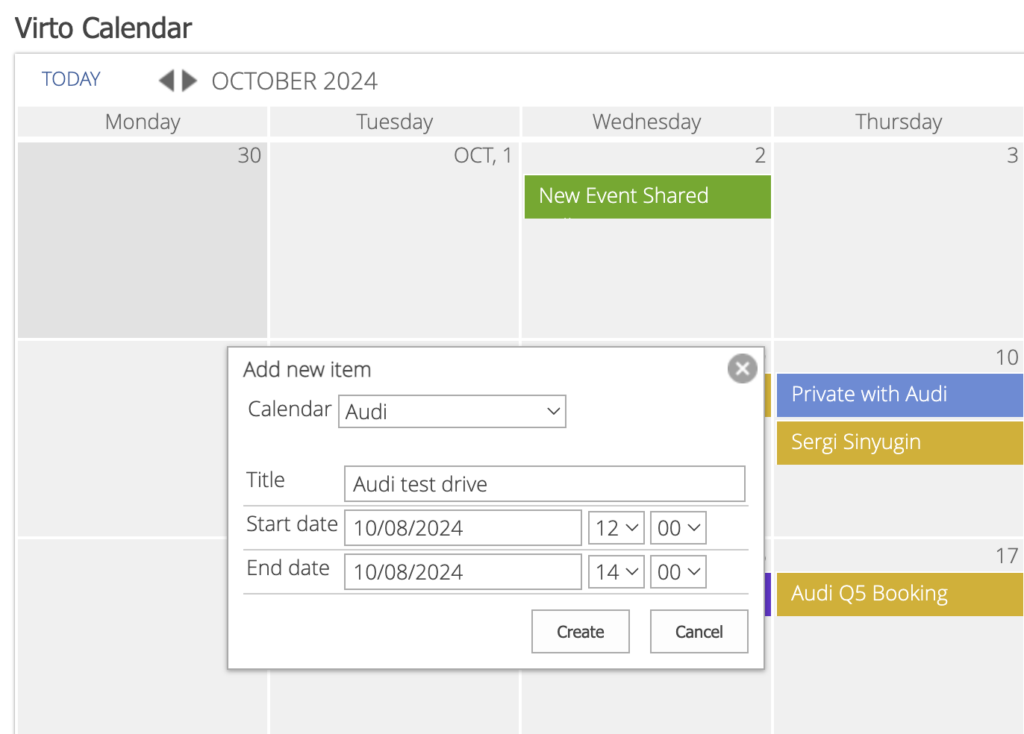
There are two ways to create an event. You can select and drag the desired time period for the event (for example, click on Thursday and drag to Friday to create a two-day event), or simply click on a day to create a one-day event, and you can edit its duration later.
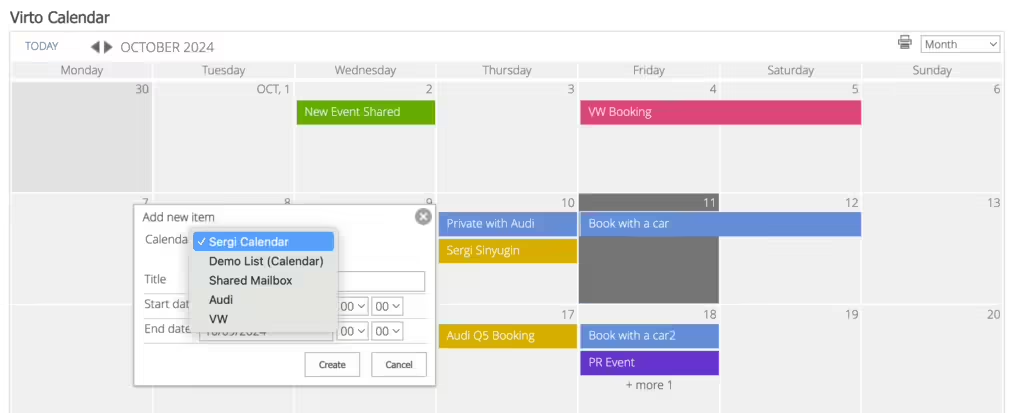
To quickly create an event, simply enter the event name, select the desired calendar, and click “Create.”
If you need to reschedule an event, simply drag and drop it to the desired date in the calendar.
Drag-and-drop functionality is not available in the Year view.
You can also edit the duration of events (resize them) in drag-and-drop mode.
Resizing is only available in the Day, Week, and Work Week views.
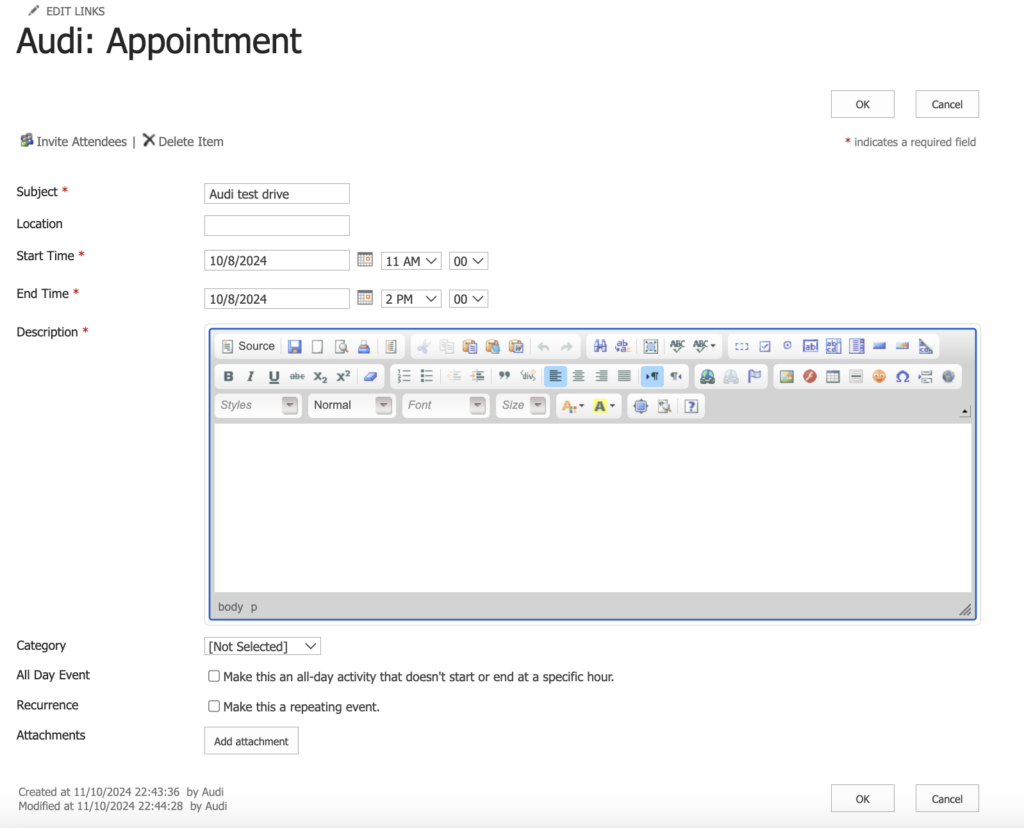
To edit event details, click on the event and then click “Edit” in the tooltip.
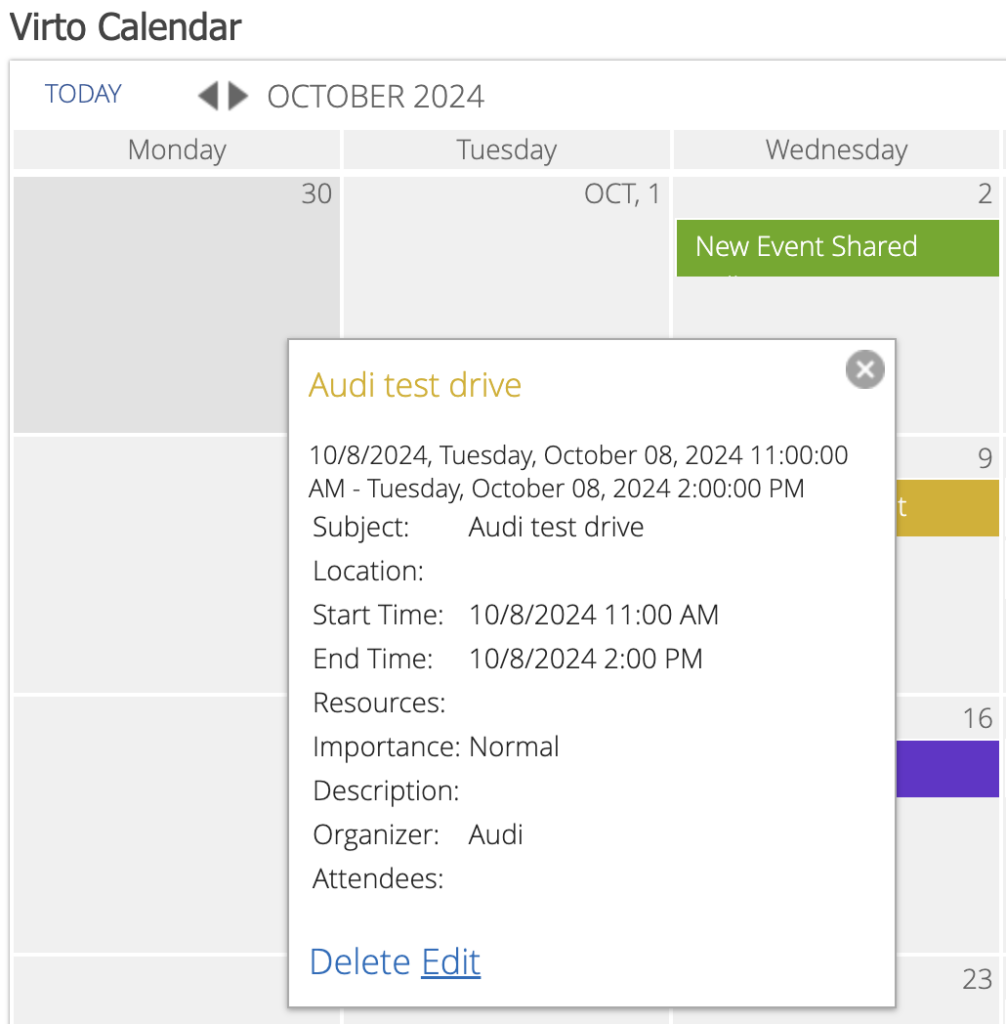
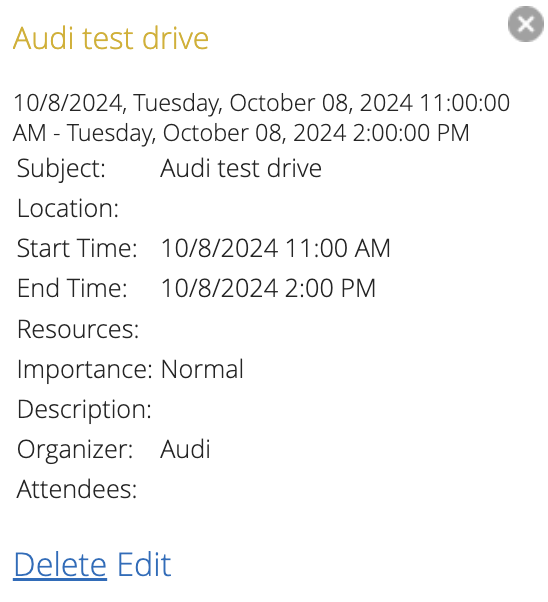
To delete an event, click “Delete” in the tooltip.
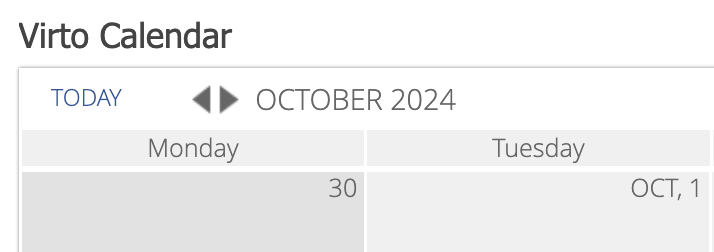
Use the “Today” button to jump to the current day. Use the navigation buttons to move to the previous or next page of the selected period.
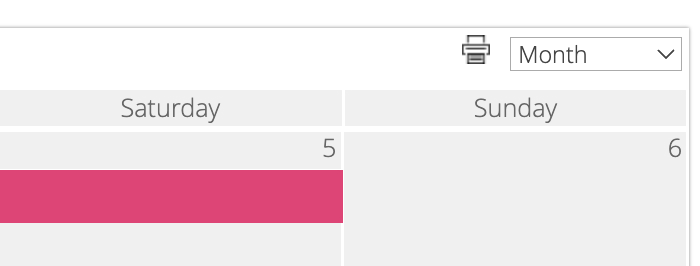
By clicking the “Print” icon in the upper right corner, you can print the current page.