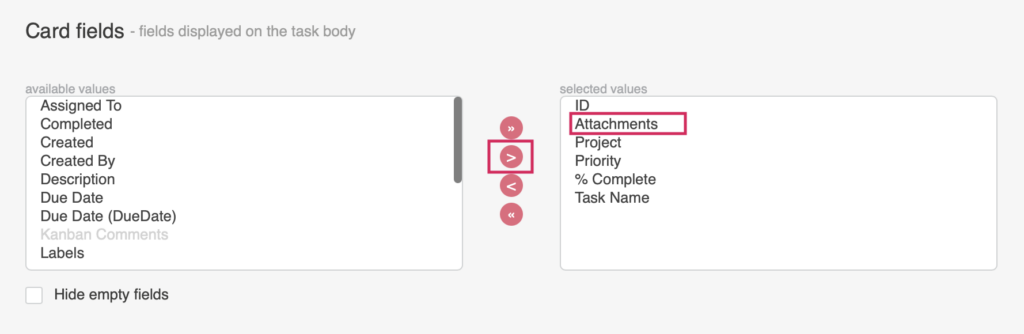
Attachments / images
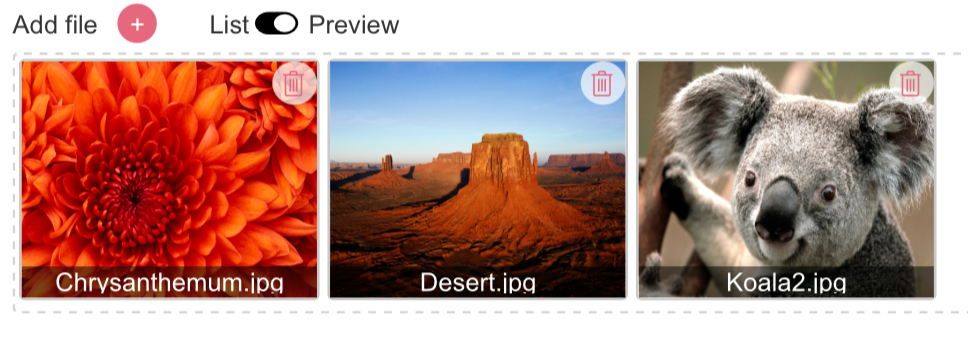
You can attach images to tasks and display them in full view by toggling the “List/Preview” feature.
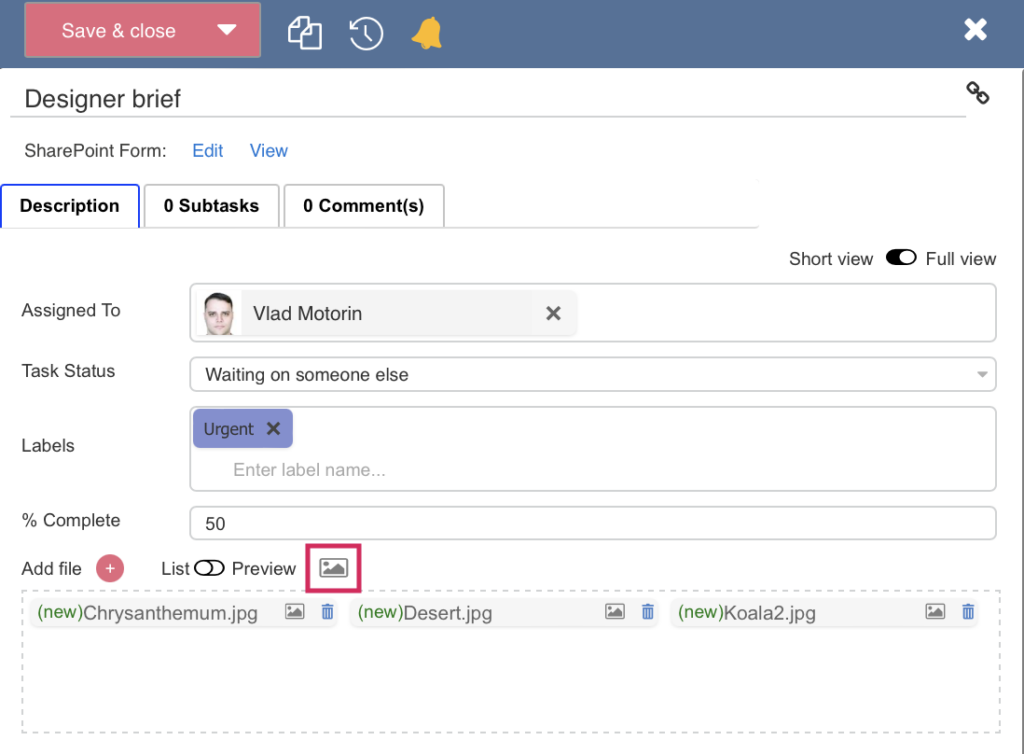
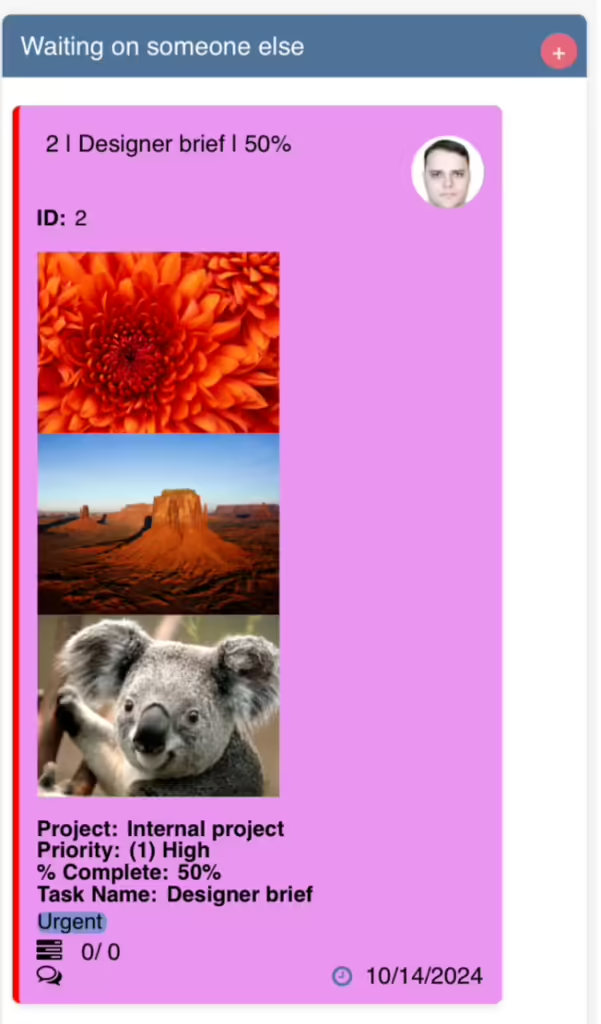
You can also display attached images on the board. To do this, switch to “List” mode and click the image icon next to the task. If you want to show only selected images, click the image icon next to the desired image.
If the “Image” icon does not appear in a task tooltip, check that you have selected “Attachments” in the card settings.