
Configure Your Virto Calendar
To create your first Virto Calendar, choose My calendar, Advanced settings, or start from a template.
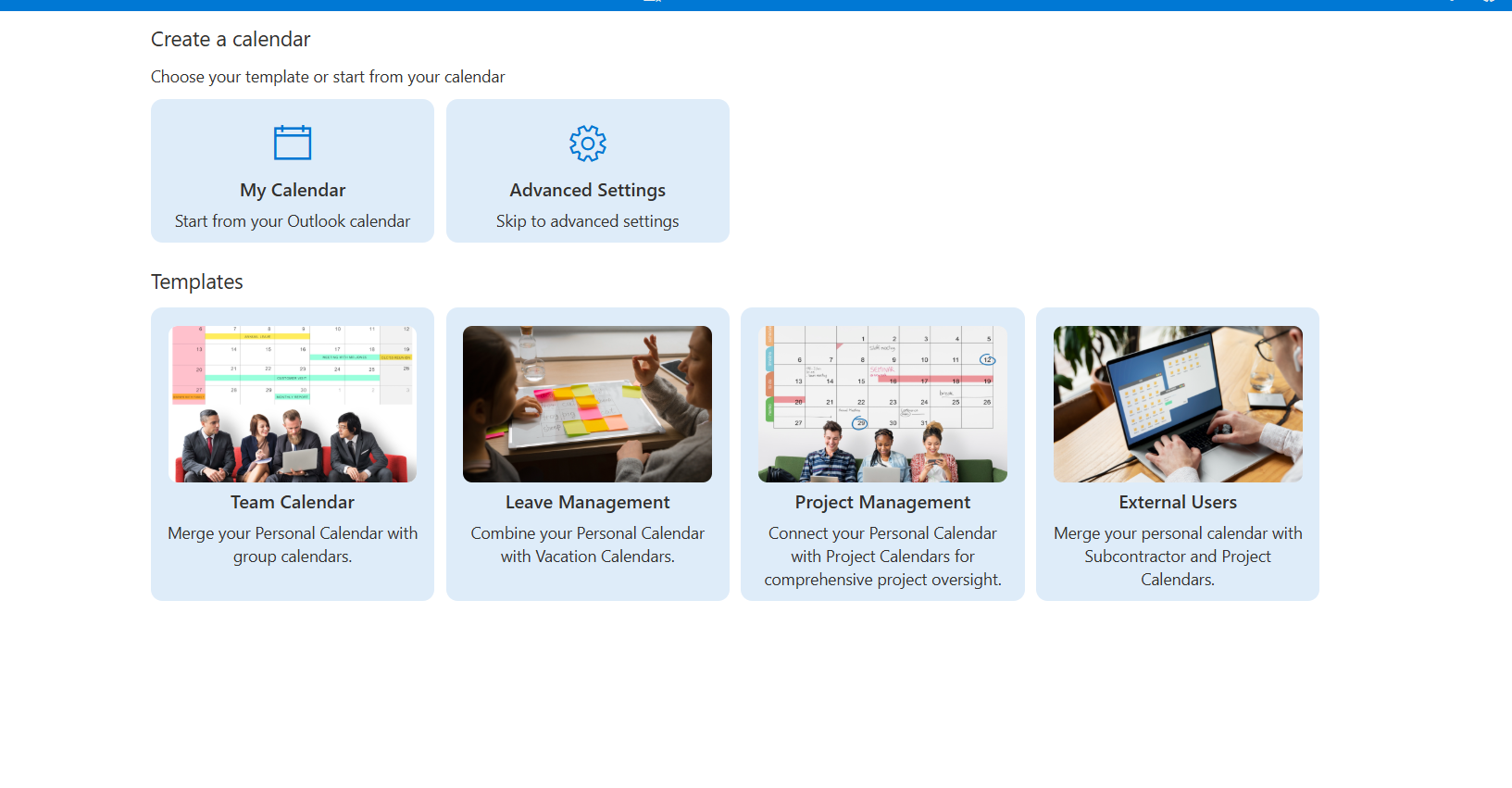
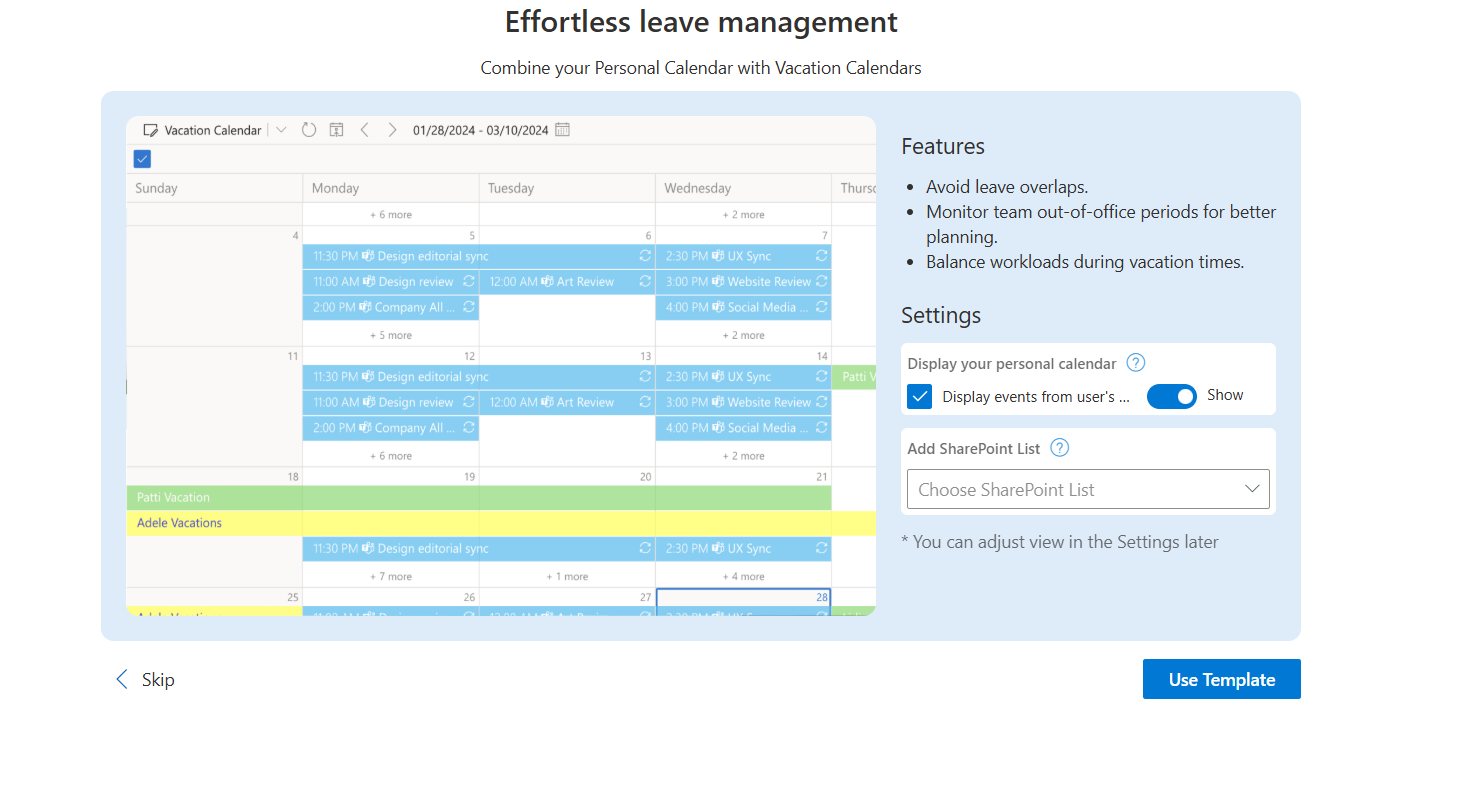
Choose My calendar to build Virto Calendar from your Outlook calendar. Or select Advanced settings for more configuration, or start from a template. You can, for example, connect a SharePoint calendar as the data source. If no SharePoint calendars are available on your site, you’ll see No calendars existing. In that case, add one or more Outlook calendars from the list. When you’re done, click Create or Use Template.
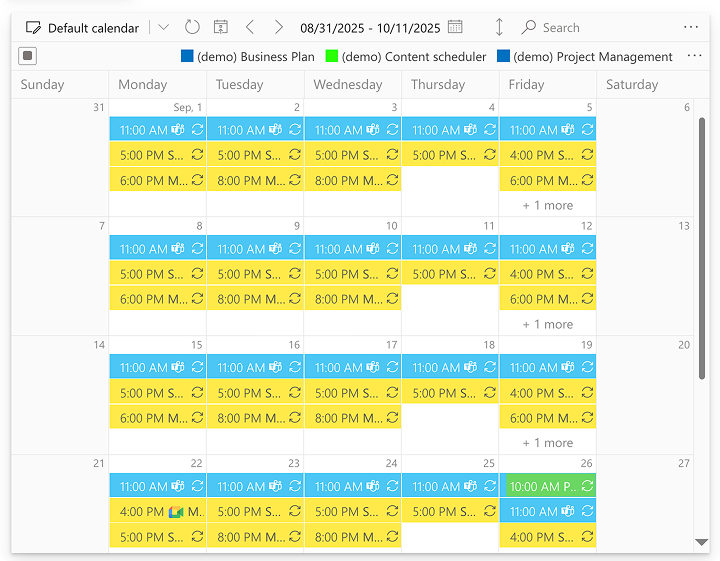
Check out your first Virto calendar!
VirtoSoftware does not retain your data. Permissions are used solely to render overlaid calendars in real time for the user who opens the Virto Calendar app. Access applies only while that user is working in Virto Calendar. Each session generates a unique private key that is never reused—every new session creates a new key.