
Using Virto Alerts & Reminder App for SharePoint Lists
Virto Alerts & Reminder App allows you to create custom alerts, reminders, notifications, and summary emails. In addition, you can define cases in which you or your team will get email notifications. For example, you can create email templates that will be sent out to specific users when certain list changes are made or a deadline is approaching. The app can also send a “newsletter”, like a summary email every day, week, month, or once any other period.
After setting up the app (see the Virto Alerts & Reminder App product page), launch it from your Site Contents folder. You will see two buttons, “Add Alert” and “Add Reminder,” on the ribbon.

Alert
An alert is the notification you get if the value of the list item was changed, added, or deleted. In other words, the alert needs to be triggered by some change in a SharePoint list.
Click “Add Alert.”
Choose the list for which you want to create an alert.
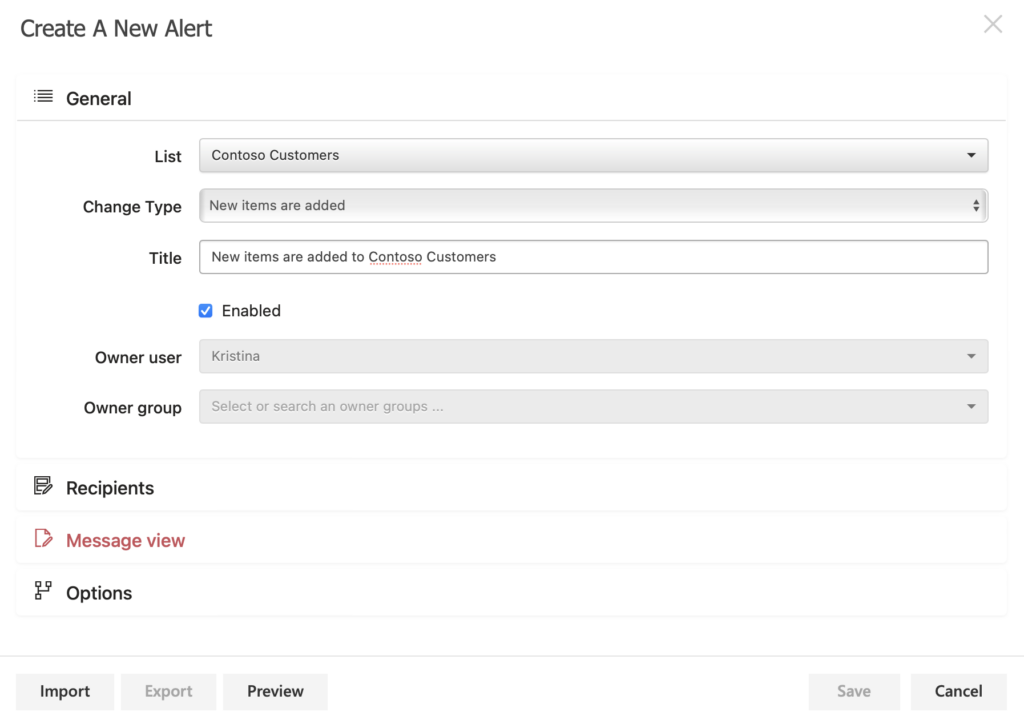
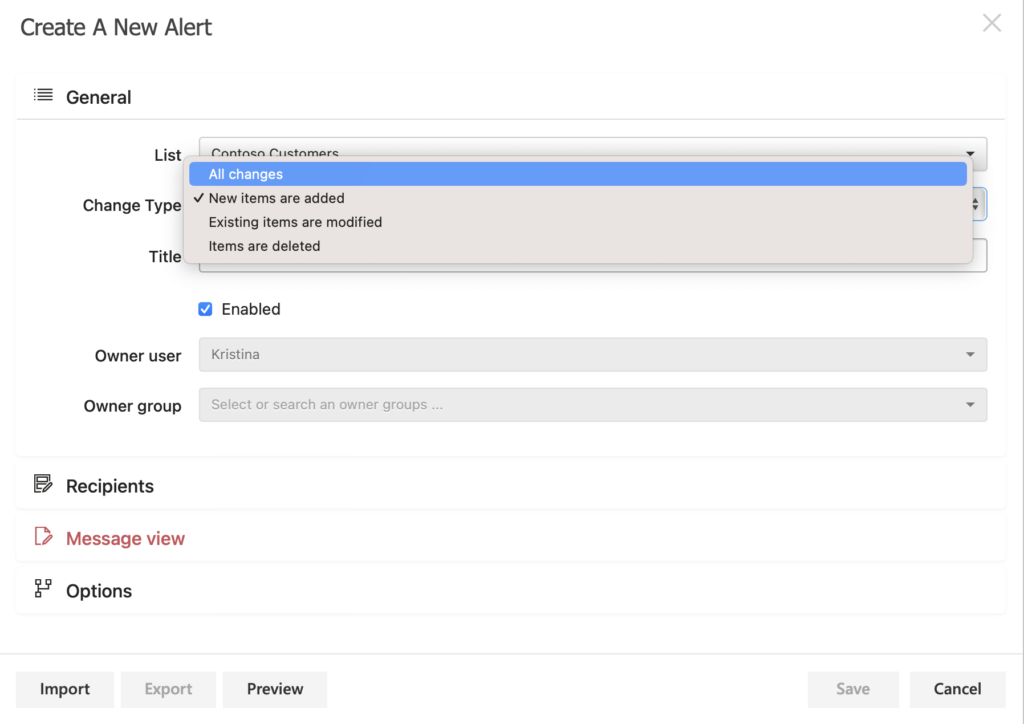
Choose the change type that you want to be notified about. Then, give a title to your alert.
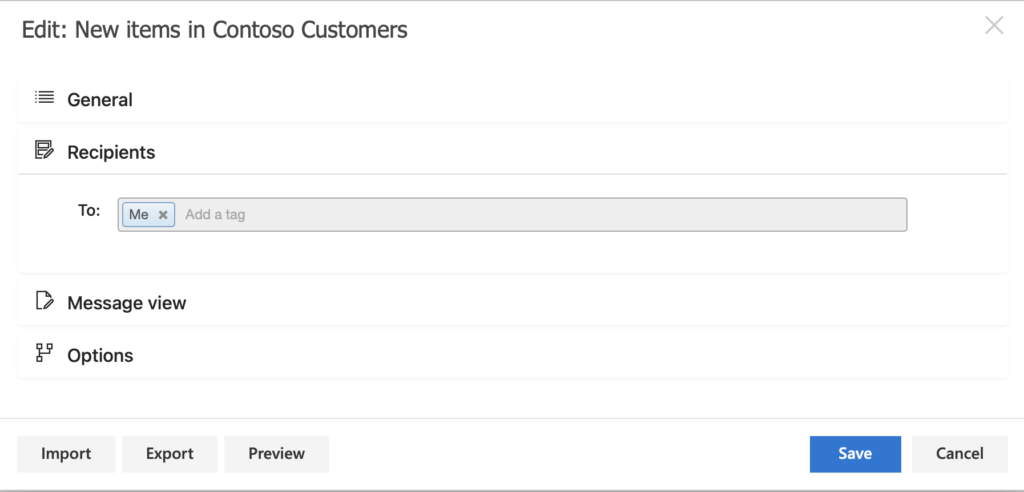
Specify recipients in the “Recipients” menu.
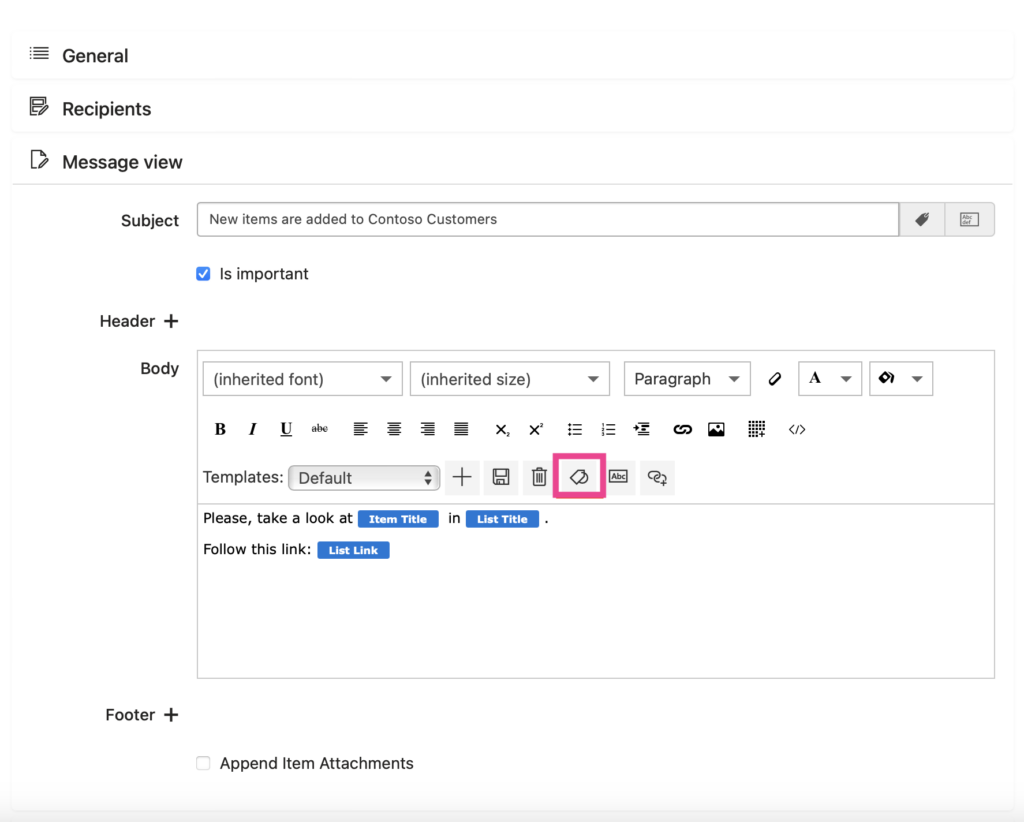
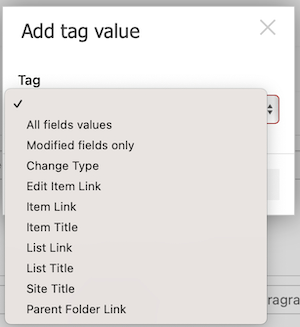
Create an alert message that will be sent out to recipients. You can configure the template to automatically substitute the values of changed parameters. To do so, click the “Tag” icon and specify the list of items you want to notify recipients if they got changed.
You may also want to discover the short video instructions on how to get started with the Virto Alerts & Reminder App.
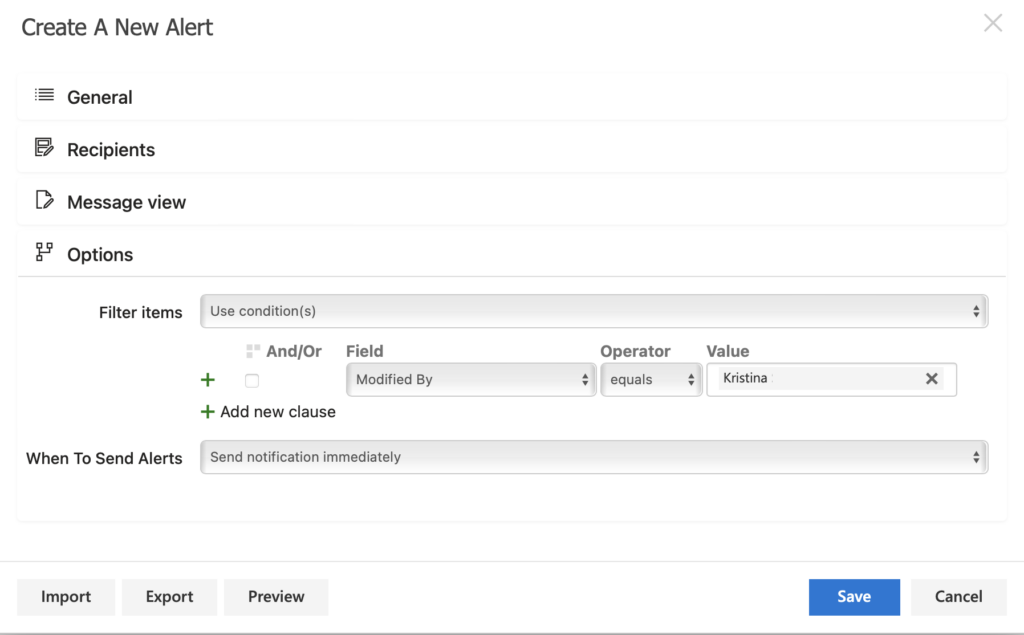
In the “Options” menu, you can specify the conditions for sending an alert, such as when a particular person changes the list.
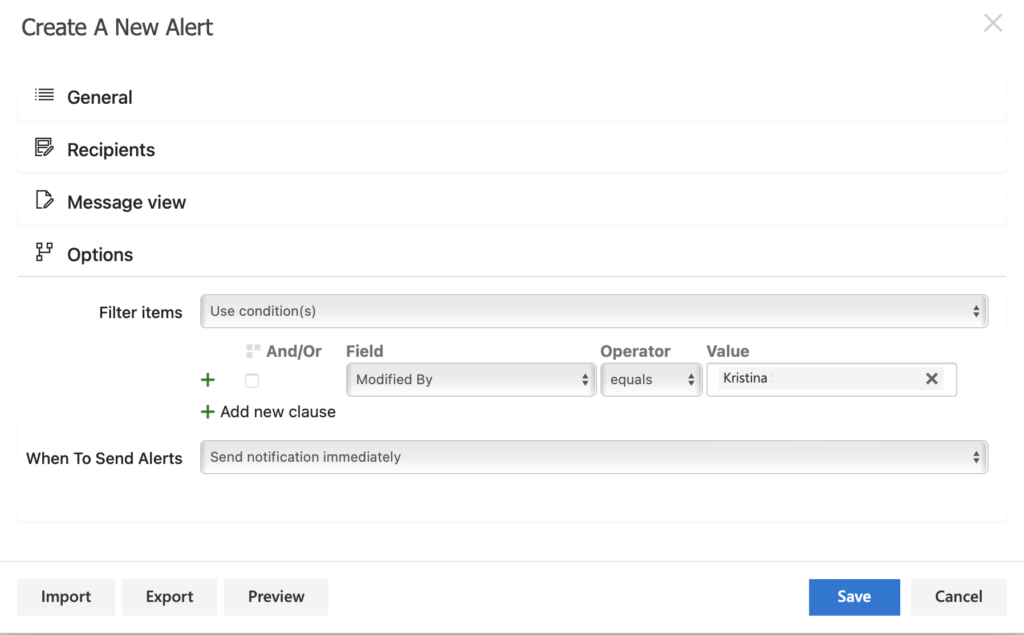
Using conditions for sending an alert
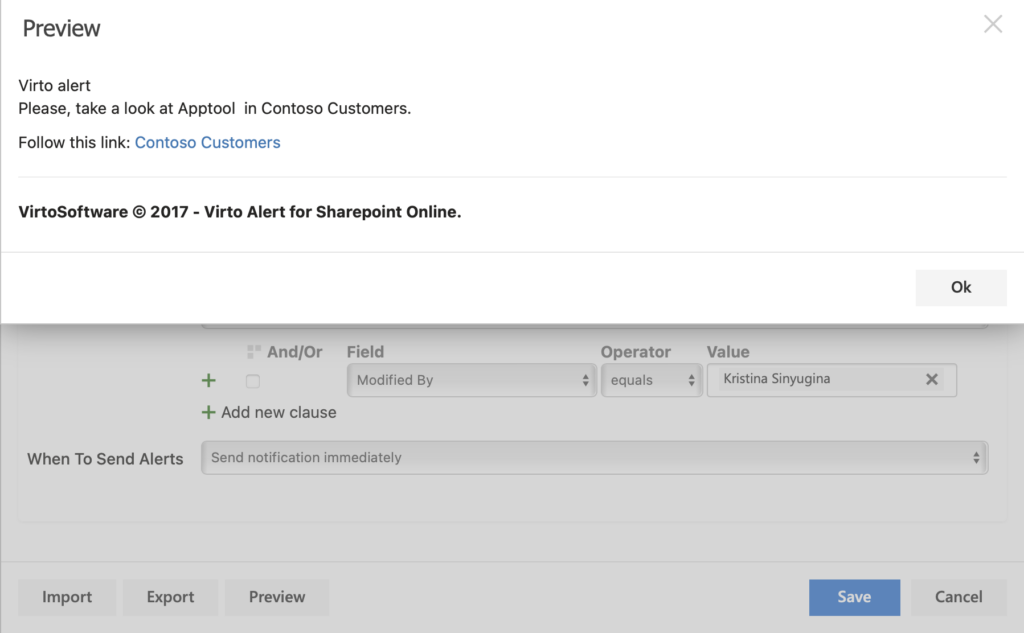
When you click “Preview,” you will see the example of an email sent to the recipients when the alert is triggered.
Reminder
The reminder settings are almost identical to the alerts. Only the triggers and cases when reminders are sent differ.
A reminder is a notification based on the date in the list or document library: on the event that will happen in the future, not the one that already happened (unlike alerts). Read the “Basic options for common users” part in the Alerts & Reminder documentation to understand the difference and see the provided use cases for alerts and reminders.