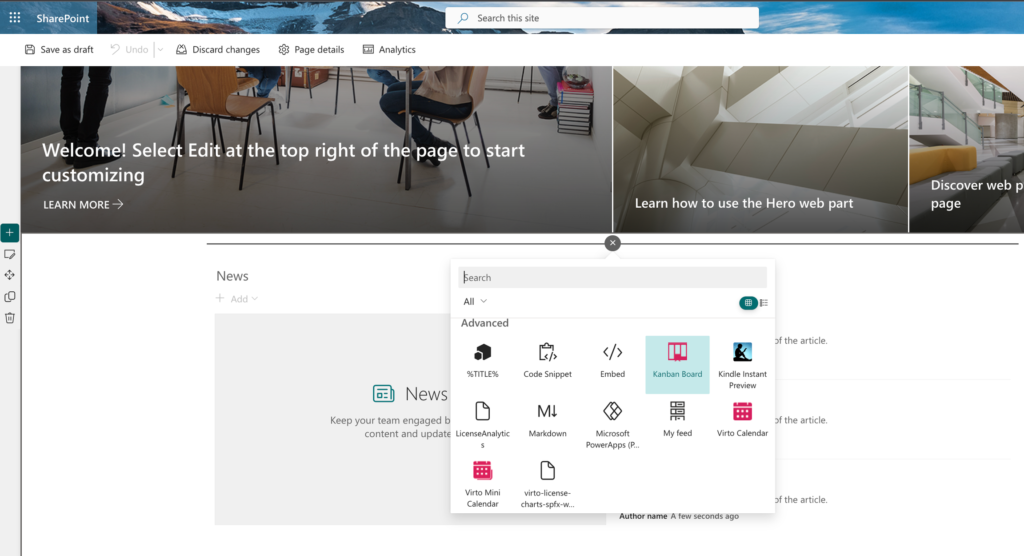
Installing Virto Kanban Board App
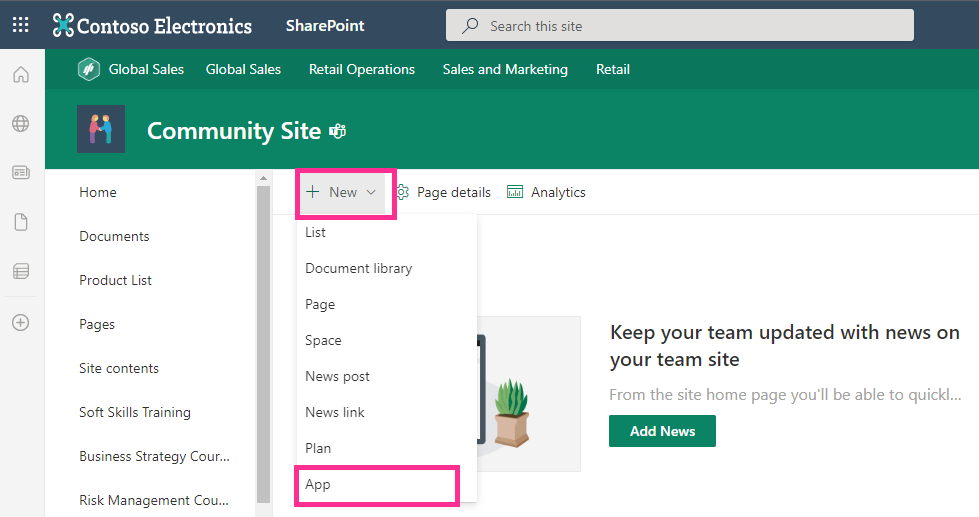
Open the SharePoint site where you want to add the Virto Kanban Board app and choose “App” in the “New” drop-down menu.
Search for “kanban” and find the Virto Kanban Board App by in the list of available apps in the SharePoint store.
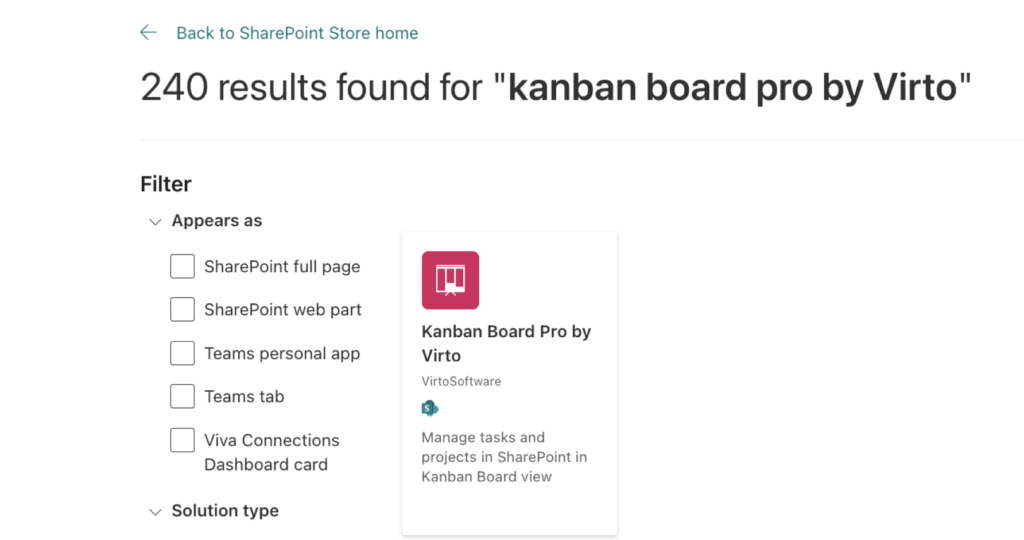
Click on the “Kanban Board Pro by Virto” app.

Click “Add to Apps site.”
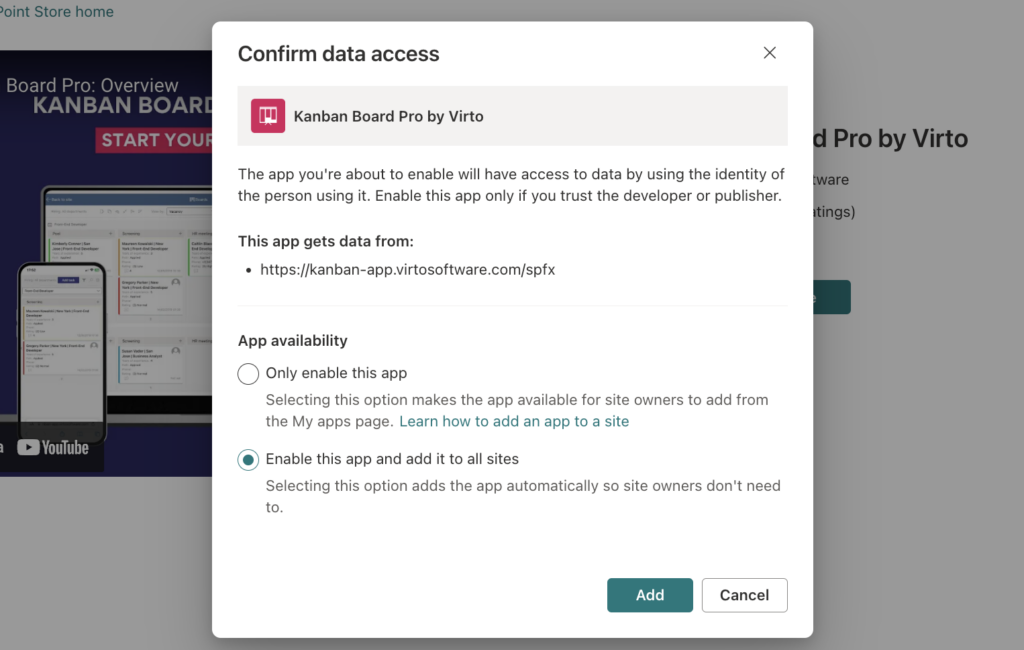
Then, the “Confirm data access” window will pop up. Virto Kanban Board App can be added to all tenant sites (second option) or just allowed to be added by a SharePoint administrator (first option).
If you choose the first option ("Only enable this app"), you will need to add an app to each site where you want to use it.
Note: if you use the Virto Calendar App and have already given permission to this app, you won’t need to do it for Virto Kanban Board App.
Now, you can add the app to your SharePoint site, just like you add any other app.