Contact us

Views and filters

You can choose default Kanban view: board or charts.

Choosing the default Virto Kanban view between board and charts
Choose default Kanban view
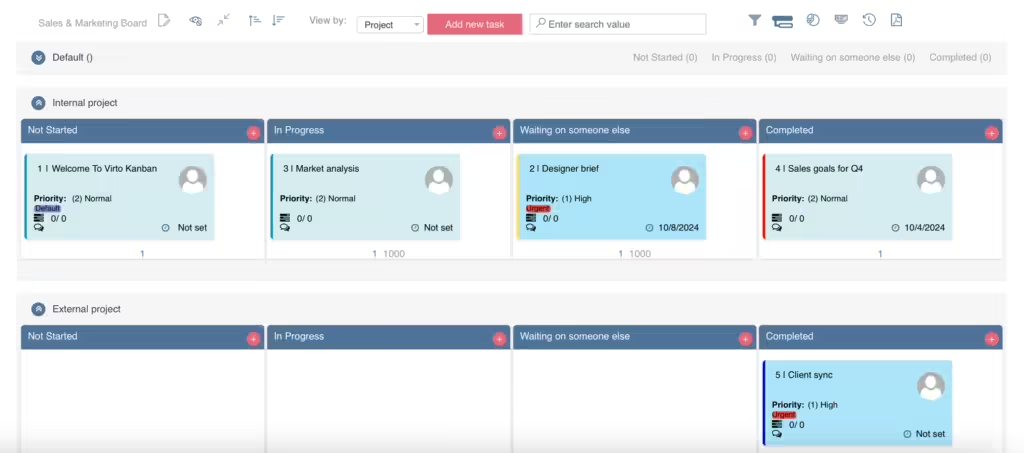
Virto Kanban Board view showing tasks arranged in columns
Board view
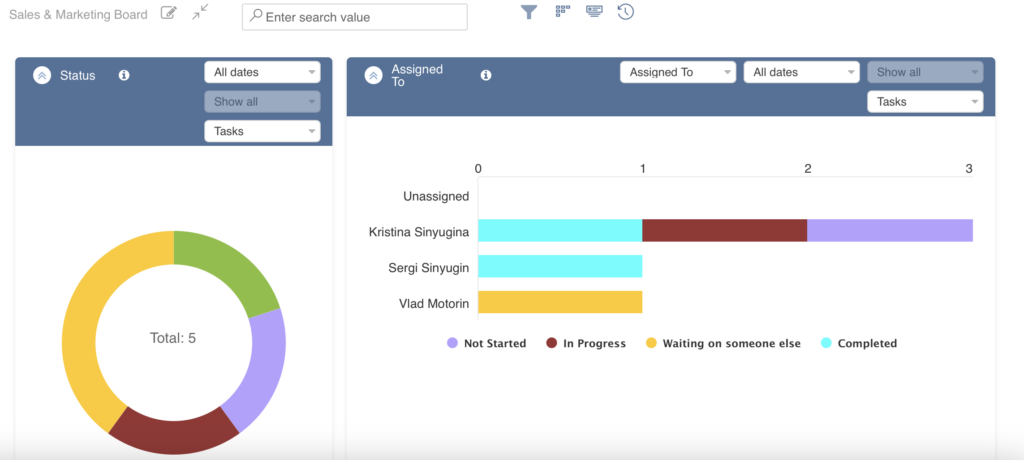
Virto Kanban charts view displaying status and assigned-to breakdowns
Charts view - status, assigned to
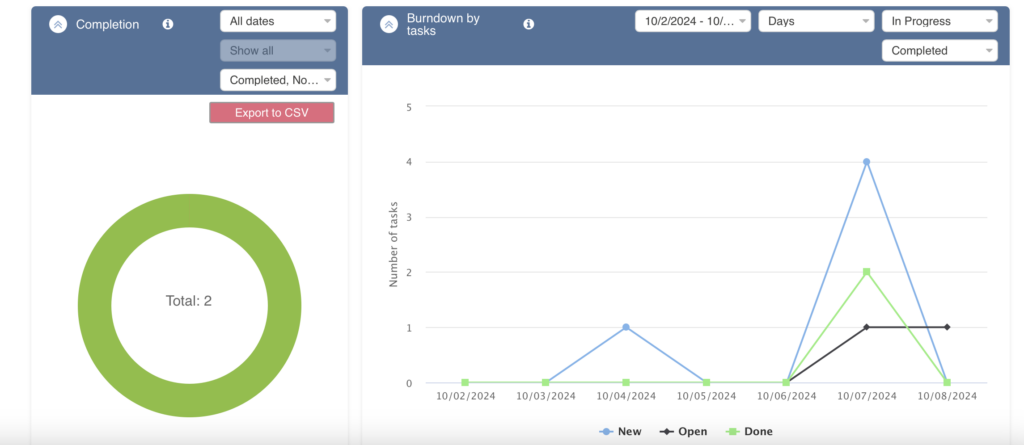
Virto Kanban charts view showing completion and burndown by tasks
Charts view - completion, burndown by tasks
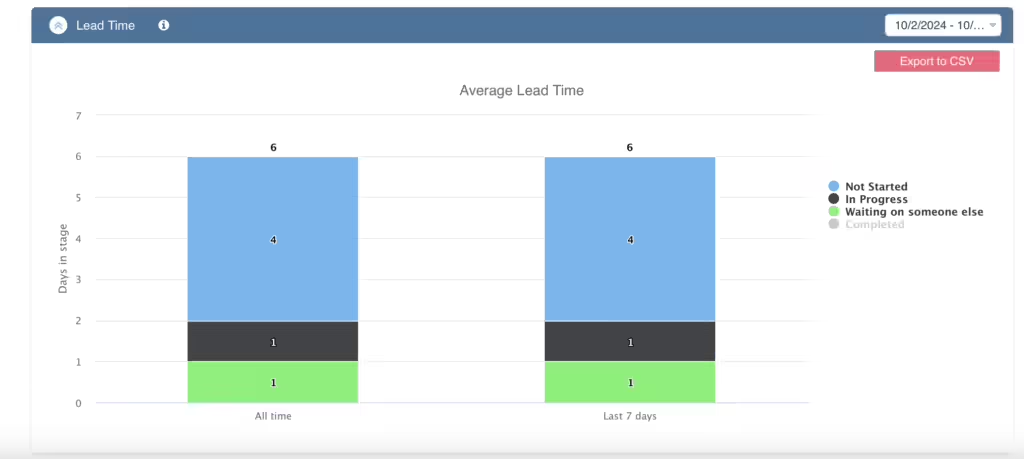
Virto Kanban charts view displaying the lead time chart
Charts view - lead time

You can choose list views for each list to filter tasks on the board.

Choosing a list view for each list to filter tasks shown on the Kanban board
List views

If you enable the “Allow filter by user” option, the user filter will be added to the “Filters” block.
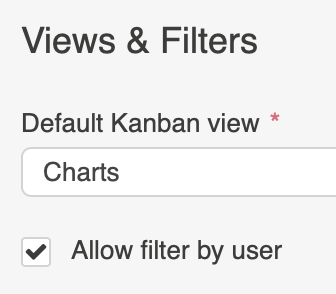
Allow filter by user option adding a user filter to the Filters block on the Kanban board

Click the filter icon in the upper right corner to display or create filters.
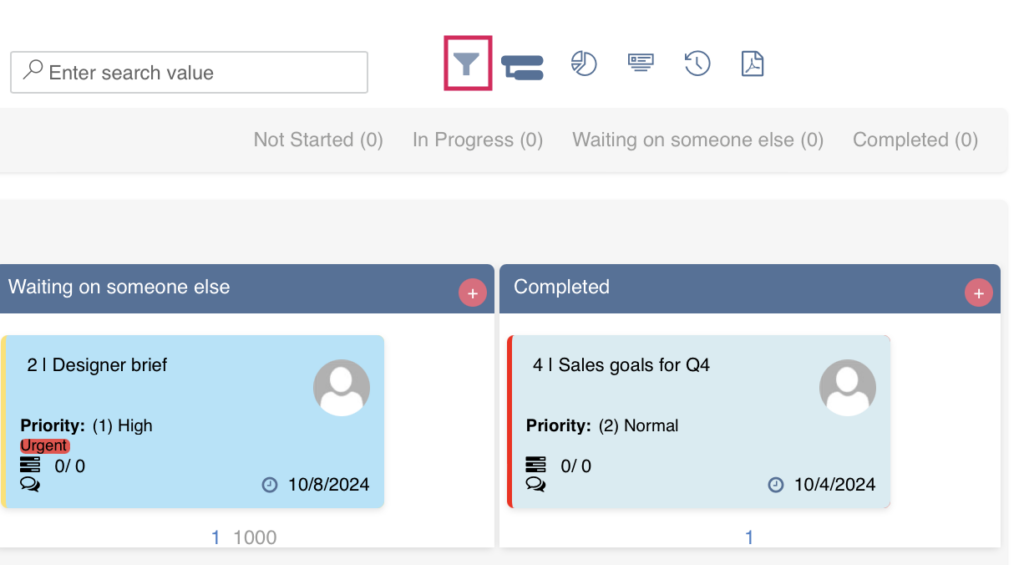
Filter icon in the upper right corner of the Kanban board used to display or create filters
Filter icon
An active filter applied to tasks on the Virto Kanban Board
Filter on

You can also select a set of view filters for each list.
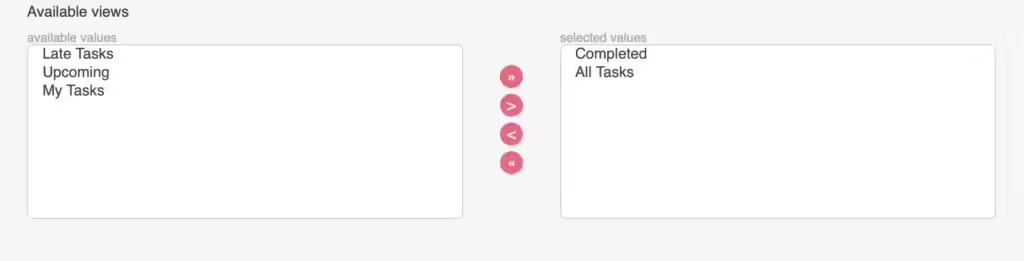
Selecting a set of view filters for each list in the Virto Kanban Board settings

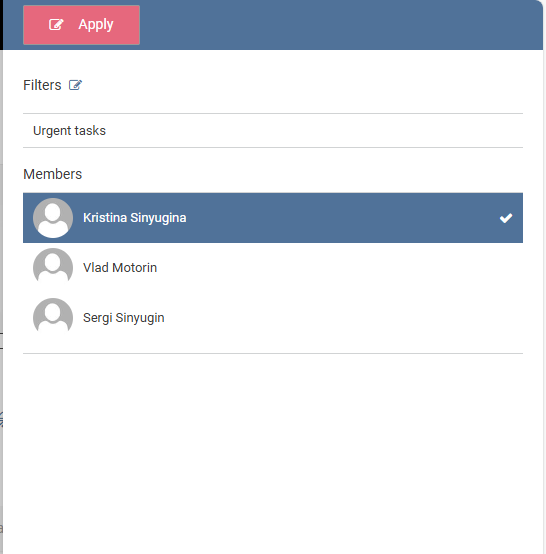
To apply a filter, click “Filters” on the kanban board. Then choose a filter for a list and click “Apply.”
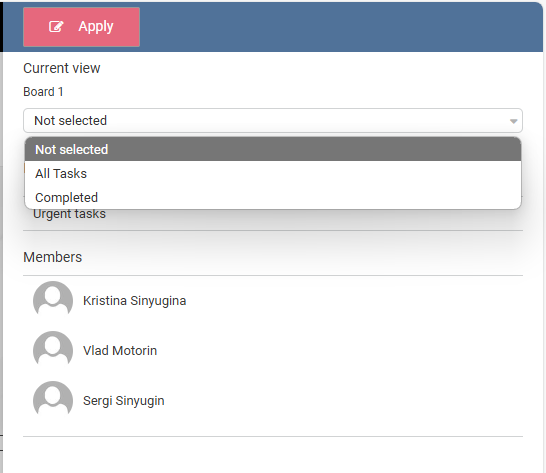
Choosing a list filter and clicking Apply in the Filters panel on the Kanban board

Updated on June 17, 2026