Swimlanes
Hide/collapse swimlanes
Use the hide empty swimlanes icon to hide all that do not currently contain tasks.
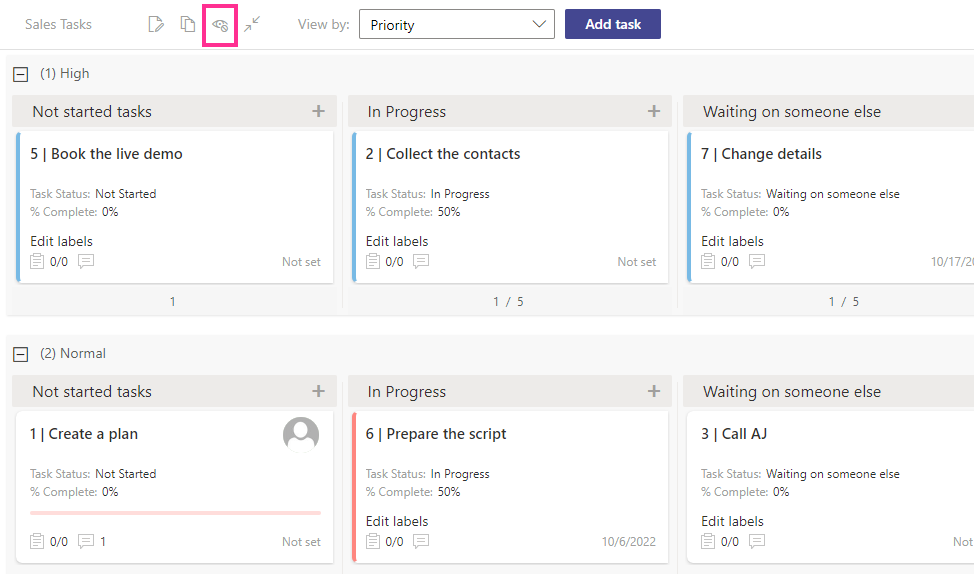
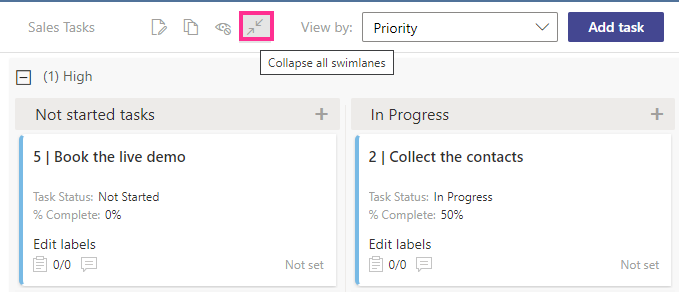
Using the relevant icon, you can collapse or show all the swimlanes at once.
Switch swimlanes
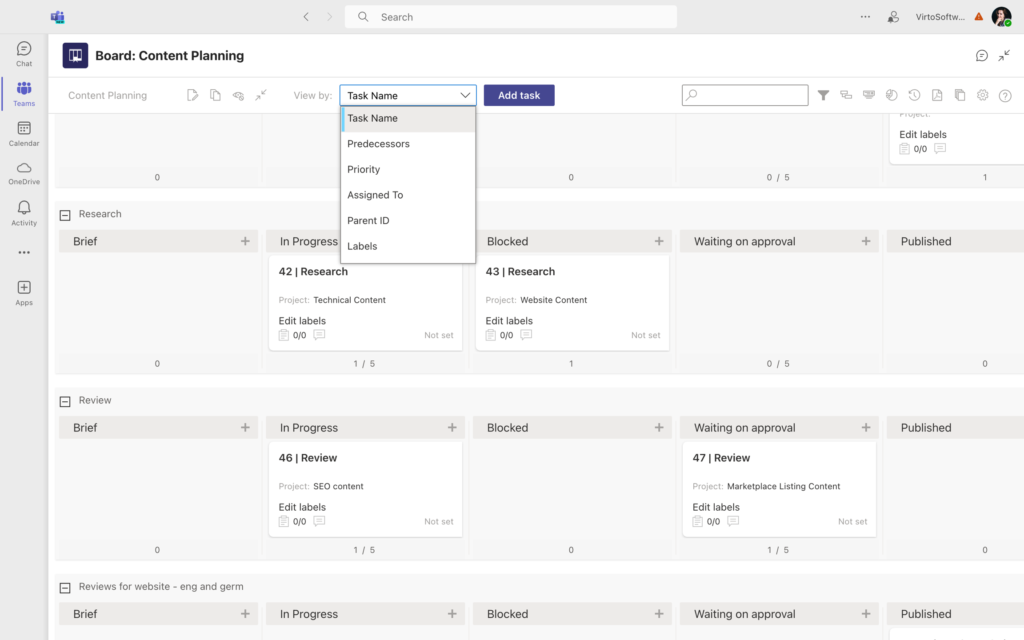
You can switch swimlanes directly on the board to view tasks grouped in swimlanes. There is no need to open the settings and make modifications—choose the desired swimlane field from the drop-down menu.
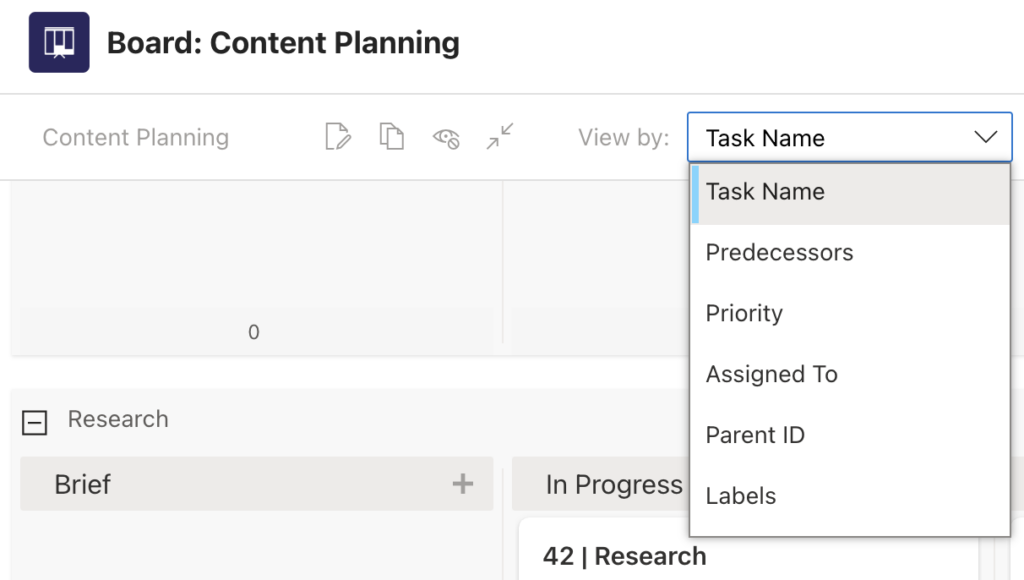
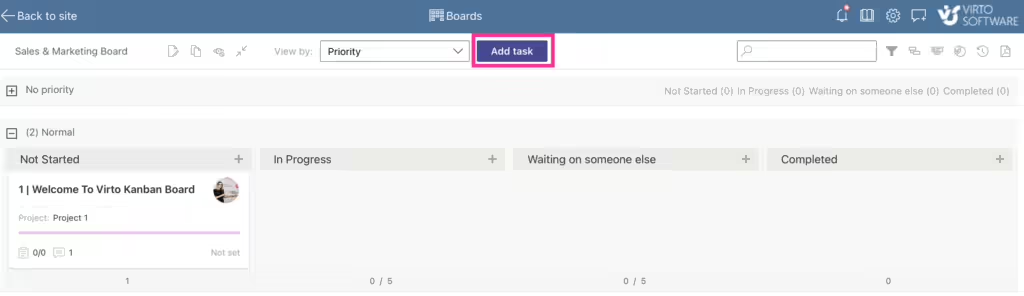
Quick boards have swimlanes organized by a project by default. You can change it by choosing the desired view from the “View by” drop-down menu.
If you want to create a new project, create a new task and type the name of your new project at the bottom of the task card.
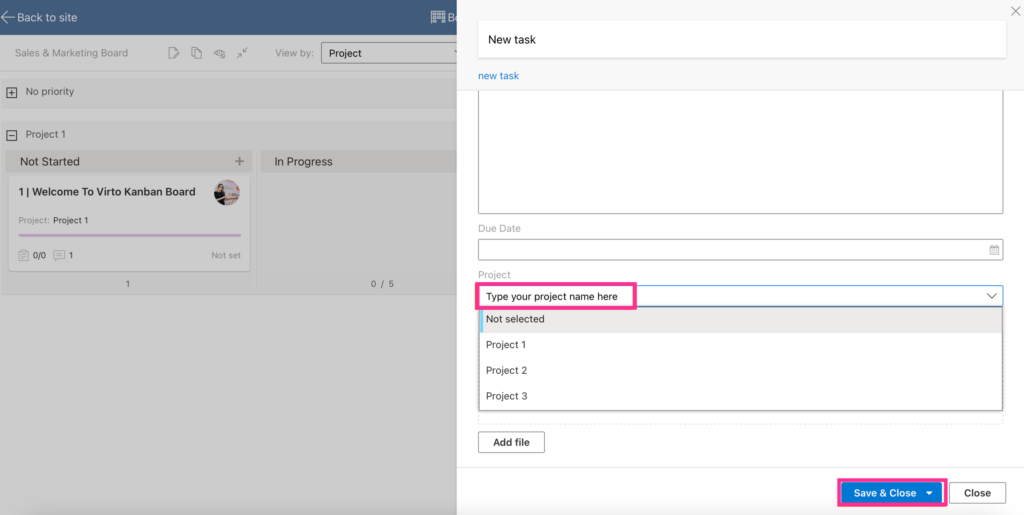
Click “Save & Close”.
Here is what swimlanes look like, viewed by project (you can hide or expand them by clicking the “+” or “-” icon to the left of the project name):
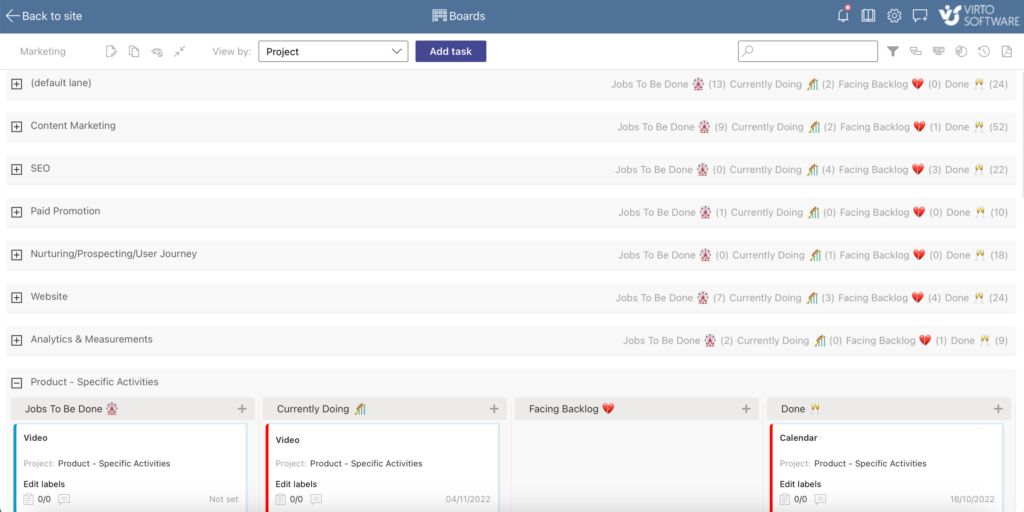
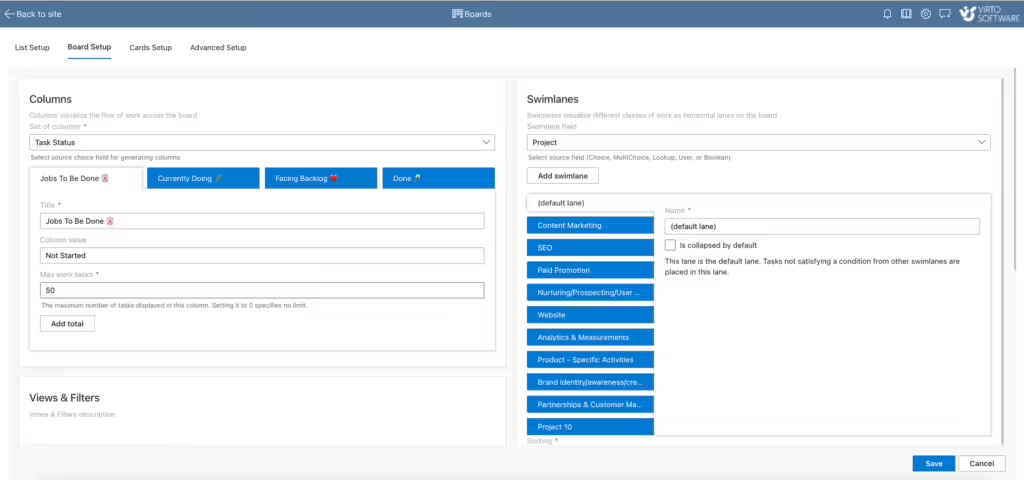
In the board’s settings, you can edit swimlane names and tick the box to collapse the swimlane by default.