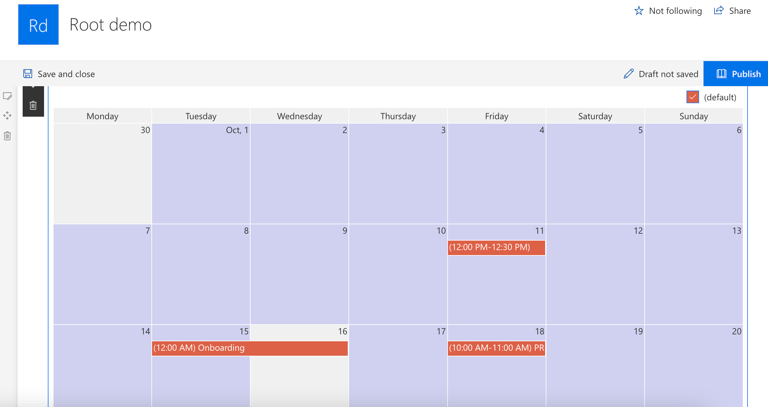
Adding the Virto Calendar web part to a SharePoint modern page
Once the Virto Calendar web part is installed, you can add it to a SharePoint site page within your site collection.
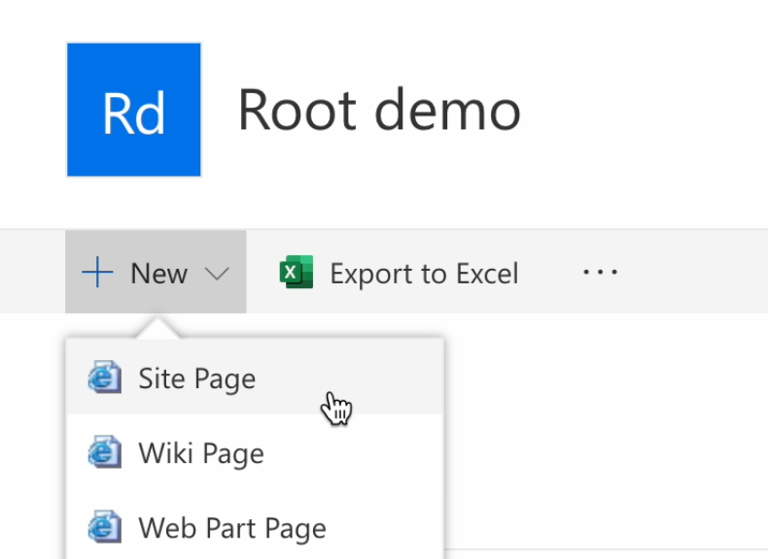
To create a modern page with a Virto Calendar, click “New” and choose “Site Page.”
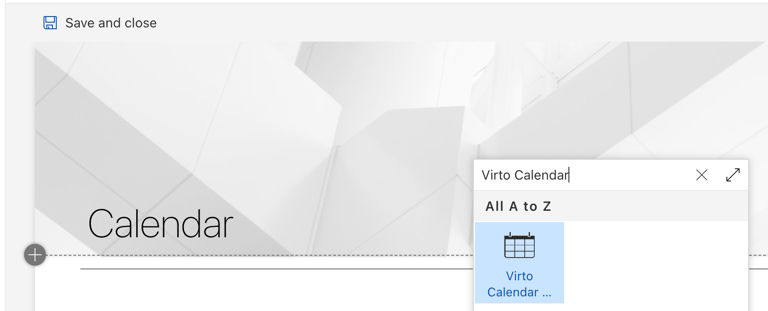
Next, give your site page a name, click "+", find “Virto Calendar,” and click its icon.
When the calendar web part is added, the current website is scanned for lists of the calendar type. If the site contains any lists of this type, events will be automatically added to the Data Source of the new calendar.
In the upper right corner, click “Publish.”