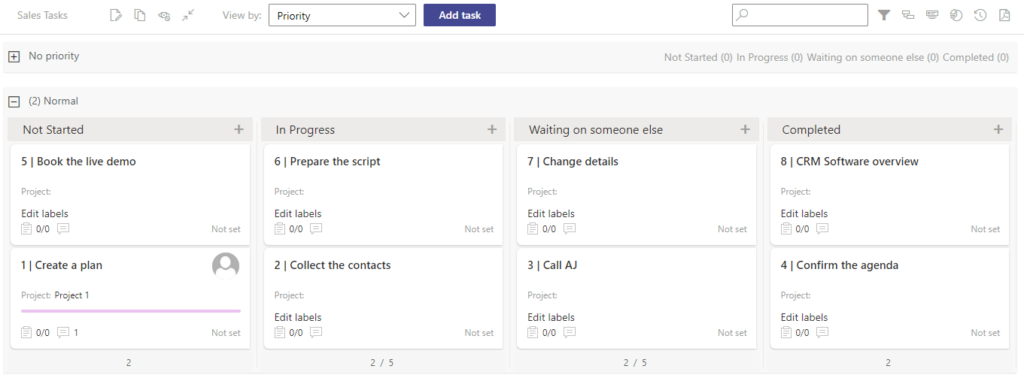
How to configure board for an existing list
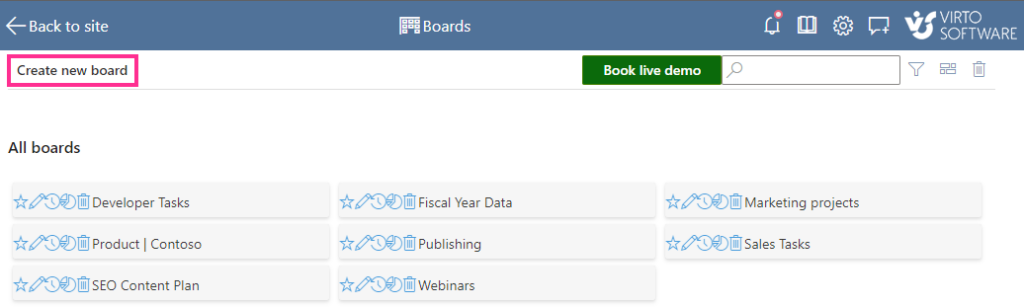
You can use existing SharePoint lists to create a new board. To do so, 0pen the “Boards” list on the top of any kanban board and click “Create new board.”
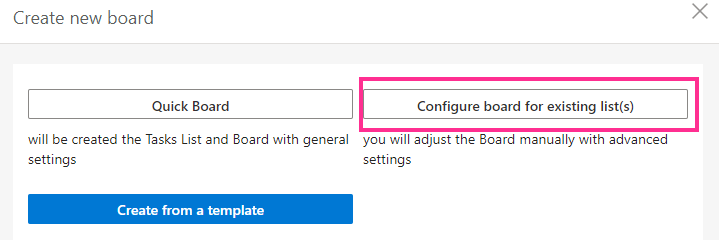
Select the “Configure board for existing list(s)” option.
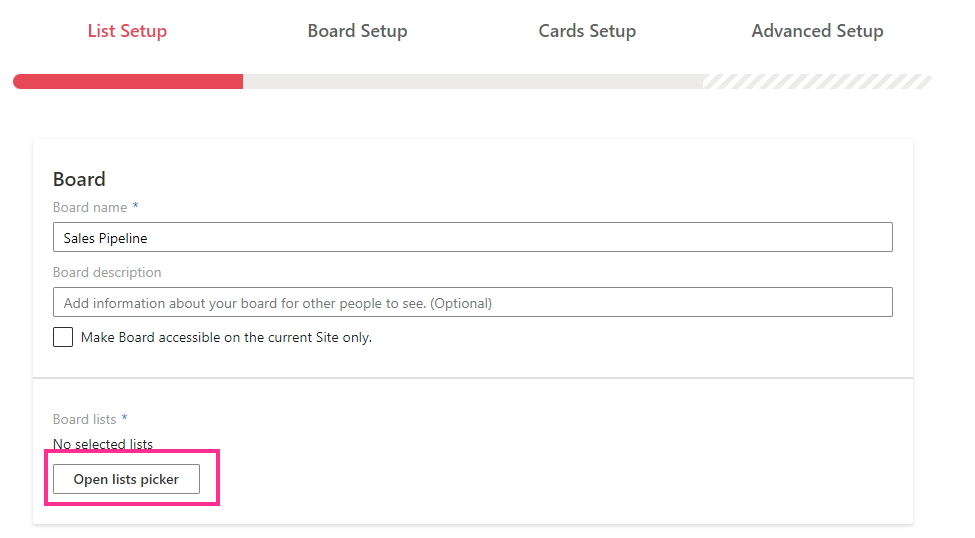
Specify the board name and click “Open lists picker.”
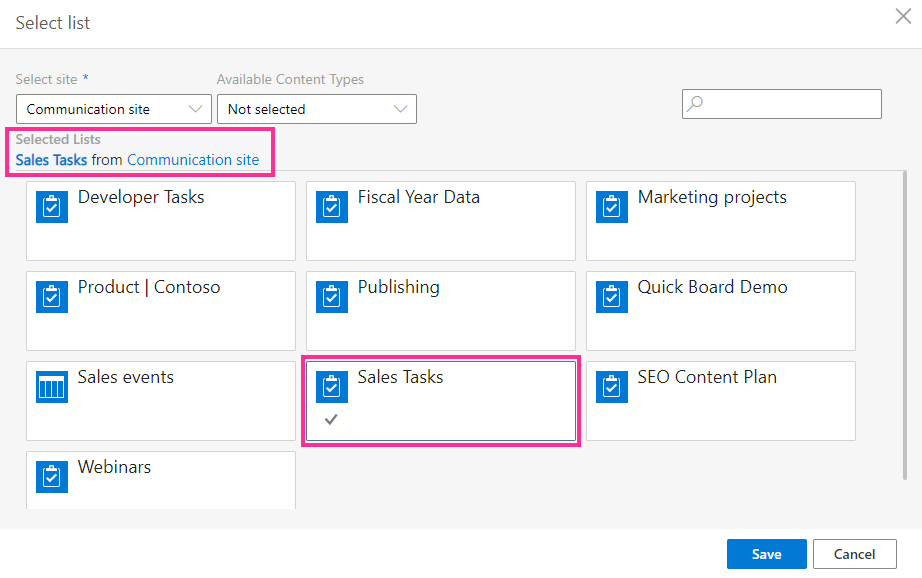
Choose the list for your board and click “Save.”
Then, navigate between all the tabs and adjust the board as described in the “List setup,” “Board setup,” “Card setup,” and “Advanced setup” sections.