Message view
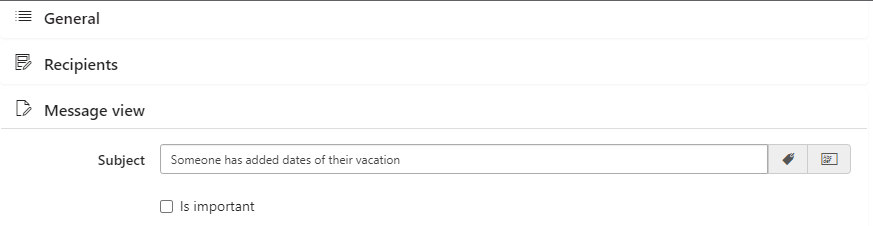
In the “Message view” section, you can adjust the alert’s appearance and specify its information.
First, define the email subject.
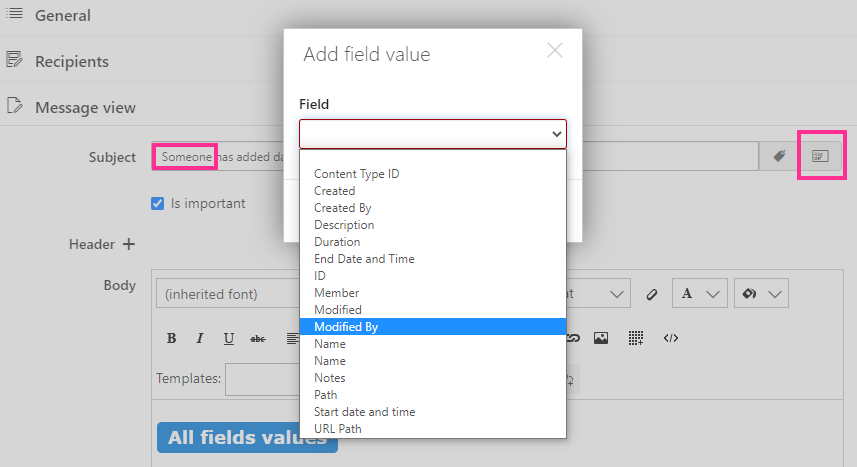
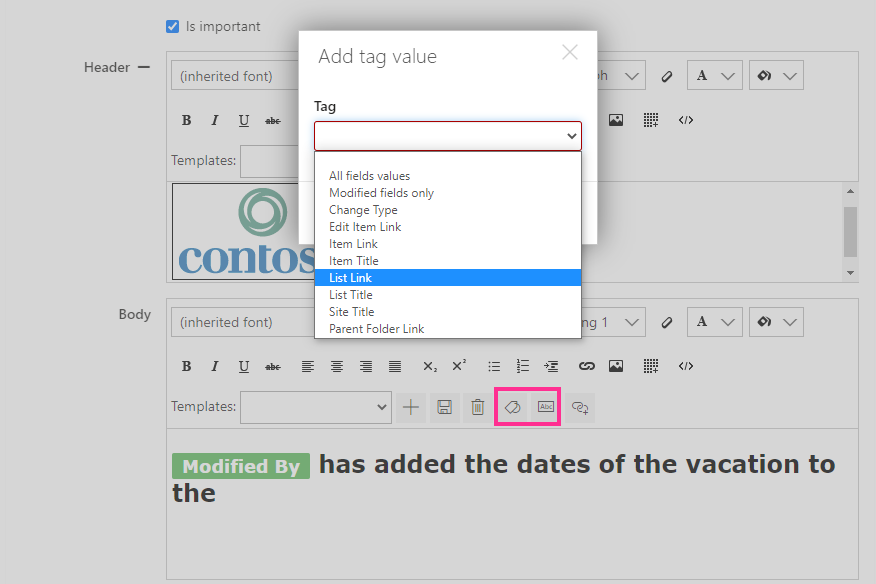
You can add a tag or a field value to the alert subject that will reflect the change to the list. For example, if you need to show who added a vacation date to the subject, choose the “Modified By” field value. When the alert is sent, the name of the person who made the change will appear in place of the field value.

If you tick the “Is important" checkbox, the email alert will be marked as important in the recipient’s email client.

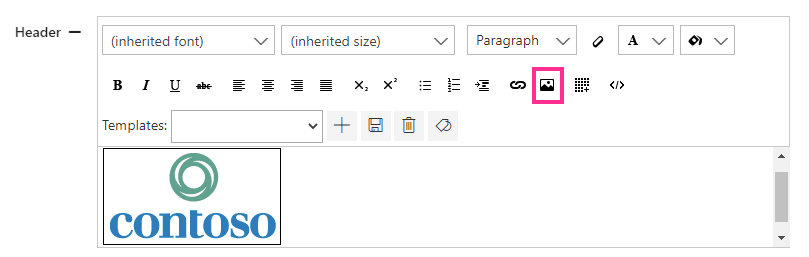
Define the header and footer of the message, such as adding a logo.
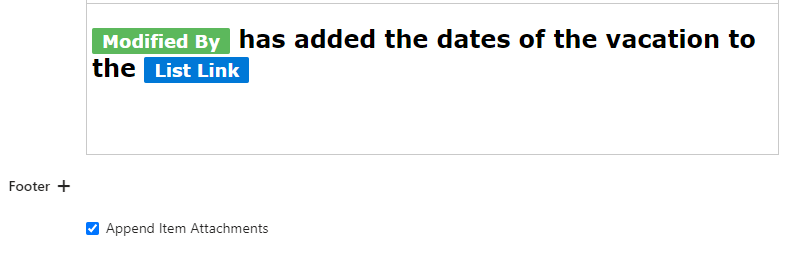
You can adjust the message body as you wish—add text, use styles and fonts, add images, use tables, and apply tags or field values.

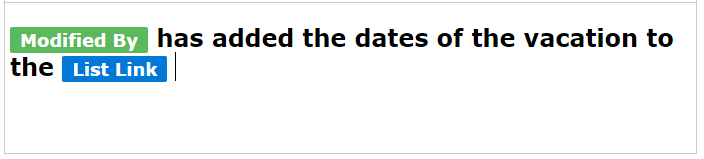
For example, add the “Modified By” field value and the “List Link” tag to include the name of the person who made the change and a link to the source list in your message body.
You can allow the attachment to be appended by ticking the “Append Item Attachments” checkbox.