
How to set up an alert if a task has been assigned to a user?
Open the Virto Alerts & Reminder App and click “Add Alert” on the ribbon.

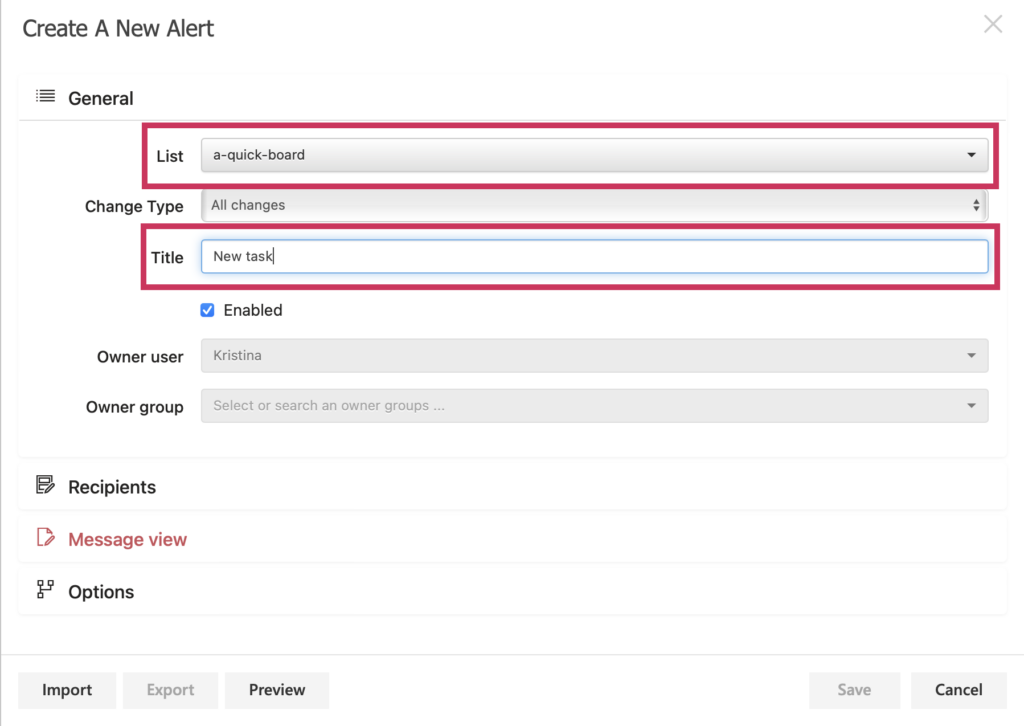
Select the Kanban board list from a drop-down menu and give a name to your new alert.
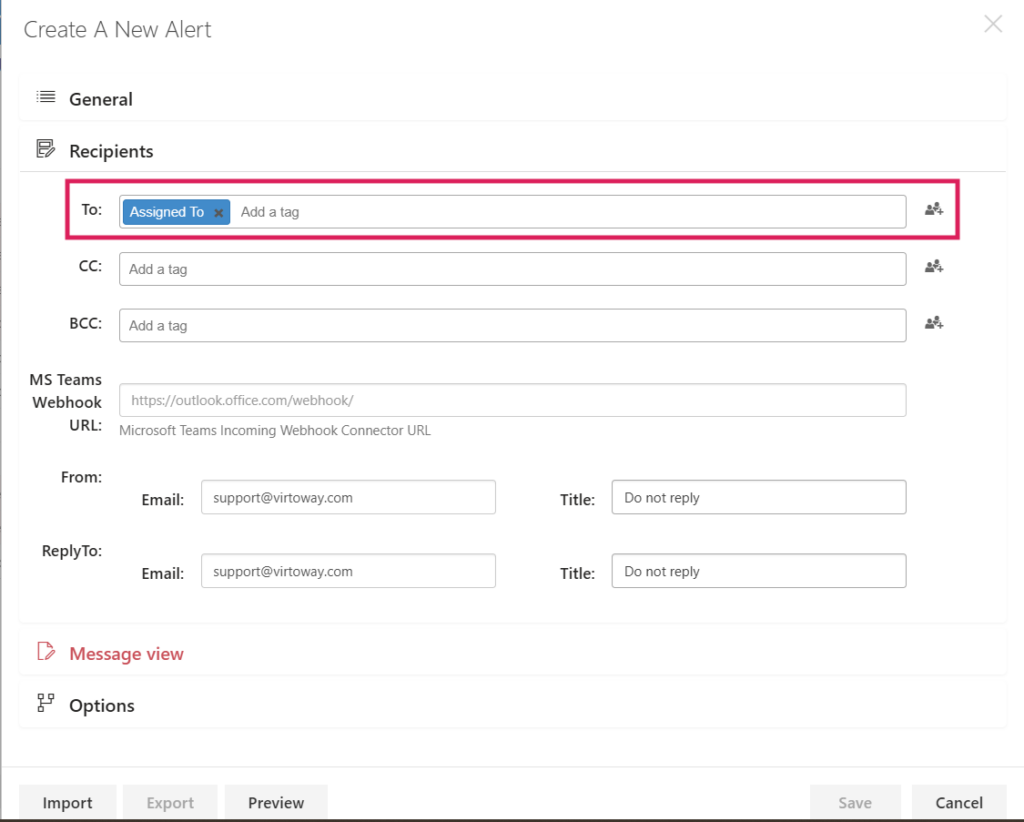
Select “Assigned To” in the Recipients tab.
Next, add your subject text.

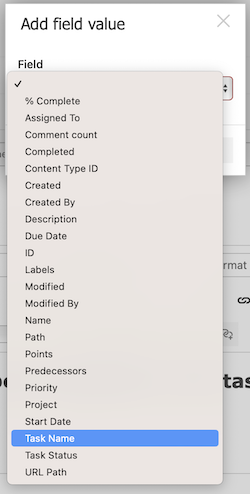
To ensure the recipient sees the alert immediately, include “Task Name” and “List Title” field values. To do this, click the “Add field value” icon.
Choose “Task Name” in the drop-down menu.

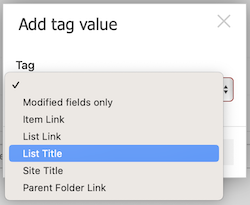
Then click the “Add tag” icon.

Choose “List Title” in the drop-down menu and click “Add.”
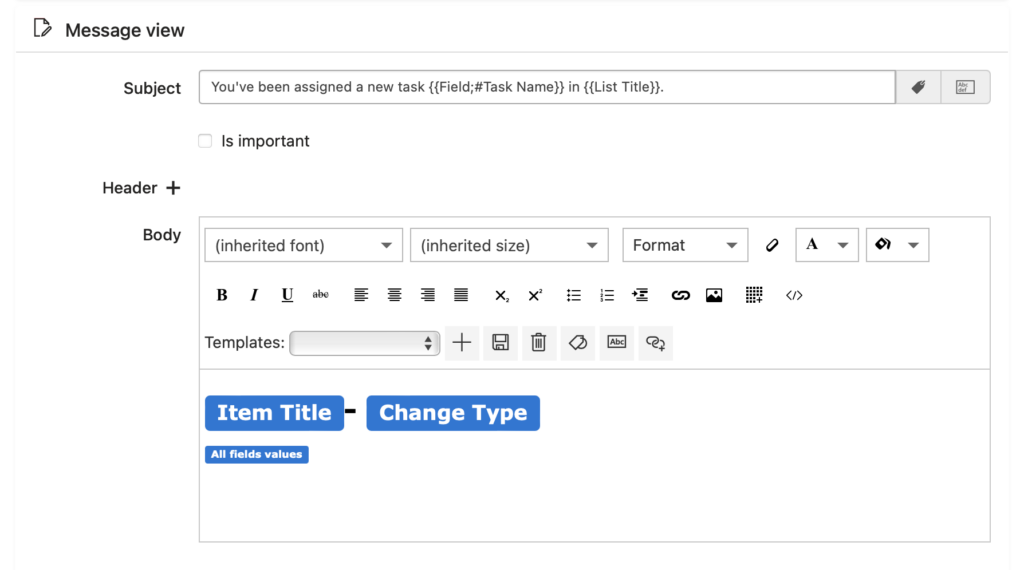
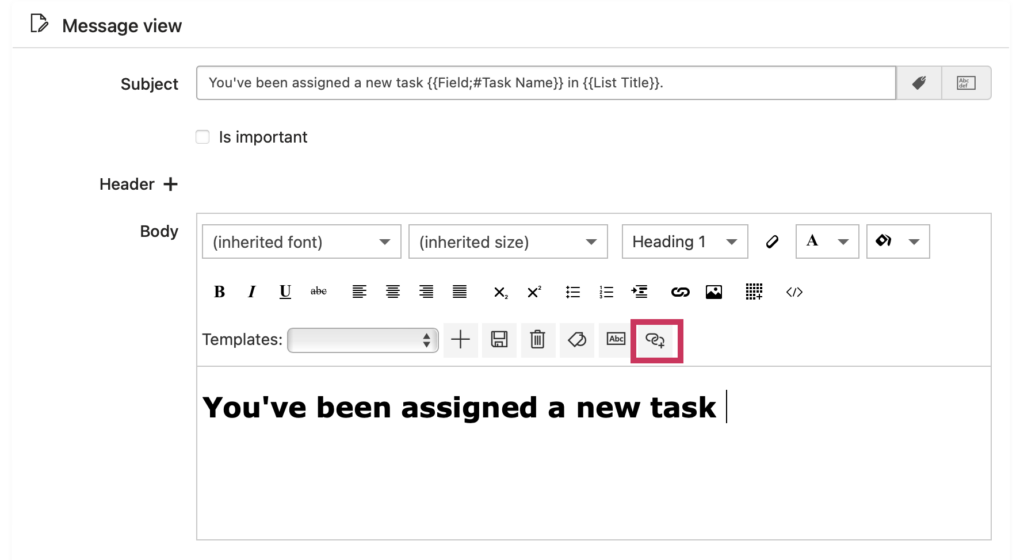
Then, move to the message body. Erase the template and write your text. Then click the “Add complex link” icon.
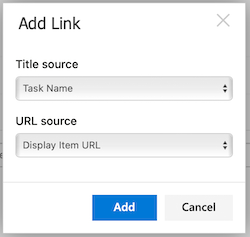
Choose “Task Name” and “Display Item URL” from the drop-down menu and click “Add.”
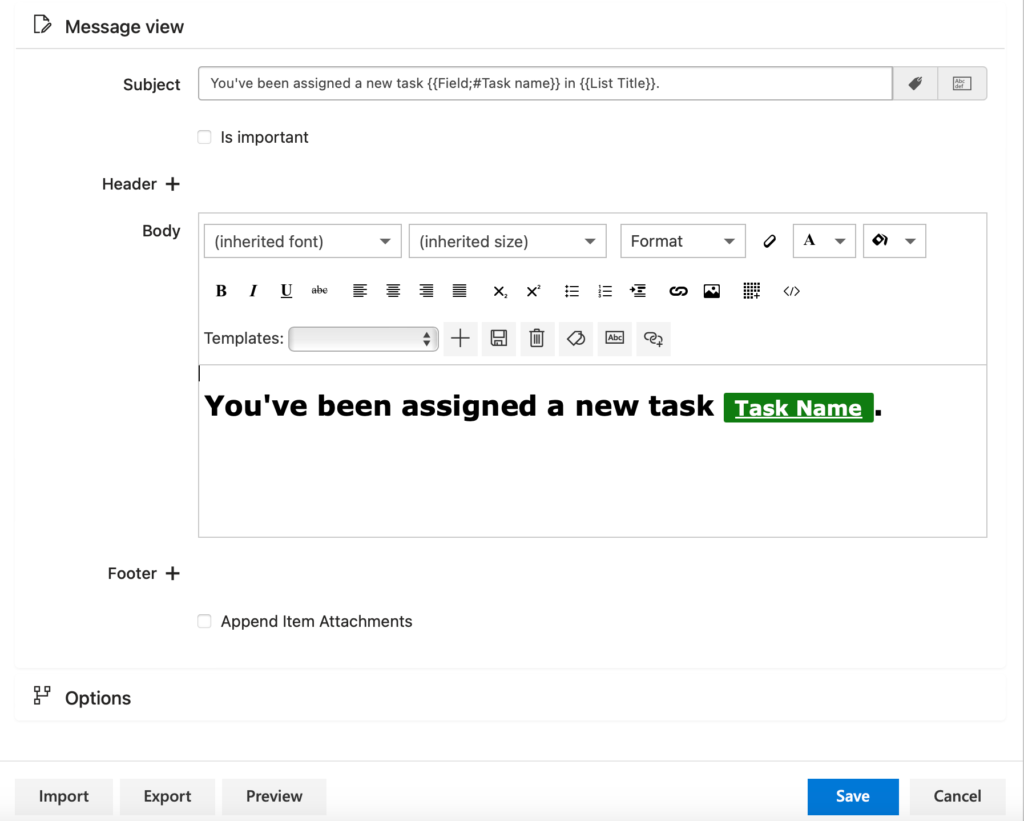
This is what you should get.
Click “Preview” in the lower left corner.

If you are satisfied with the outcome, your alert is ready.
If you want the user to receive a table with all the current values of the item (like in the example below), you need to add another tag to the email.
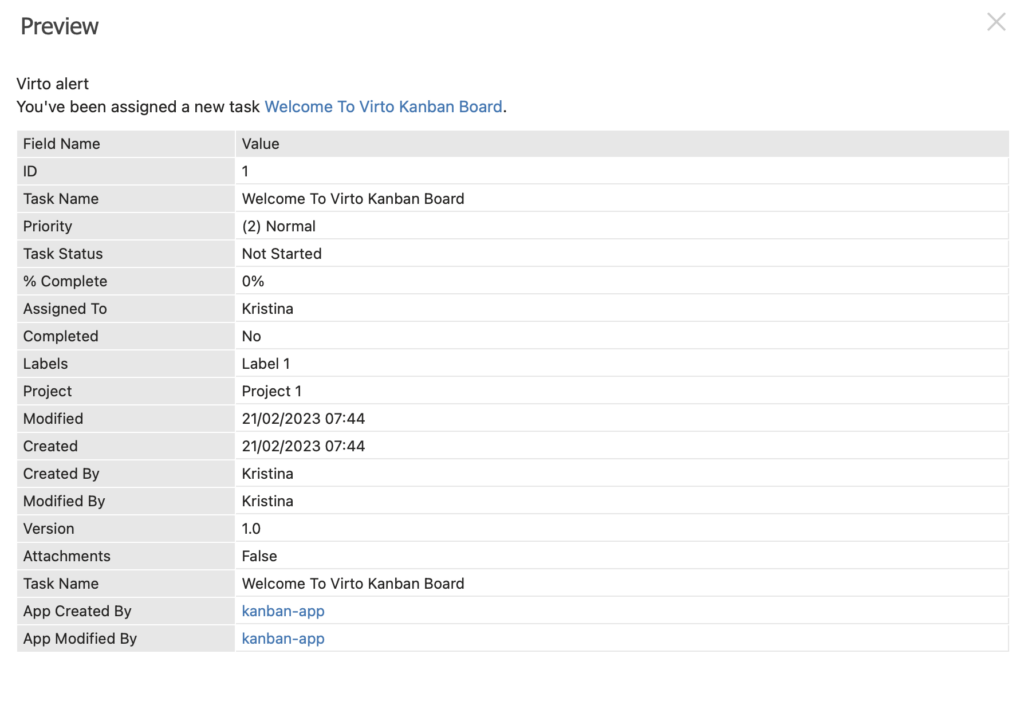
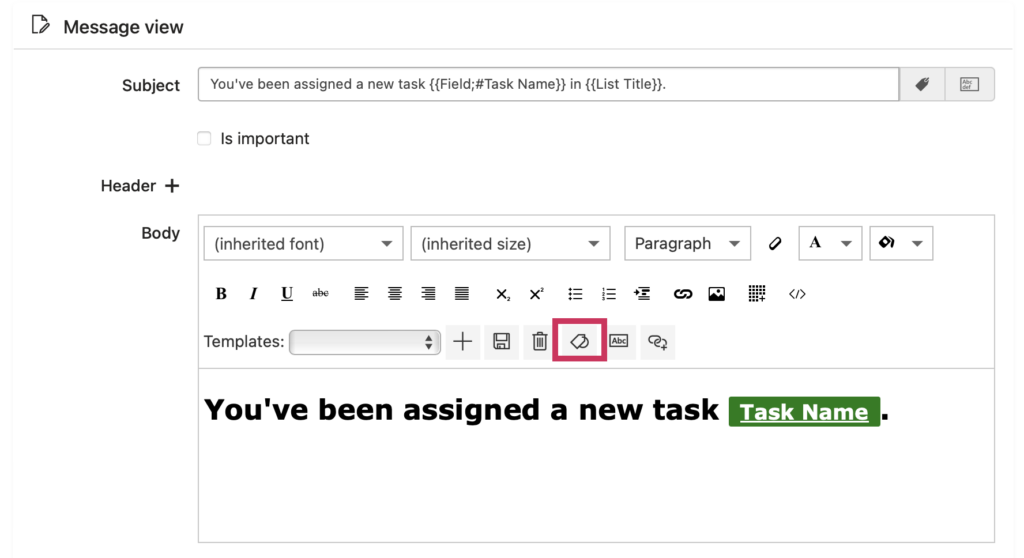
To set up this table, click the “Add tag” icon.
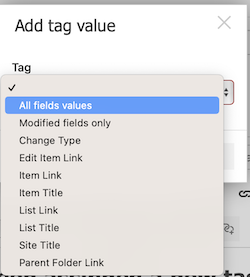
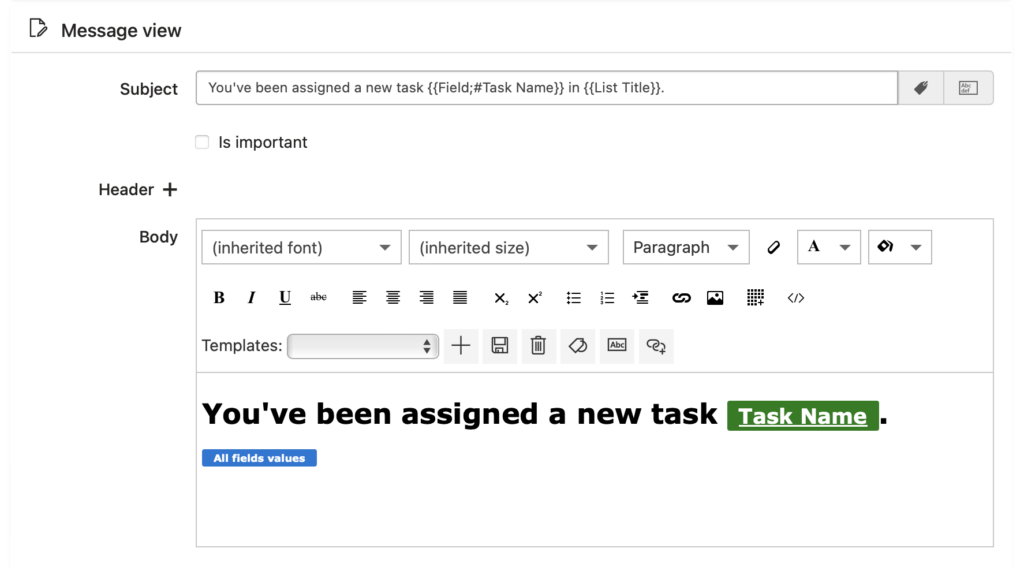
Choose “All fields values” in the drop-down menu.
Go to the Options tab. In Filter items, select “Use condition(s);” in Field, select “Assigned To;” in Operator, select “has been changed.” Click “Save.”
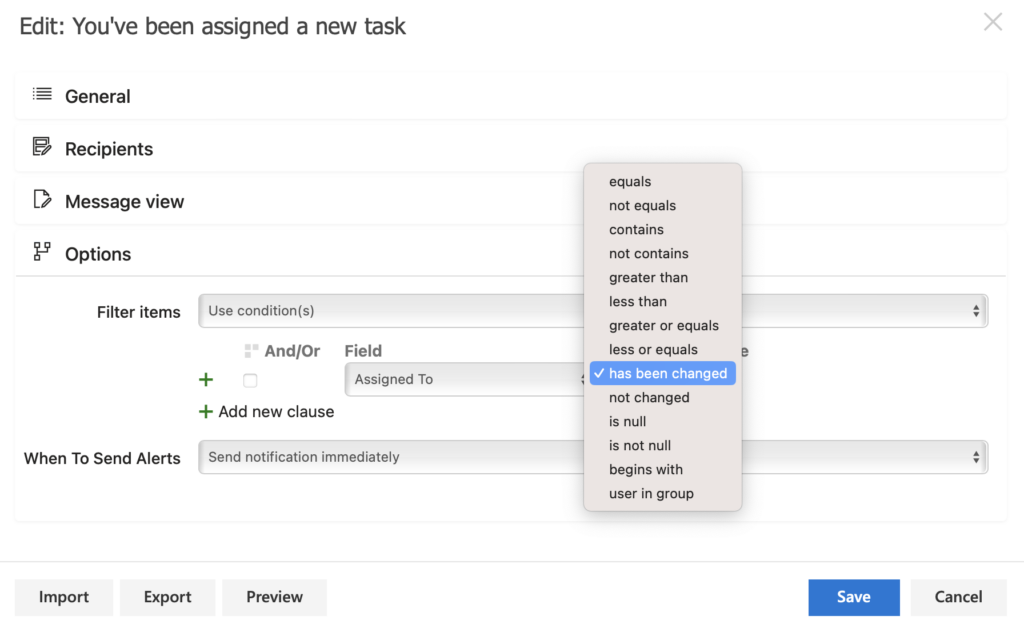
Now, each time the “Assigned To” field changes, the particular user will receive a notification with the name and task link.