
Installing the Virto Kanban Board web part
Before you begin, ensure you have access to the server and that your account has the necessary administrative privileges to install applications.
To access the Virto Kanban Board setup program, download the Virto.SharePoint.20XX.KanbanTaskManager.zip file from the product page and unzip it (using “Extract All”). Run the extracted Setup file.
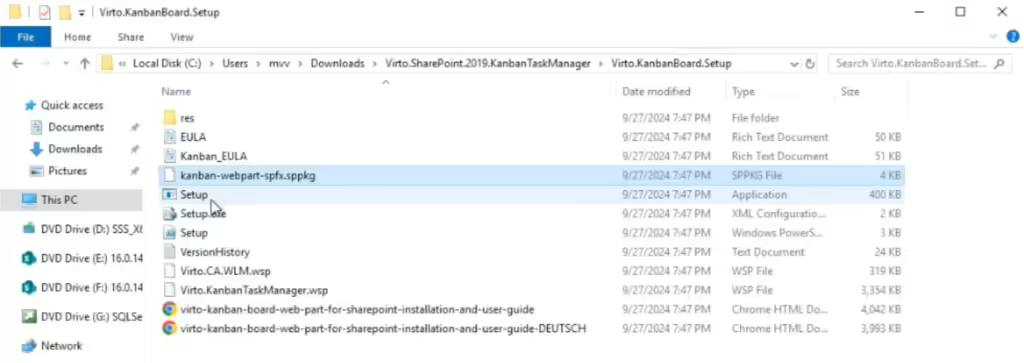
The installation process is the same for all SharePoint versions. If you’re installing VirtoONE, follow the same steps.
The setup wizard window will appear.

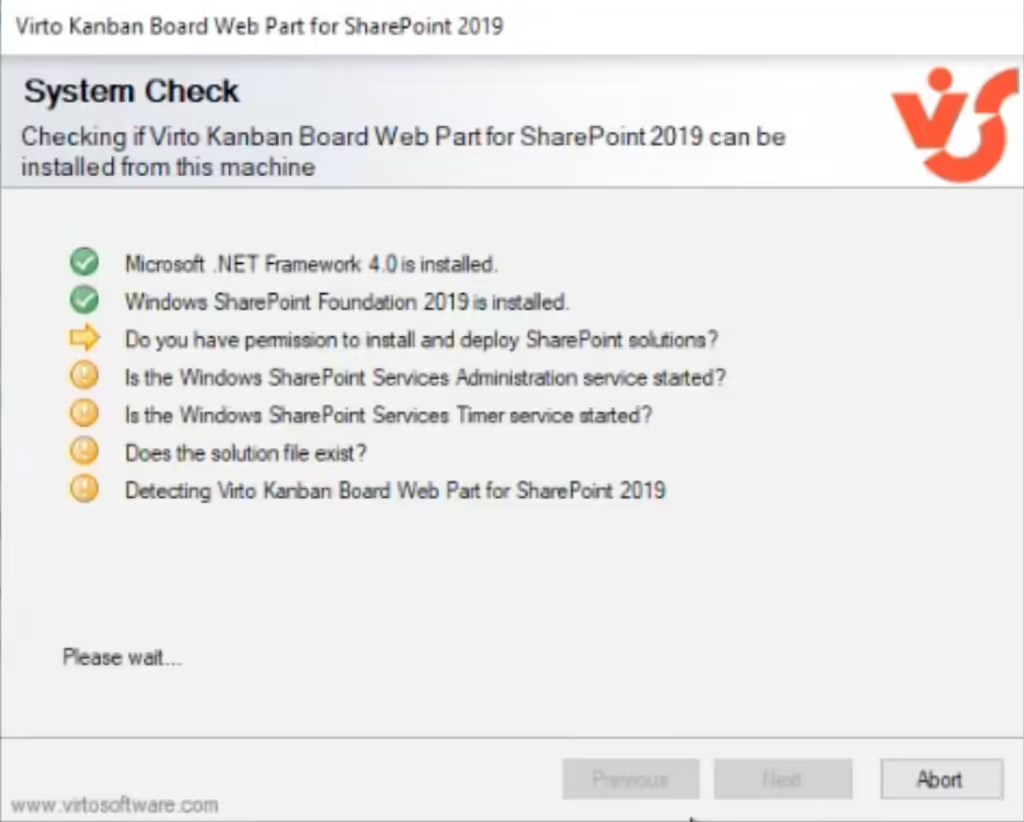
The Virto Kanban Board setup wizard will perform a system check before the installation. Once all the checks have been completed, click “Next.”
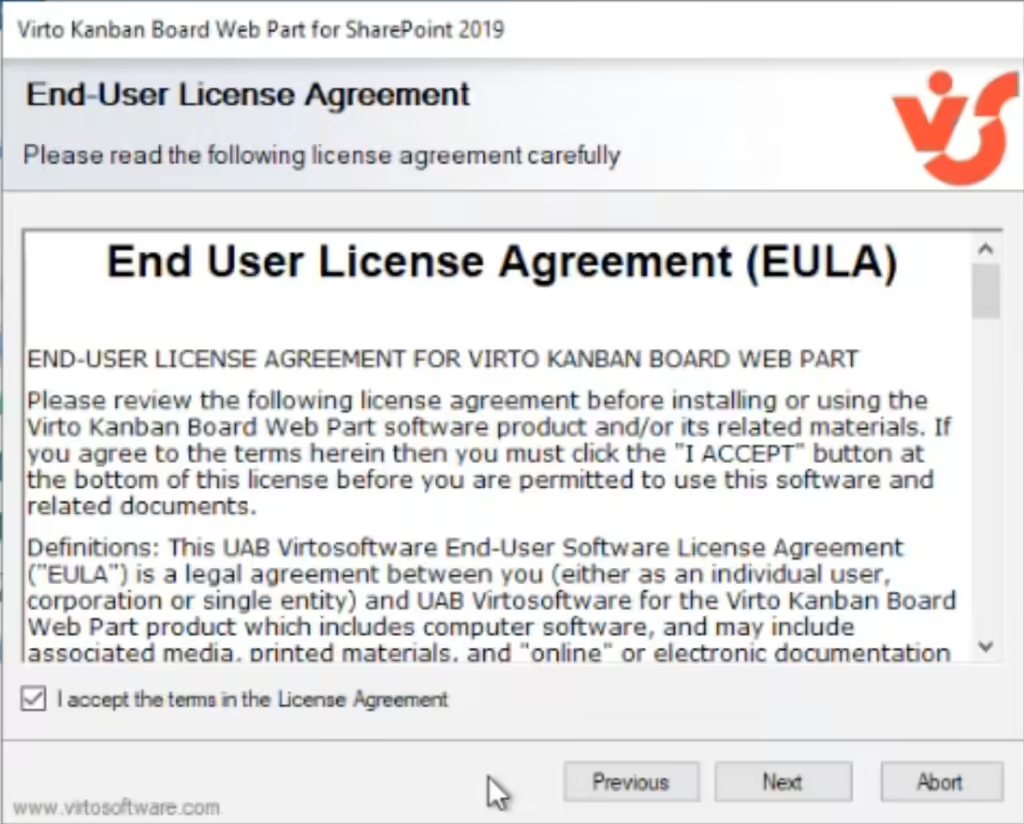
Tick the checkbox “I accept the terms in the License Agreement” and click “Next.”
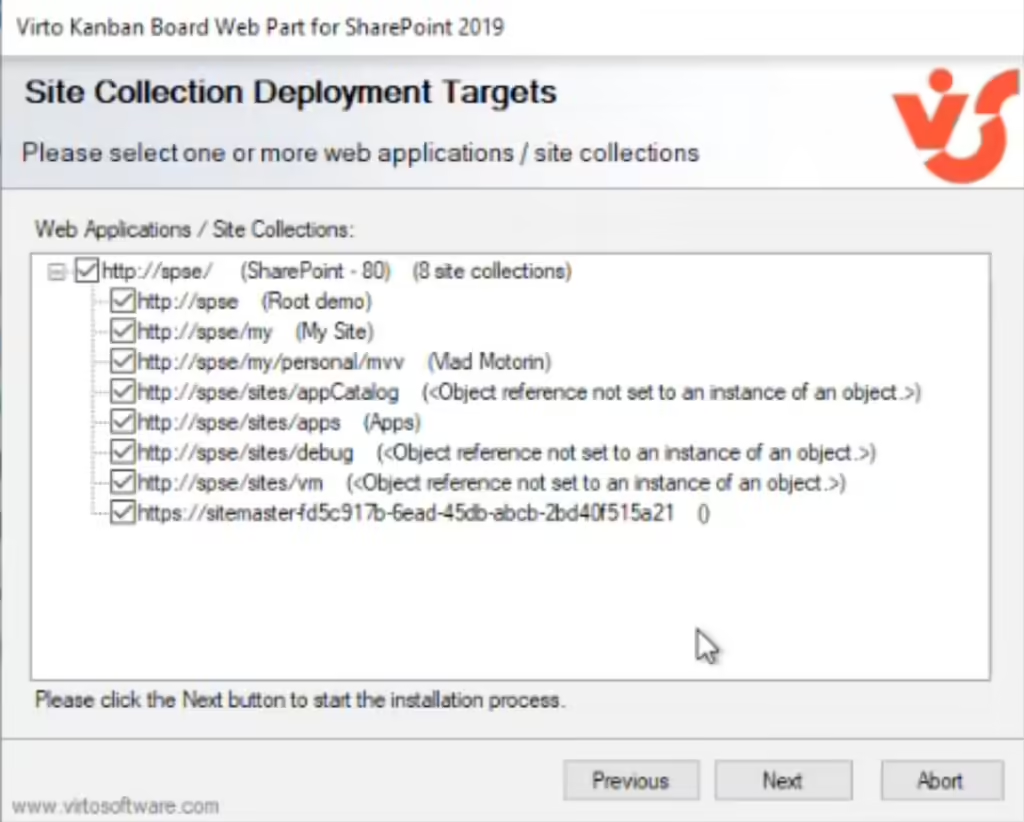
Select the web applications / site collections where you want to install the product, then click “Next.”
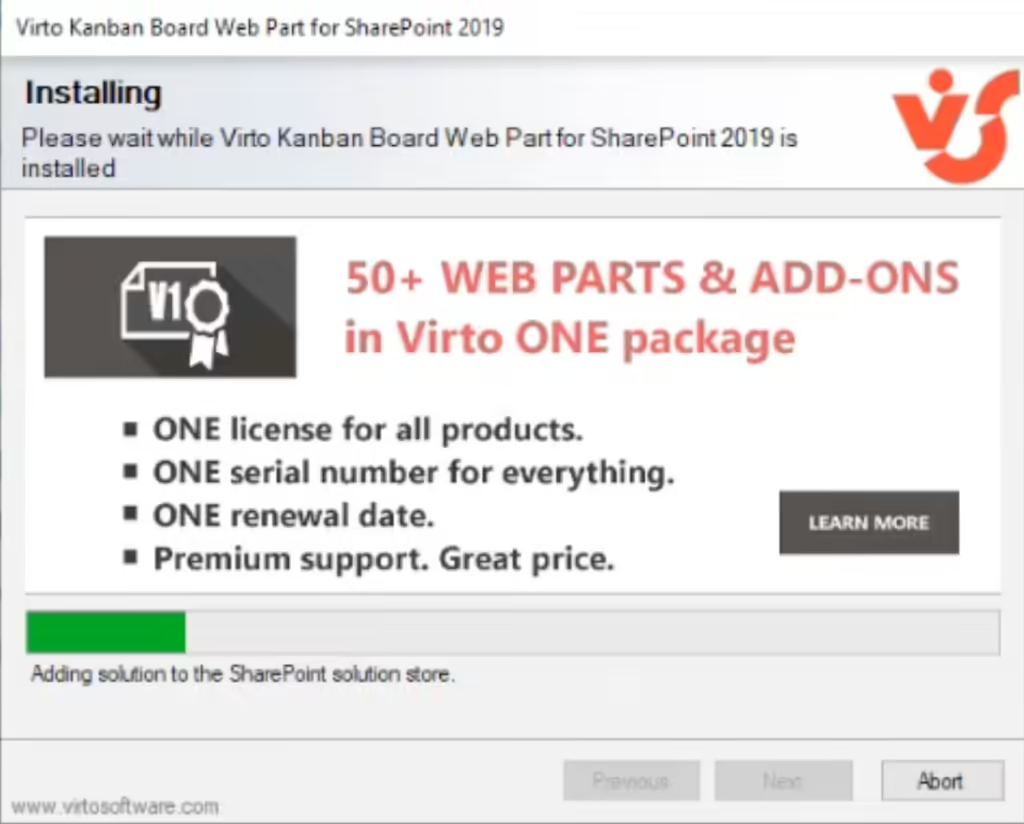
Wait for the product to install.
Click “Close” to complete the installation.
If you have any questions about setup, features, or pricing, book a free meeting with our technical team.