
Links, attachments and tables
You can include links, pictures, or tables in the alert email if you need to send an alert about list items containing attachments. These options are in the “Message view” block.

For example, an email alert with a table may look like this. You can add a link or an image in the same way.
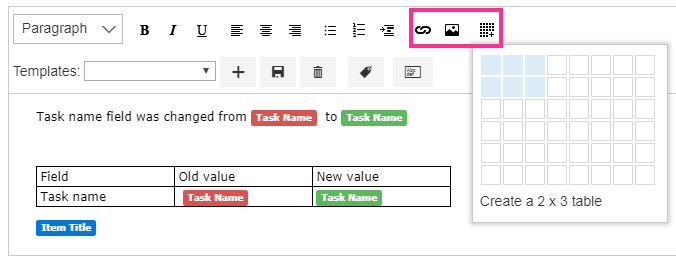
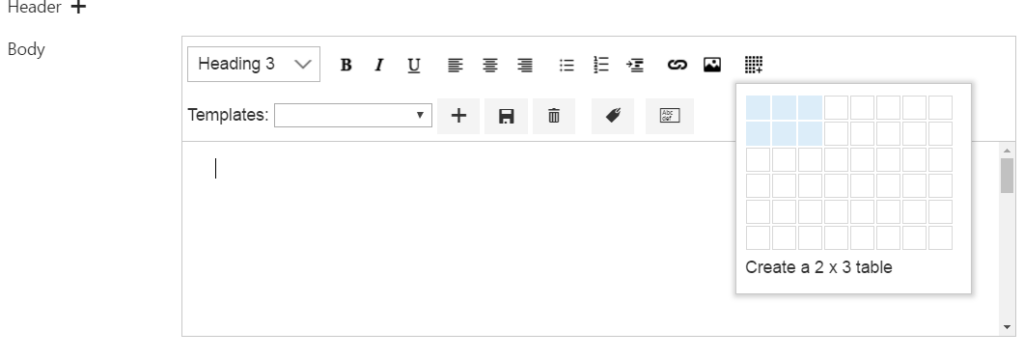
You can create tables in your alert and define the values of the table border and column width. You can also choose the number of columns and rows in your table.
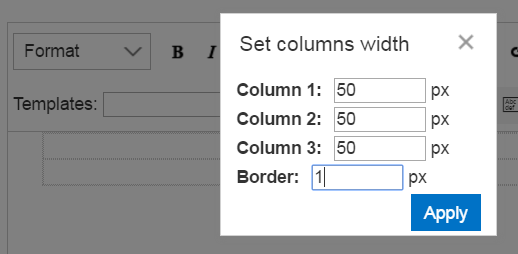
Next, define the columns’ width and the border’s thickness in pixels.
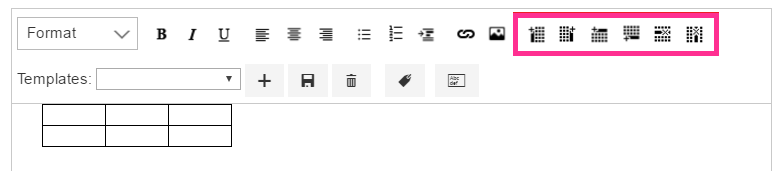
Now, your alert has a table. The additional buttons allow you to add or delete columns and rows.
If your alert has an item from a lookup, the item will contain a link to view the form of this item. For example, if your alert has a “client” lookup field, you will receive this field with a link to the client’s card view form in the alert.
If you select the “Send notification immediately” alert schedule, the “Append Item Attachments” option will be available under the footer settings.
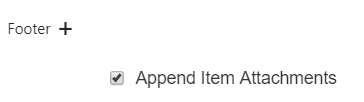
Using this option, you can send an alert email with a list item attachment in it.