Additional
Here are some additional options for the Virto Kanban Board that you can apply for your convenience:
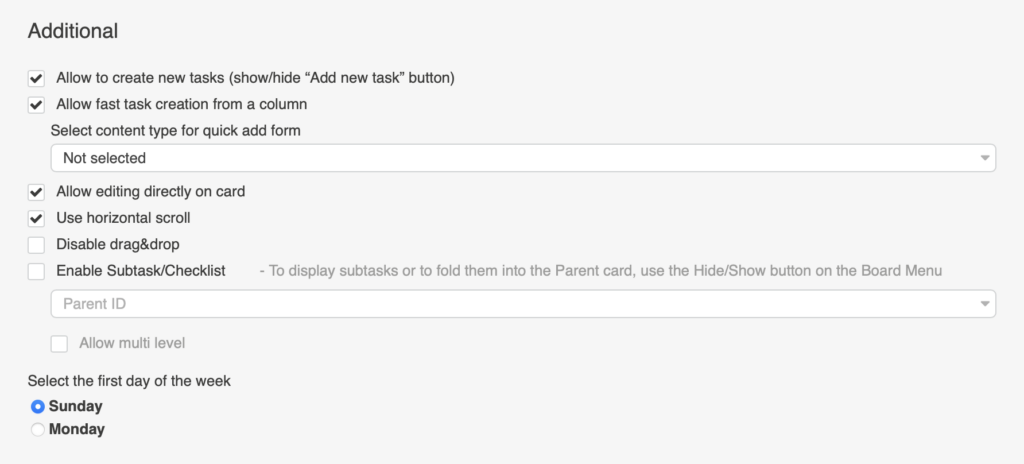
Check the box “Allow to create new tasks” to add the “Add new task” button to the board. Clicking this button creates a new task.

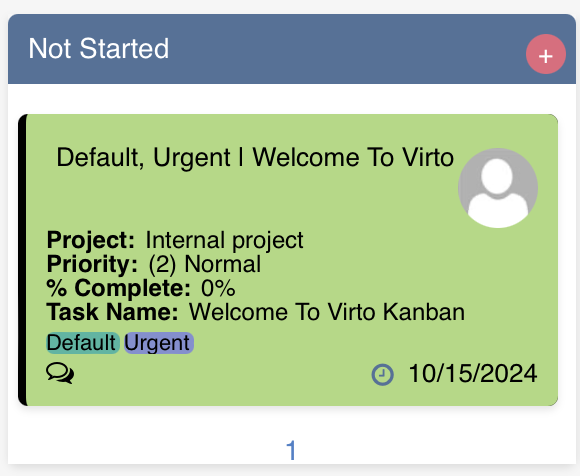
The “Fast task creation” option adds a “+” button to columns.
You can select the content type to be used for the fast task creation form.

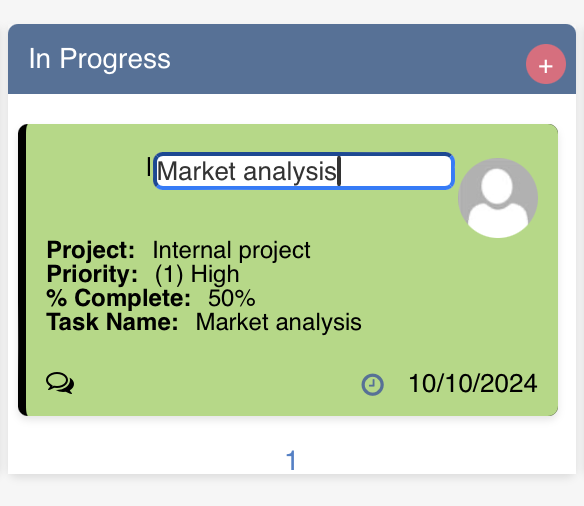
The “Allow editing directly on card” feature allows users to edit fields directly on the card without opening the full edit form.
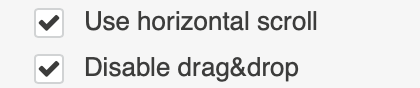
If your board contains many columns that do not fit on the screen, you can add a horizontal scroll bar to the bottom of the page by enabling the “Use horizontal scroll” feature.
You can disable the drag-and-drop feature for tasks (for moving them between columns and swimlanes).
You can enable adding subtasks or checklists to a task.
“Allow multi level” setting enables subtasks beyond the second level, namely subtasks for subtasks.

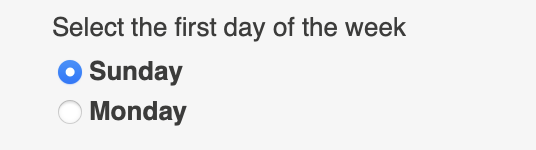
You can also select which day to use as the first day of the week for calendars and date pickers in Virto Kanban Board.