
Recipients
In the “Recipients” section, you define who will receive the alert. Choose users or groups for the “To” field and for the “CC” and “BCC” fields as needed.
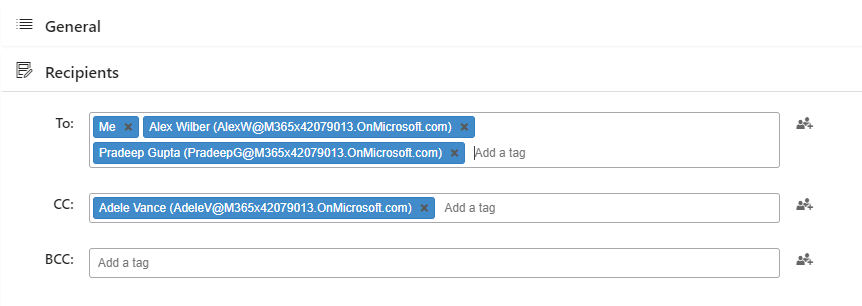
You will need administrator rights to send alerts to other users.
You can send alerts to users according to a specified field value. For example, to send alerts to users who have changed the list, click the add user icon to the right of the “To” field and select “Modified by.” This will send alerts to users who have modified the current list.

Microsoft Teams Webhook URL is an integrated option with Microsoft Teams. You can add a Microsoft Teams channel as a recipient and show the alert message in it.

Specify the email addresses displayed as “From” and “ReplyTo.”

In the Settings tab, you can also set the default addresses for “From” and “ReplyTo."