
Workflow Settings
You can tailor Workflow Monitor to your needs—for example, set timeouts and adjust display options.
First, define how long a workflow can run before it’s terminated automatically. On the Virto SharePoint Workflow Status Monitor page, click “Settings”.
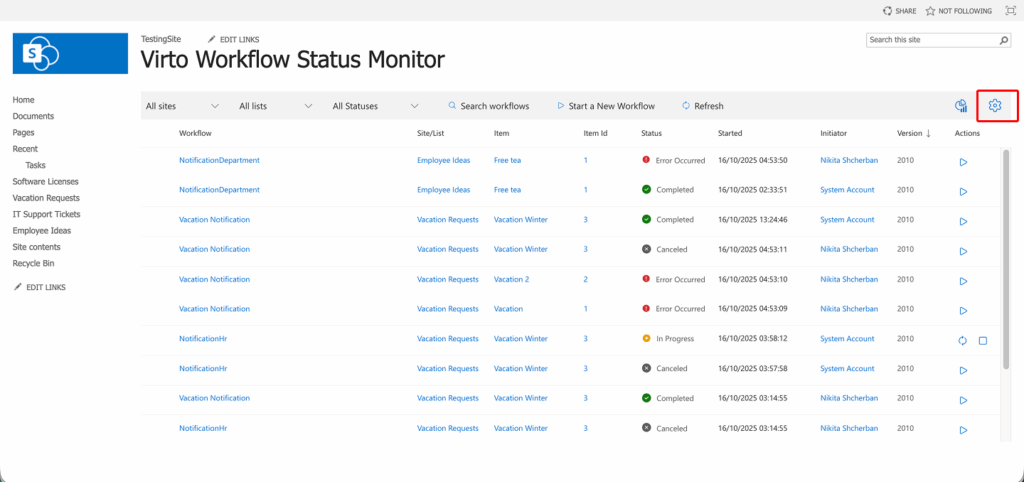
You will see the “Virto Workflow Status Monitor Settings” window.

For workflow timeouts, there are two conditions that can be used for automatic terminating:
- If a workflow is in progress for a certain period of time, and
- If a workflow has errors occurred for more than a certain period of time
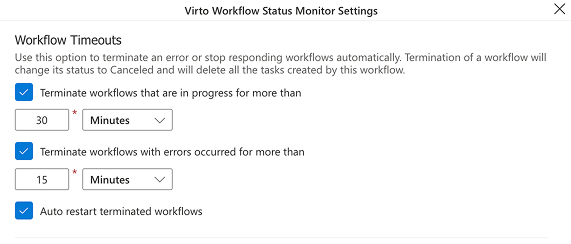
Select the checkbox next to the required condition and specify a time period (in minutes, hours, or days). Click “OK” to save the settings.
In case a workflow does not respond for the defined period of time, it will be terminated automatically. Terminated workflows will disappear from the list of workflows.
You can create reports on workflow results and save the data in a report list.
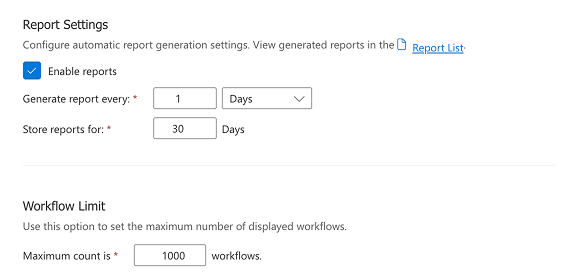
You can also set the maximum number of workflows to display and process. Enter the desired value in the monitor settings.