
Permissions Required for Application
The Virto Alerts application requires both Delegated and Application permissions.
The screenshot shows the permissions of the Virto Alerts App enterprise application before the move to selected sites, with the SharePoint application permission Sites.Manage.All for all sites.
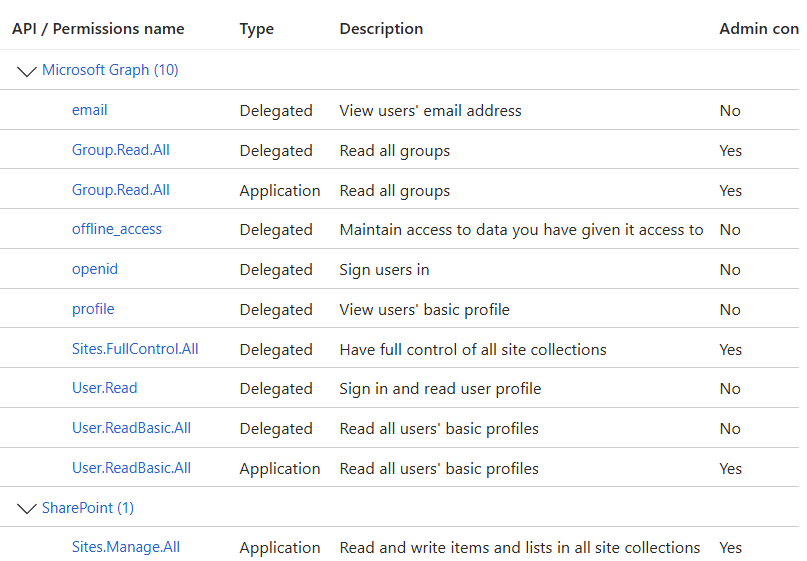
Delegated Permissions
Delegated permissions are used to authorize users and manage frontend functionalities such as alerts.
Application Permissions
Reminders and scheduled summaries are sent when no user is signed in, so the app’s background service needs application permissions. Specifically, they are required for:
- Handling List Changes and Generating Emails: This involves reading users, groups, and SharePoint list items based on alert configurations.
- Updating List Webhook Subscriptions: To receive notifications of list changes, the application requires permissions similar to “List.Manage”. This specific permission is not available via the API, so the app uses a site permission instead:
Sites.Manage.Allfor every site of the tenant, orSites.Selectedwith the Full control or Manage permission on the sites you allow. Admin consent at installation approves bothSites.Manage.AllandSites.Selected. See Moving to selected sites.
Note: Microsoft’s Baseline security mode has a setting that requires scoped access for High-Privileged-Access applications. While the app has
Sites.Manage.All, that setting can block it: alerts and reminders stop going out and the app shows no error. Move the app to selected sites before you turn the setting on: Known issues: Baseline security mode.
Moving to selected sites
Virto Alerts & Reminder App can work only with the SharePoint sites you allow (Sites.Selected) instead of every site of your Microsoft 365 tenant (Sites.Manage.All). Microsoft recommends giving apps access only where they are needed, and the scoped-access setting of Baseline security mode blocks third-party apps that have access to all sites.
Nothing stops if you do nothing: the app keeps its current access until an administrator changes it. Alerts keep working while you switch.
Where to start
Until the move is complete, the app shows a message above the tabs: Virto Alerts is moving to access only the sites you allow. An administrator selects how to switch in it, which opens the Moving Virto Alerts to selected sites page. Other users can select Copy a message for them and send the copied text to their Microsoft 365 administrator.

Hide hides the message for seven days in this browser; then it appears again. While the app still has access to all sites, administrators of Virto Alerts also find a link to the page in the Settings tab. After the move there is no message and no link: open https://alerts-app.virtosoftware.com/Access?SPHostUrl= followed by the address of your site, or select More about it in an email about lost access (see Sites added later).
Three steps
The page lists the three steps, the sites that have alerts and the status of each site. Why is this changing? at the top of the page explains the move in a few lines.

- Approve the new permission. A Global Administrator approves
Sites.Selectedfor Virto Alerts App. This adds the permission and changes nothing else. - Allow the sites with alerts. A SharePoint Administrator who is a member (owner) of a site gives the app the permission chosen in Permission to grant on it. The permission covers the site’s subsites. Grant all I can grants every site you can grant; Grant Full control or Grant Manage in the table grants one site. The step shows how many site collections are granted, for example 2 of 5 site collections, and gets its check mark only when all of them are.
- Remove the access to all sites. After step 2, a Global Administrator removes
Sites.Manage.Allfrom Virto Alerts App: in the Microsoft Entra admin center, Entra ID > Enterprise apps > All applications > Virto Alerts App > Permissions, on the Admin consent tab, select … next toSites.Manage.Alland then Revoke permission (Microsoft: Review and revoke permissions). How in step 3 shows the same path. Then select Refresh on the Moving Virto Alerts to selected sites page.
Full control or Manage
Permission to grant above the table offers two permissions:
- Full control (recommended). All alerts work, and alerts on deleted items name the item and who deleted it.
- Manage (less access). All alerts work too, but alerts on deleted items show only the item’s number.
The PowerShell script on the page follows your choice. A site granted with Manage shows Raise to Full control; a site granted with Full control shows Lower to Manage while Manage is chosen.
Who can grant and revoke
A SharePoint Administrator of your tenant who is also a member (owner) of the site. Microsoft 365 checks it for each site, and the Status column says when you cannot change a site. For such a site, ask an administrator who is its member, or use the PowerShell script.
Site statuses
The Sites with alerts table lists every site with enabled alerts, including sites paused by Revoke, with the number of alerts and a status. only sites that need a grant hides the rest, and Search by address finds a site.
You see the grants only of the sites you own; the app checks the other sites itself.
- granted (Full control) or granted (Manage): the app has that permission on a site you own.
- granted: the app checked a site you do not own and can work with it.
- needs a grant: select Grant Full control or Grant Manage next to it, or Grant all I can. After step 3 it reads no access, needs a grant: alerts on that site are not sent until it is granted.
- only …, needs Manage or Full control: the app has a lower permission on the site. Grant it again with the permission you chose.
- access revoked, alerts paused: the site was revoked on this page. Granting it again turns its alerts back on.
- no access, alerts are not sent: the app has no access to a site you cannot change. Ask a SharePoint Administrator who is a member of the site, or use PowerShell.
- you can’t see or change it: you need to be a SharePoint Administrator and a member of this site. Ask one who is, or use PowerShell.
- could not check: select Retry.
While the app still has access to all sites, alerts on sites that are not granted keep working. After step 3 the app works only with the granted sites, and alerts on a site without a grant are no longer sent. Remove the access to all sites only when every site in the table is granted.
After step 3 the line under the page title shows the result. Done: Virto Alerts works only with the sites you allowed. appears only when every site with alerts works. Otherwise the line is red and says how many site collections are affected, for example Access to all sites is removed. 2 of 5 site collections have no access: alerts on them and their subsites are not sent. Grant them below.
Revoke
Revoke next to a granted site removes the app’s permission on it. Before that, the app asks for confirmation and says how many alerts on the site and its subsites will be turned off. Those alerts stop following their lists, and the site stays in the table as access revoked, alerts paused. Granting the site again turns these alerts back on. Alerts that were turned off by hand stay off. No email goes to administrators about a revoke.
Many sites, or sites you are not a member of
Grant with PowerShell instead at the bottom of the page shows a PnP PowerShell script and a Copy script button. A SharePoint Administrator runs the script with their own PnP app that has Sites.FullControl.All. The script grants the permission chosen in Permission to grant.
Sites added later
After the move, the app works only with the granted sites:
- On a site without a grant, the app shows a red bar with an explanation, and the buttons that add alerts are turned off. Administrators of Virto Alerts see a link to Settings, where they can grant the site with a button or a PowerShell command. An alert on such a site cannot be saved or turned on.
- When a site with alerts loses the app’s access, the administrators of Virto Alerts on that site get an email Virto Alerts can’t work with …, at most once a week.
Questions about the move: support@virtosoftware.com.