Grant Permission on list item
Note: Virto Workflows for Office 365 is no longer sold. The add-in and the SharePoint 2013 workflows it adds actions to stopped working in SharePoint Online on April 2, 2026, when Microsoft retired SharePoint Add-ins and SharePoint 2013 workflows. This documentation is kept for reference.
This activity grants permission on the list item. You can override or append user grant permissions. Value of permission field by default can be one of the following values:
None
Guest
Reader
Contributor
Web
designer
Administrator
Editor
System
SharePoint Designer phrase
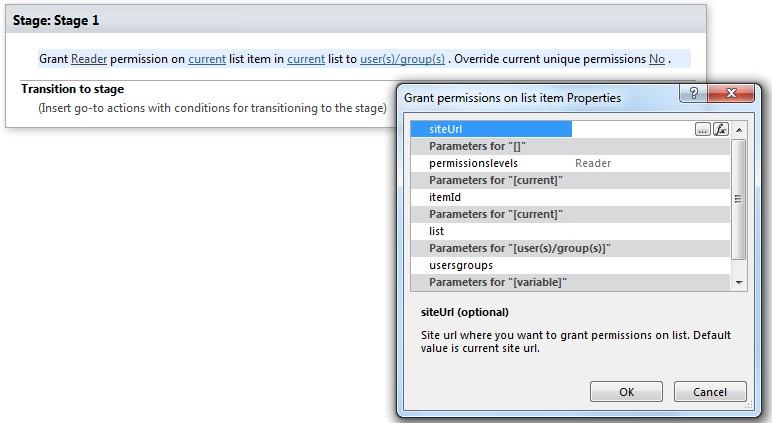
The activity supports multi permission assignment. Use ‘,’ or ‘;’ separator to grant several permission.
Parameters
Input parameters
| Parameter | Description | Example |
|---|---|---|
| The following | Permission level string. Multi permission assignments are supported. Use ‘,’ or ‘;’ separator to grant several permission.Example: | Guest, Reader, Editor, etc. |
| Current item | Item ID. If the value field is empty, current item ID will be used. | [%Variable:ItemID%], Current Item:ID |
| Current list | Title or Url of chosen list. If the value field is empty, current list will be used. | Tasks[%Workflow Context:List Name%]/Lists/ Tasks |
| SiteURL (optional) | The URL of a source SharePoint site. If the value field is empty, current site will be used. | https://contoso/SiteUrl; https://contoso/Sites/SiteUrl;[%Workflow Context:Current Site URL%]/subSite |
| User(s)/group(s) | User login, e-mail, group name, group ID | “user@domain”, “domain\user”. It allows multiple values separated by a semicolon. |
| Variable | Override current permissions | No – a new permission will be added to existed permissionsYes – a new permission will override (remove) all old permissions |
Example

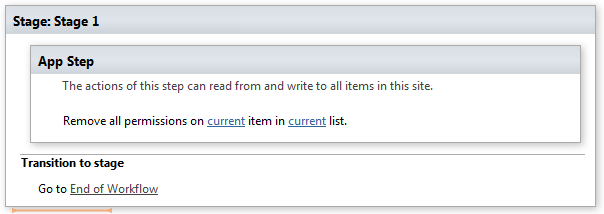
Note: We recommend you to run all Virto Permissions actions inside App Step to avoid failing of your subsequent actions inside the workflow.
Example