
Installing a web part in SharePoint Classic experience
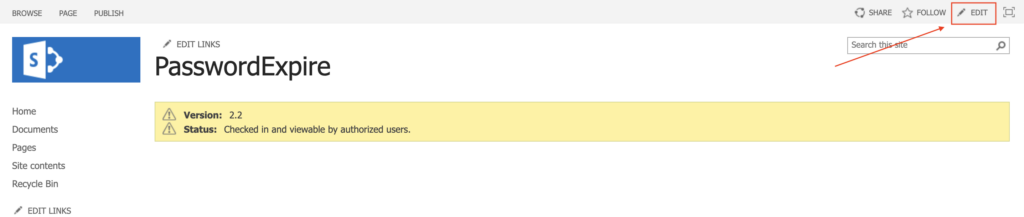
Go to the page where you want to add your web part and click Edit.
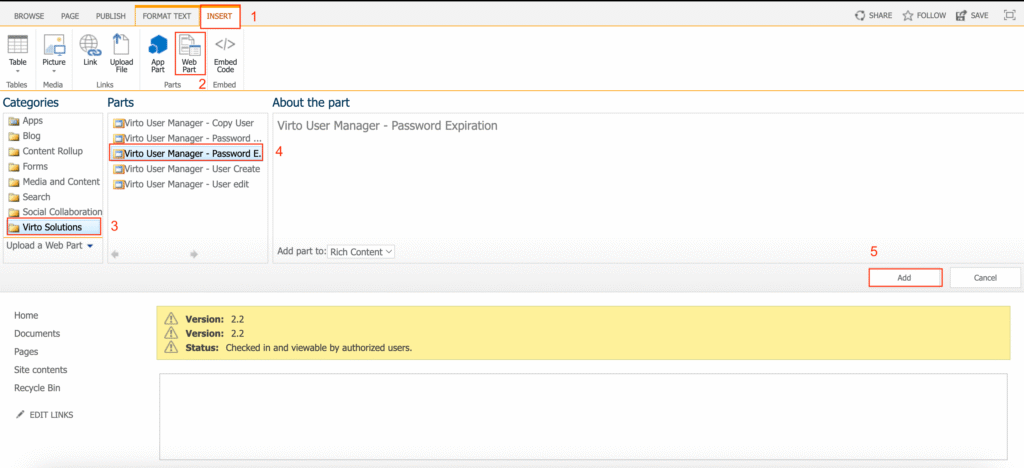
Open the Insert tab, find Web Part, and click it.
In the Categories list, locate Virto Solutions → Virto User Manager, then select the web part you want to embed on the page. Click Add.
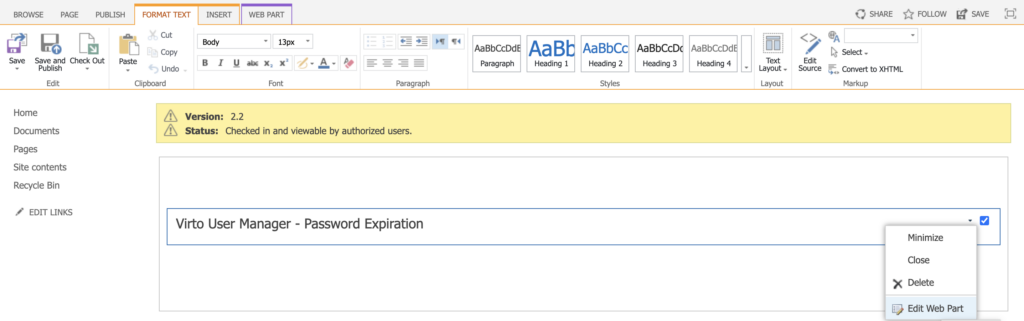
Click the settings icon on the web part and select Edit Web Part.
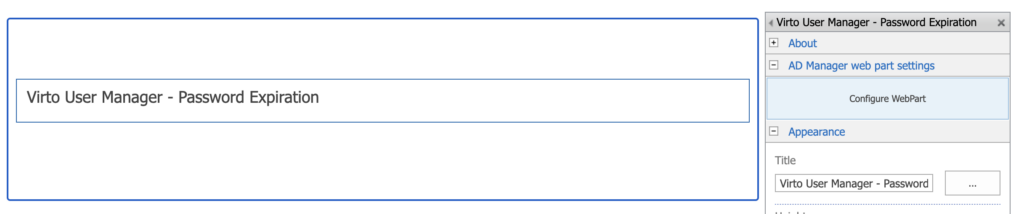
In the right-hand pane that appears, find AD Manager Web Part Settings and click Configure WebPart.
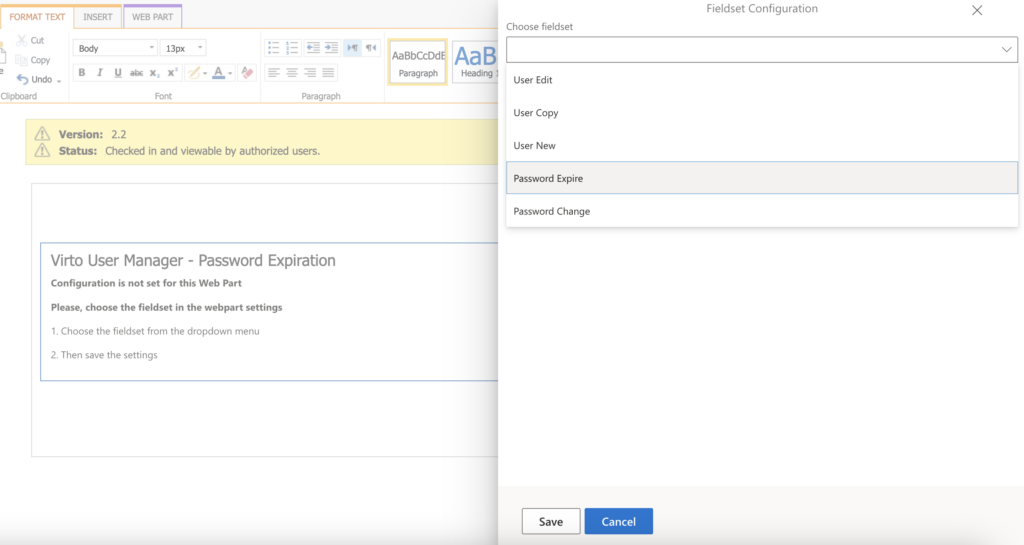
Choose the fieldset for the web part. (For details on how to configure a fieldset, see the Settings section of this documentation.) Then click Save.
In the upper-right corner of the page, click Save again.
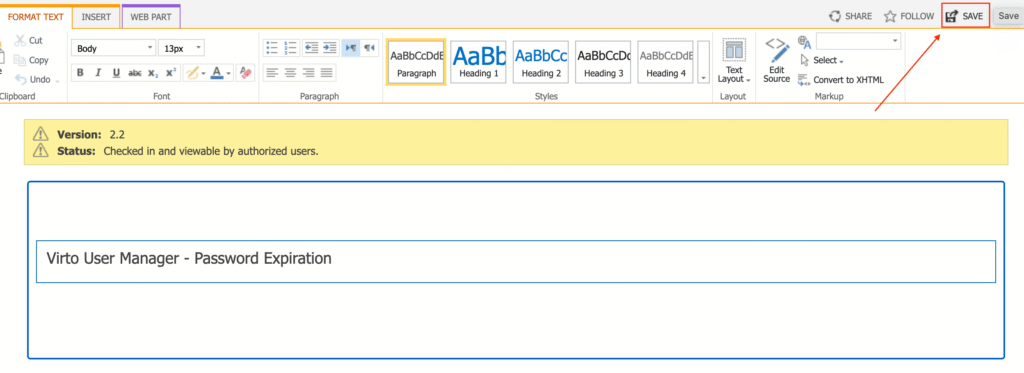
Now, the web part is ready to use.