Settings
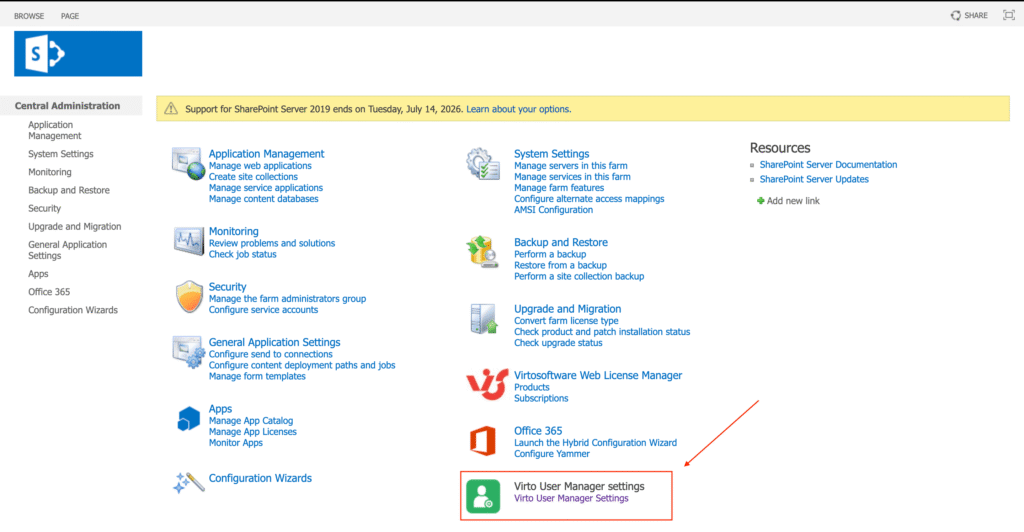
In Central Administration, go to Virto User Manager settings.
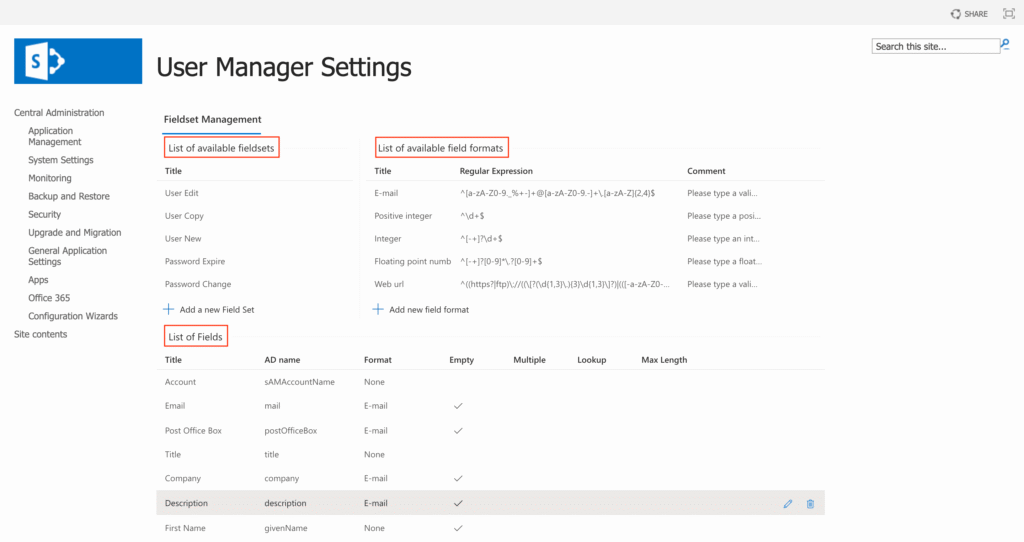
There you will find all fieldset configuration options:
- List of available fieldsets – Shows all configured fieldsets used in the User Manager (for example, User New, User Edit, Password Change) that define which fields appear in each operation.
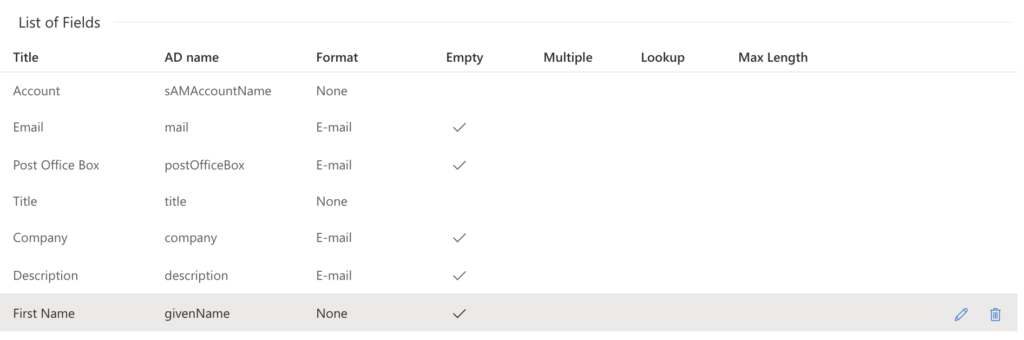
- List of fields – Displays all fields synchronized from the domain controller together with their mapped AD attribute names, formats, and options, using user‑friendly titles for easier configuration.
- List of available field formats – Contains predefined input formats and validation rules (regular expressions) that can be assigned to fields to control how values are entered and validated.
List of available fieldsets settings
Title
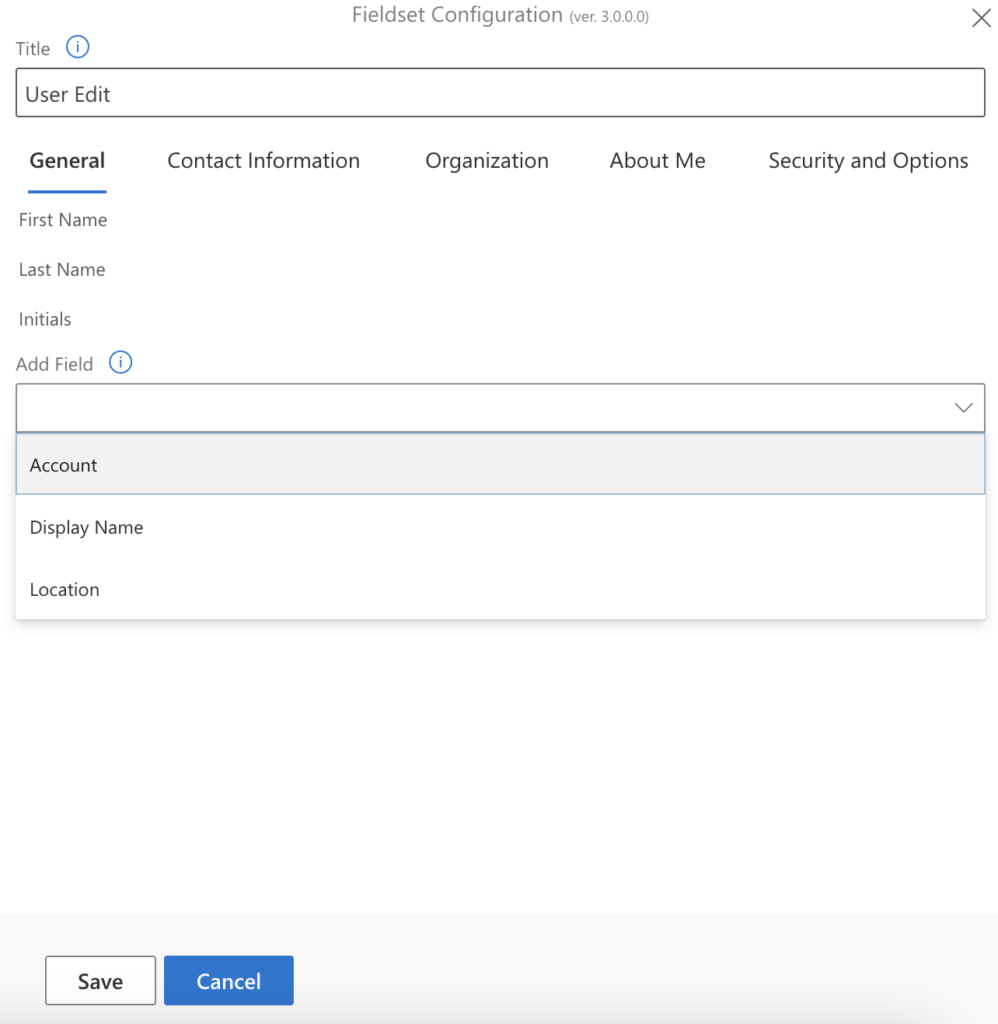
Displays the name of the fieldset (e.g., User Edit). This identifies the configuration applied to profile editing forms.
General tab: Contains primary identification attributes used in Active Directory user profiles.
- First Name – User’s given name.
- Last Name – User’s family name.
- Initials – Middle initials or abbreviation.
- Add Field – Dropdown to include additional attributes such as:
- Account
- Display Name
- Location
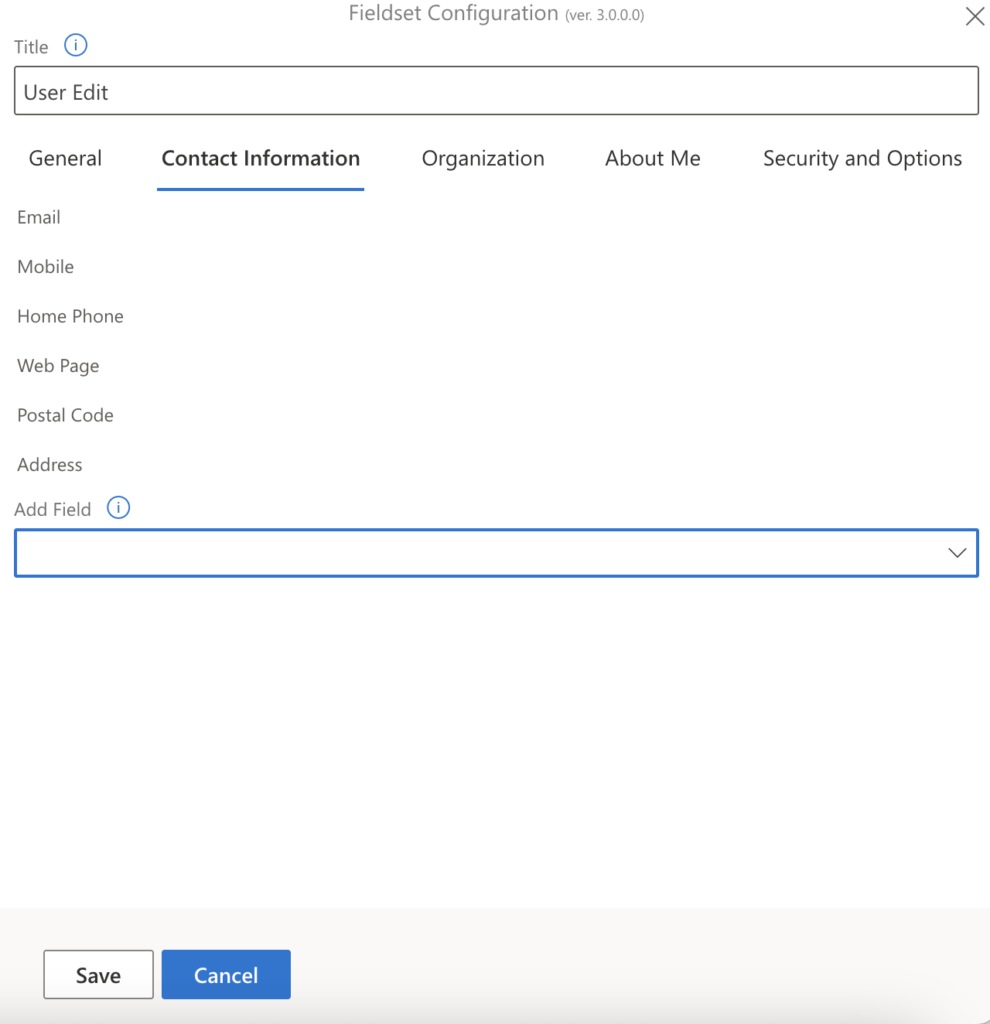
Contact Information: Holds personal and work contact details.
- Add Field – Option to include further contact-related AD attributes.
- Mobile
- Home Phone
- Web Page
- Postal Code
- Address
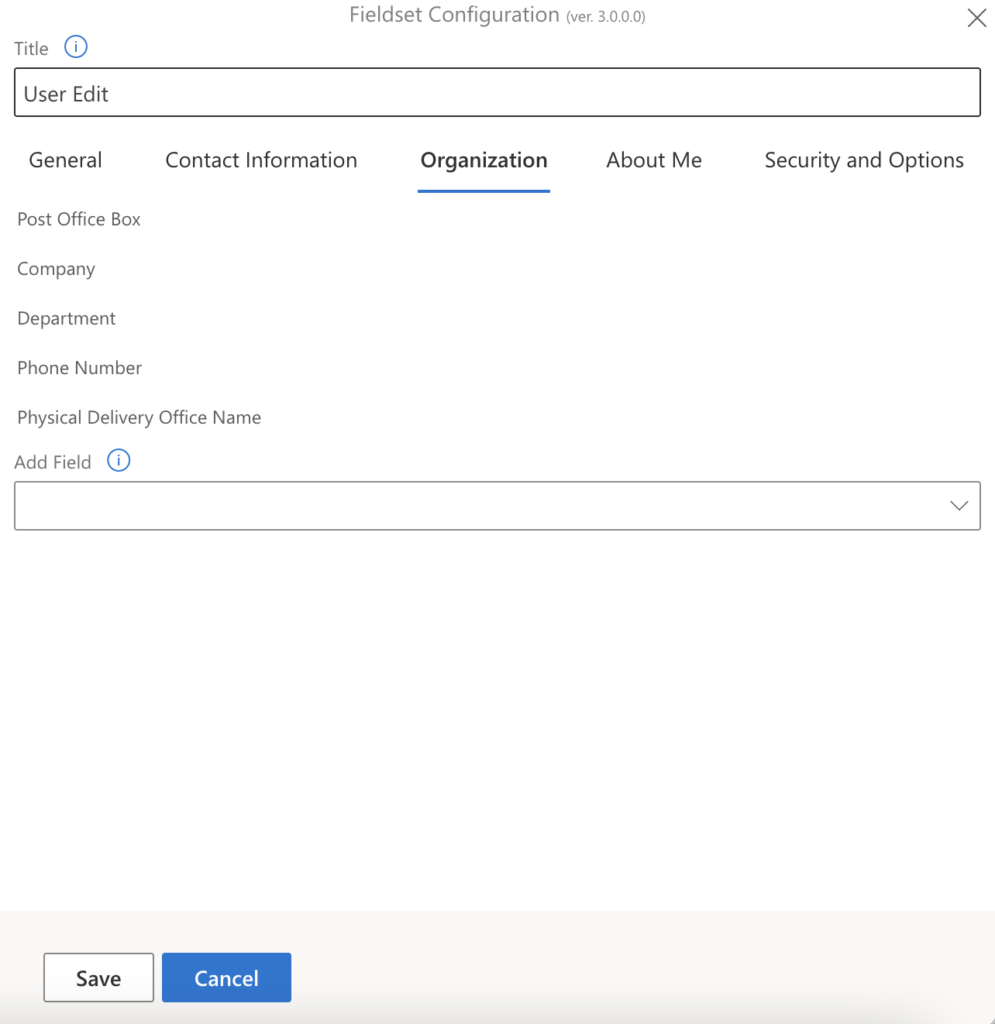
Organization: Displays details related to the user’s organizational structure.
- Post Office Box
- Company
- Department
- Phone Number
- Physical Delivery Office Name
- Add Field – Dropdown menu to add additional organization-related AD attributes.
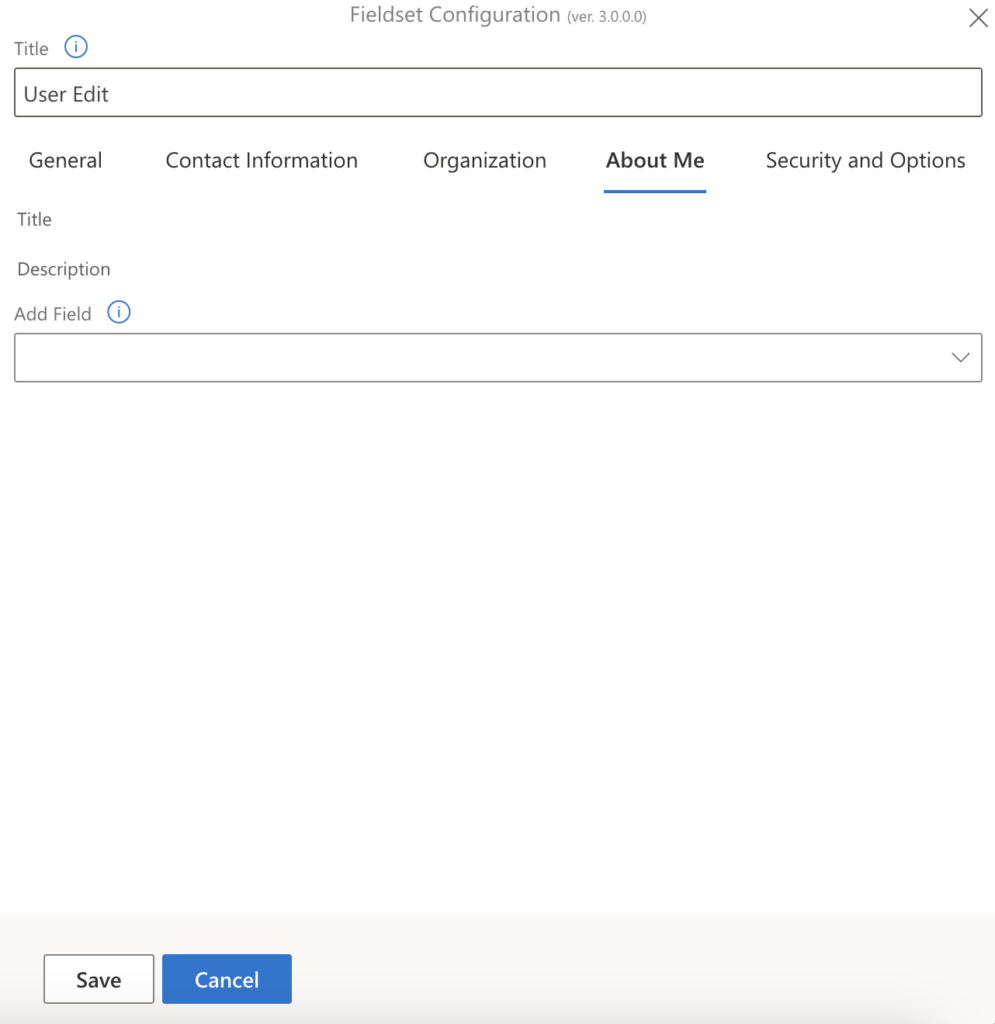
About Me: Provides user biography or other descriptive information stored in AD.
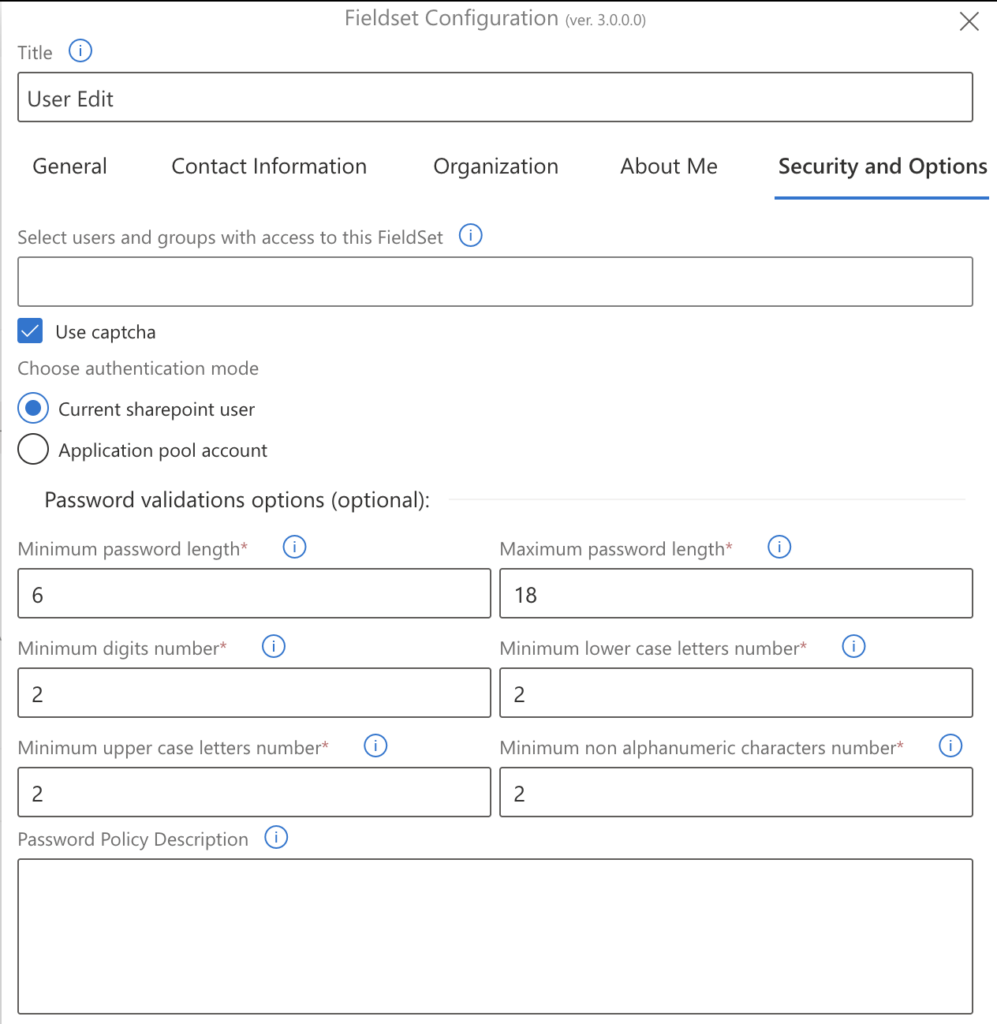
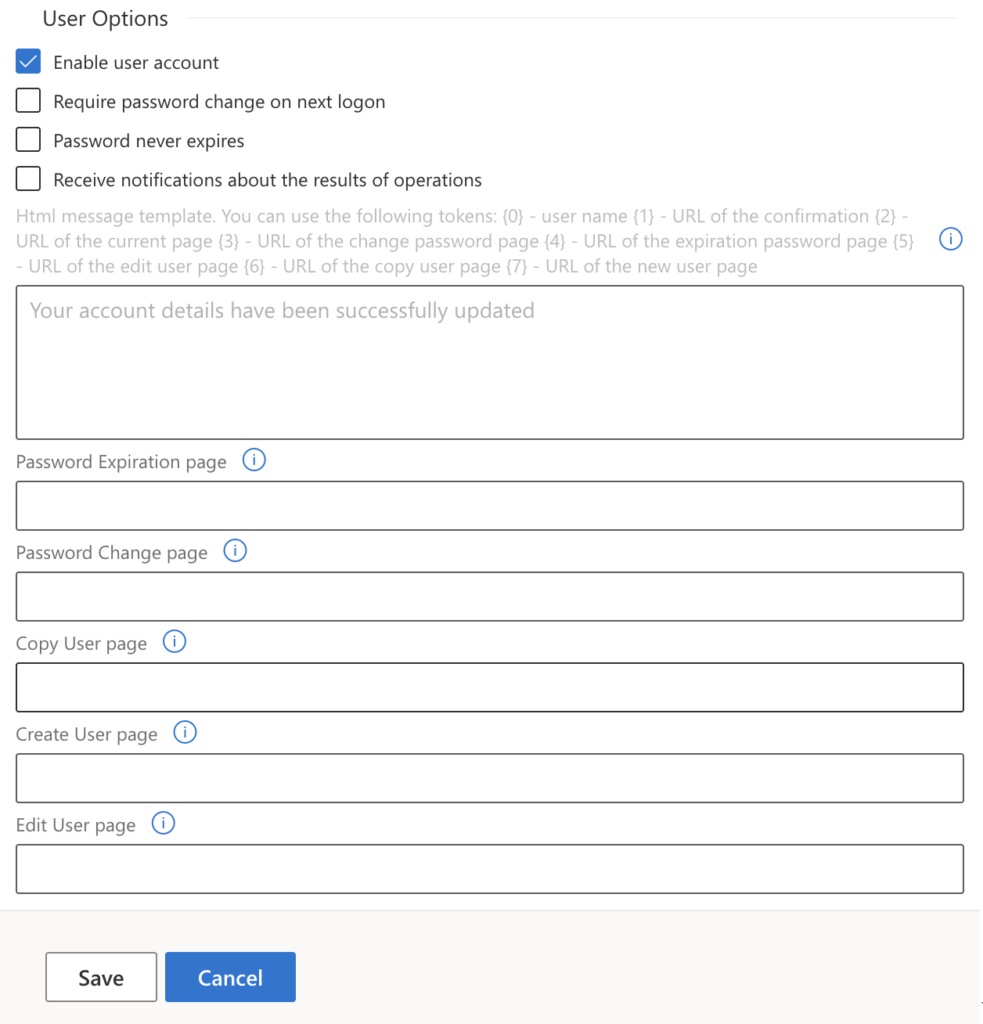
Security and Options: Used to configure password and account management settings, such as password reset permissions or account control.
List of available field formats settings
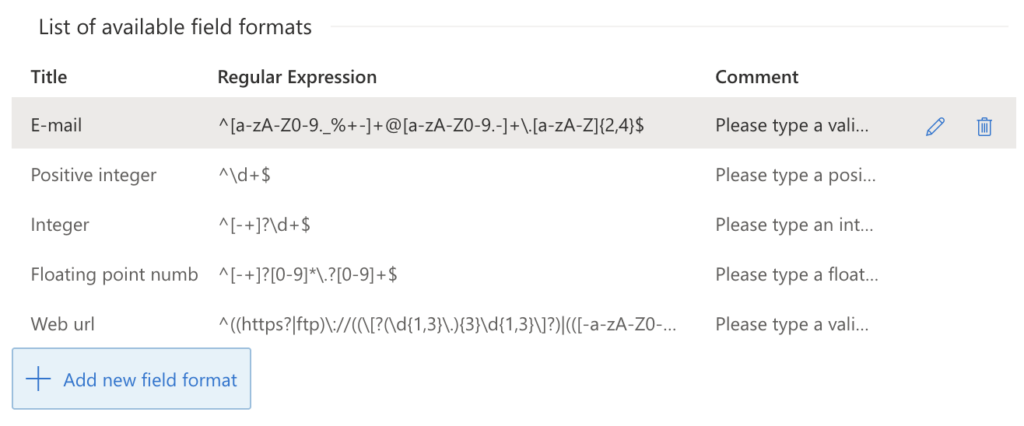
In List of available field formats, you define reusable validation templates for fields.
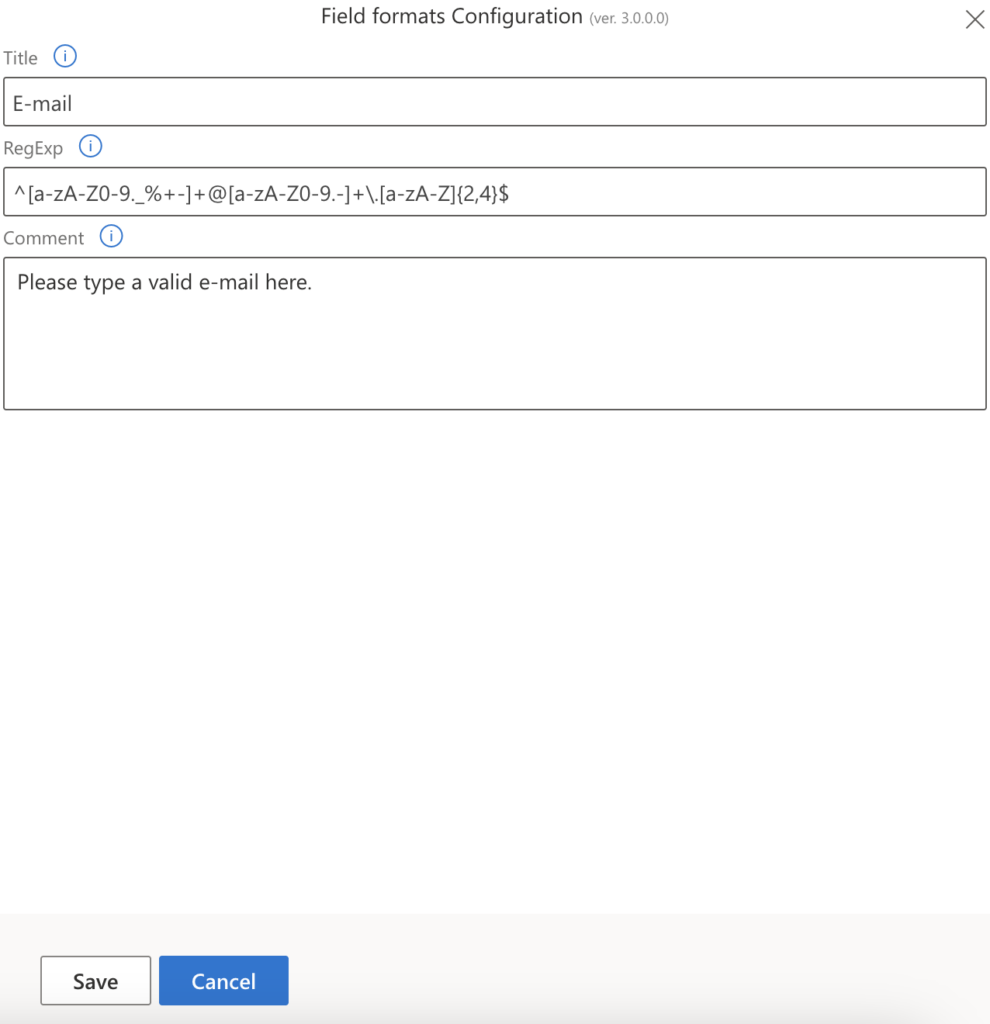
- Title – Display name of the format (for example, “E‑mail”) that will be shown when assigning a format to a field.
- RegExp – Regular expression that specifies which input values are considered valid for this format (for example, an email pattern).
- Comment – Help text or validation message shown to users when the input does not match the required format, guiding them to enter a correct value.
You can also create your own field format by clicking “+Add new field format” button.
List of Fields settings
To modify any field, click the pencil icon. Click the bin icon to delete the field.
These settings define how a single user profile field behaves in your app.
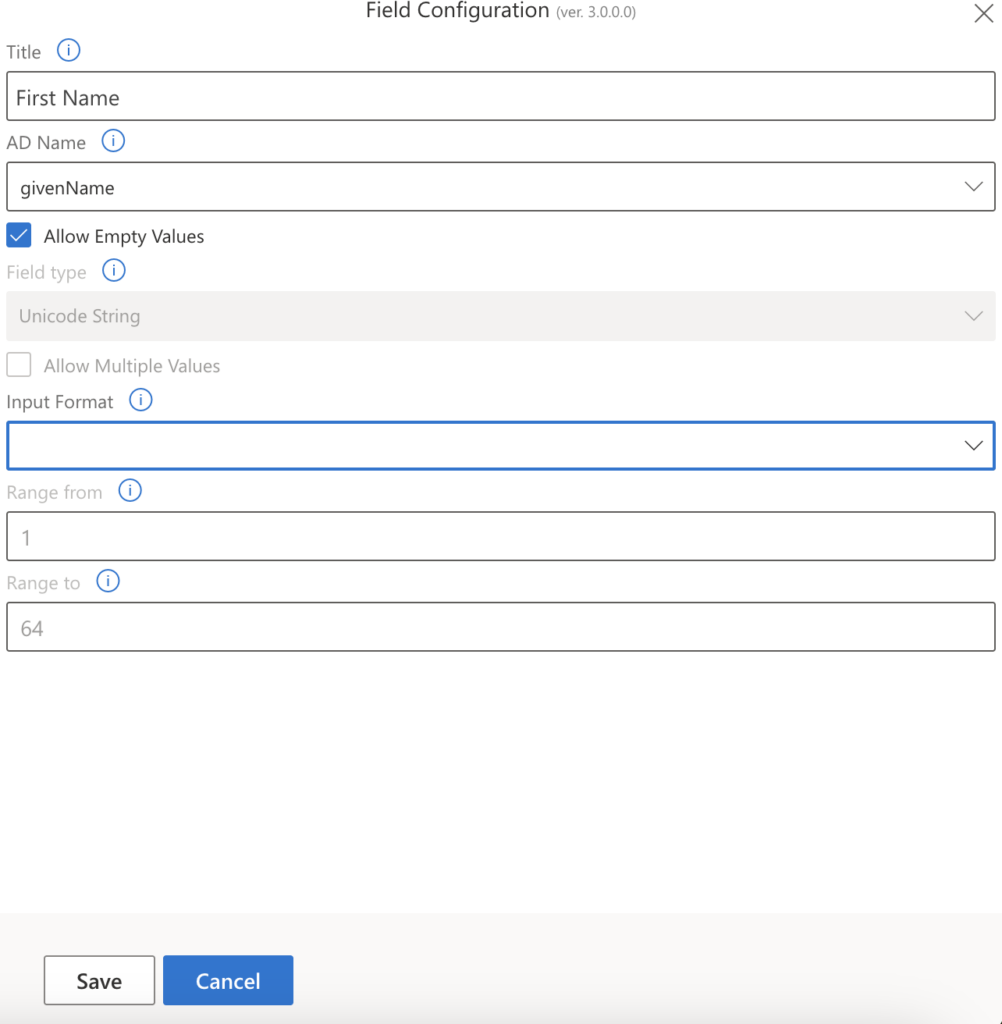
General field properties
- Title – Display name of the field in the form (here: First Name).
- AD Name – Mapped Active Directory attribute that this field writes to/reads from (here: givenName).
- Allow Empty Values – When checked, the field is optional; when unchecked, a value is required.
Data type and input rules
- Field type – Data type used for the value (here: Unicode String, suitable for text).
- Allow Multiple Values – If enabled, lets the field store more than one value; when disabled, only a single value is allowed.
- Input Format – Optional constraint on how the value must be entered (for example, pattern, predefined formats, etc.).
- Range from / Range to – Minimum and maximum allowed length or value for the field (here: from 1 to 64, which typically defines allowed character length for the string).
If you scroll down, you can see “+Add field” button. By clicking it, you can create your own field(s).
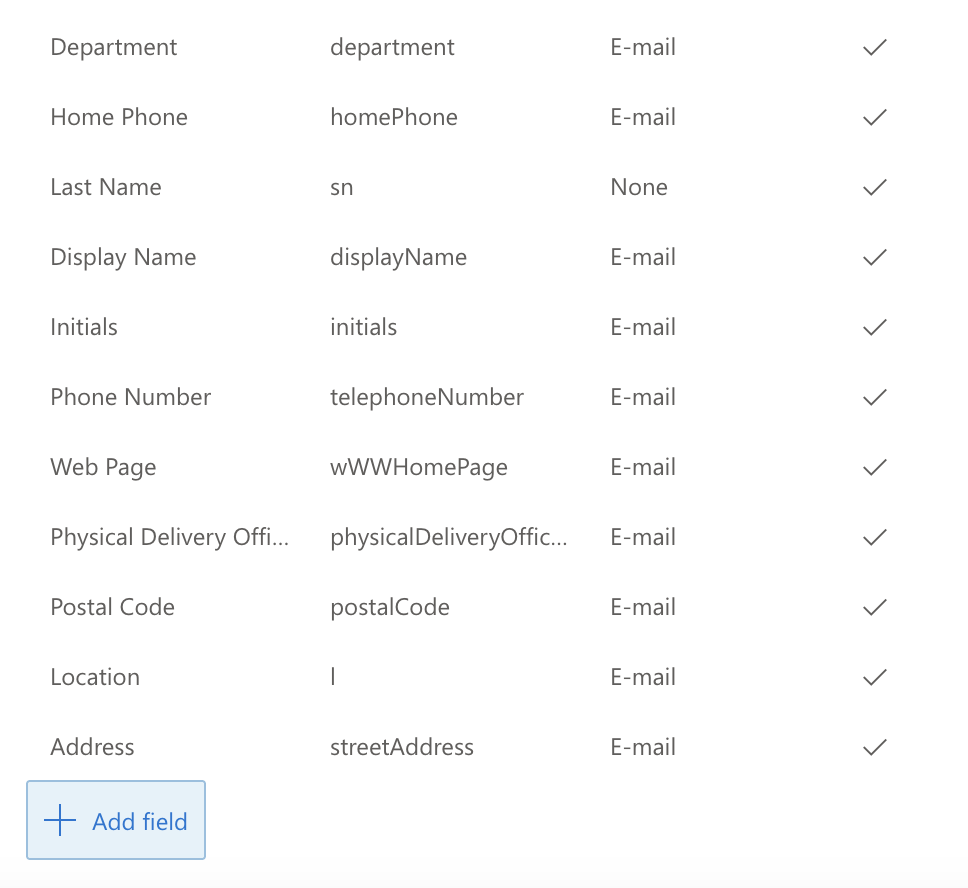
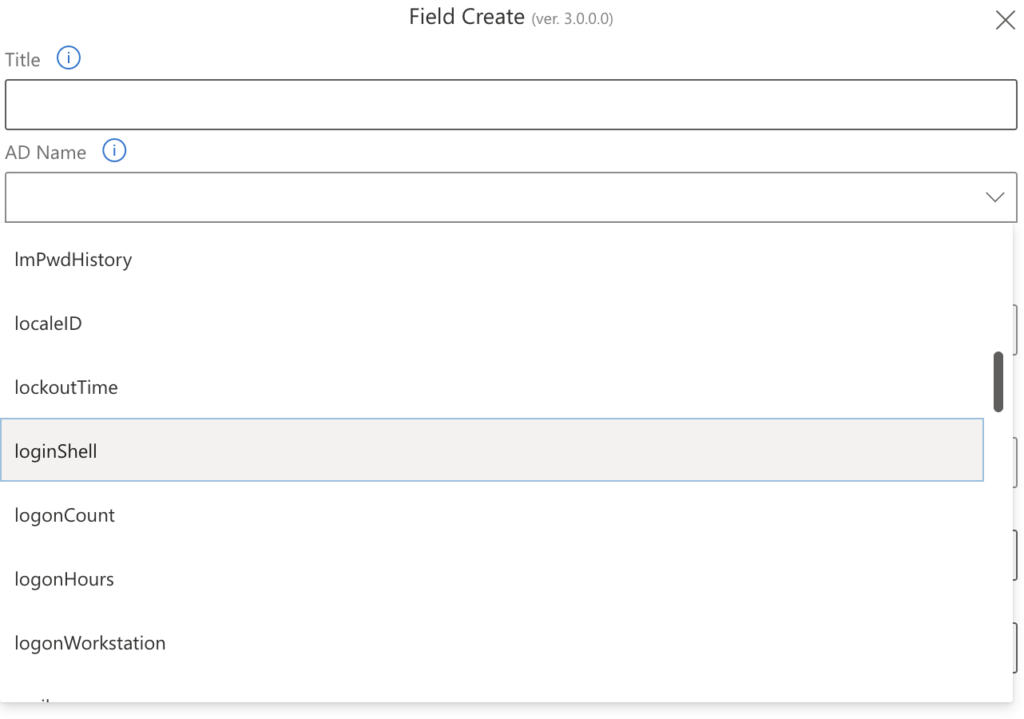
You can choose from an extensive list of AD names in the dropdown.